



Do you have some photos on your phone that you don’t want anyone else to see? Maybe they are private, sensitive, or embarrassing. Whatever the reason, you don’t want snoops to scroll through them when you hand over your phone or leave it unattended.
Fortunately, Google Photos has a powerful feature that can help you hide your photos away in a Locked Folder. Here’s how to use it.
GET SECURITY ALERTS, EXPERT TIPS – SIGN UP FOR KURT’S NEWSLETTER – THE CYBERGUY REPORT HERE
How to set up a Locked Folder
A Locked Folder is a special album in Google Photos that can only be accessed with your phone’s authentication method, such as a PIN, password, fingerprint, or face recognition. To set up a Locked Folder, follow these steps:
Settings may vary depending on your Android phone’s manufacturer
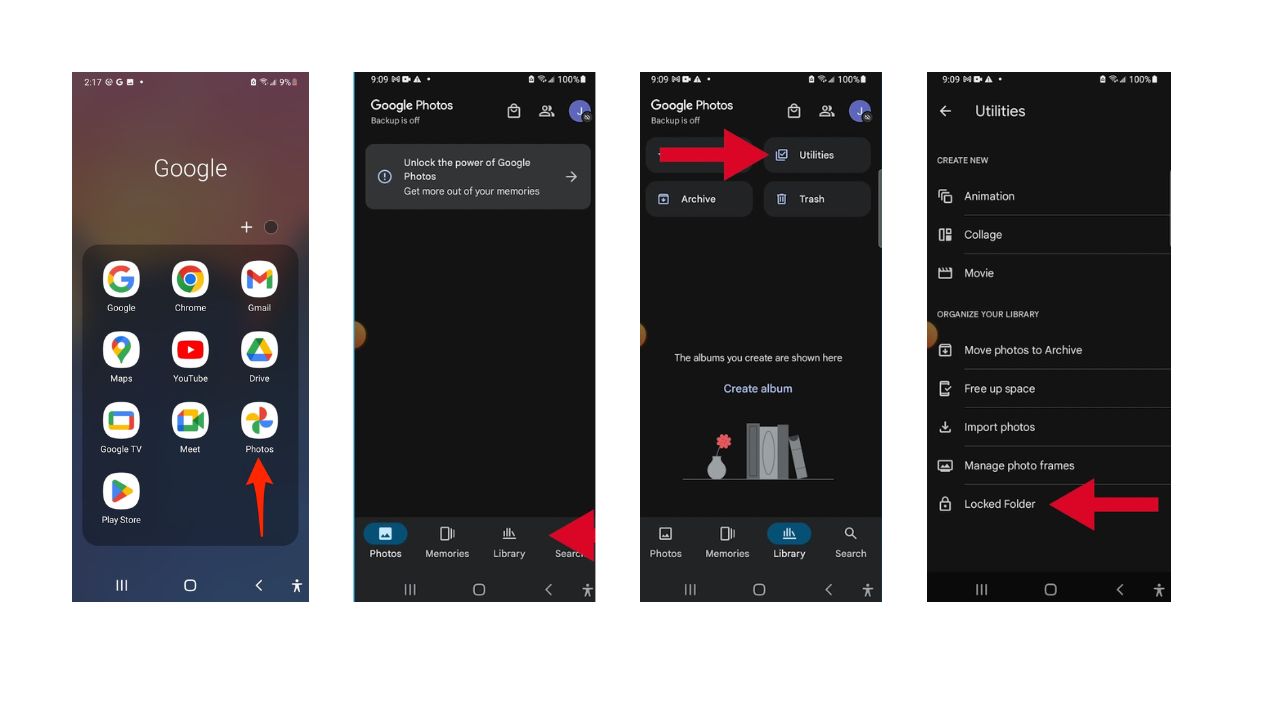
- On Android, open Google Photos
- Select the Library tab at the bottom right
- Then, click Utilities on the top right
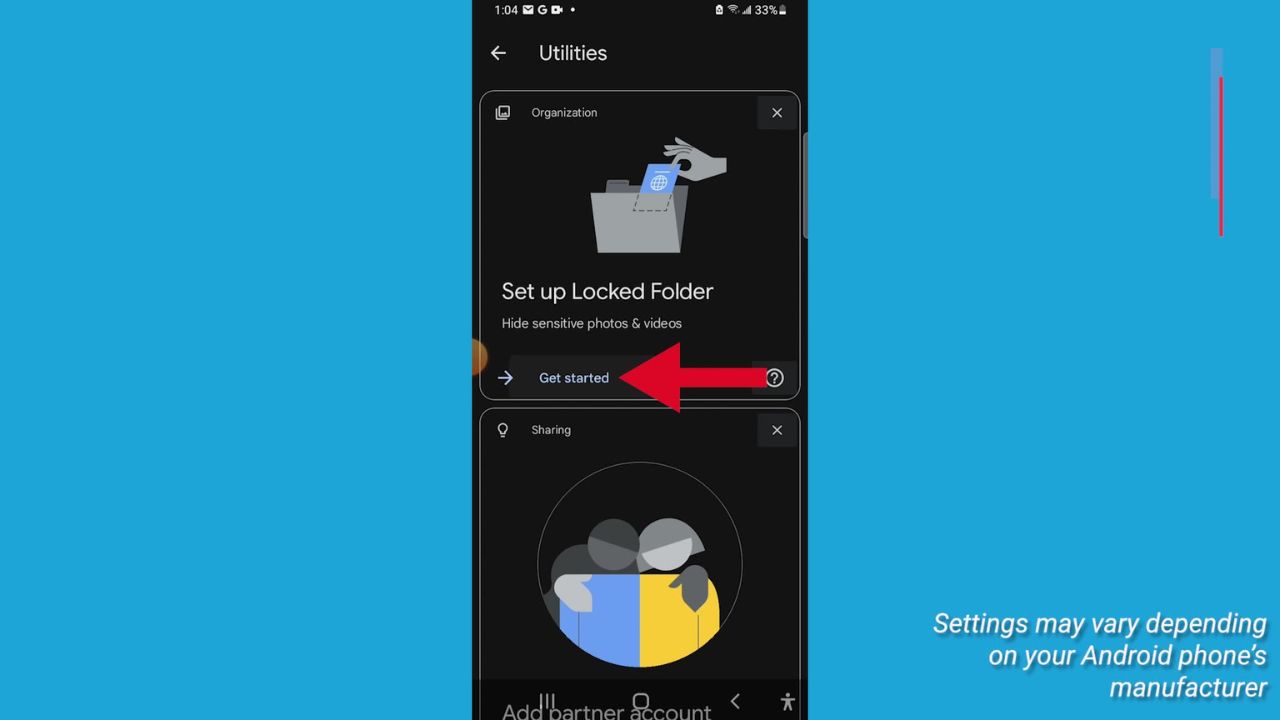
- Find the Set up Locked Folder suggestion on the following menu
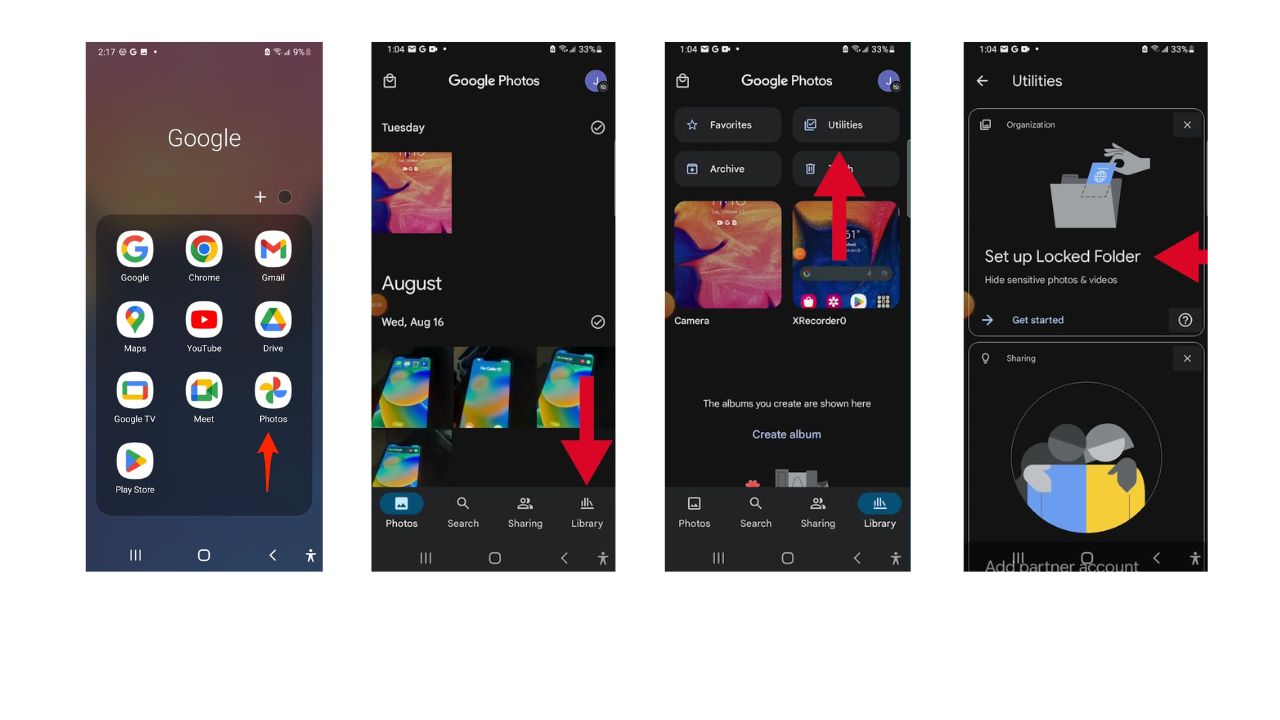
- From there, tap Get started, and use your phone’s authentication method to access the locked folder
MORE: HOW TO TAKE HANDS FREE PHOTOS ON YOUR PHONE
How to add photos to the locked folder
Now that you have set up a locked folder, you can start adding photos to it. There are two ways to do this:
Settings may vary a bit depending on your Android phone’s manufacturer
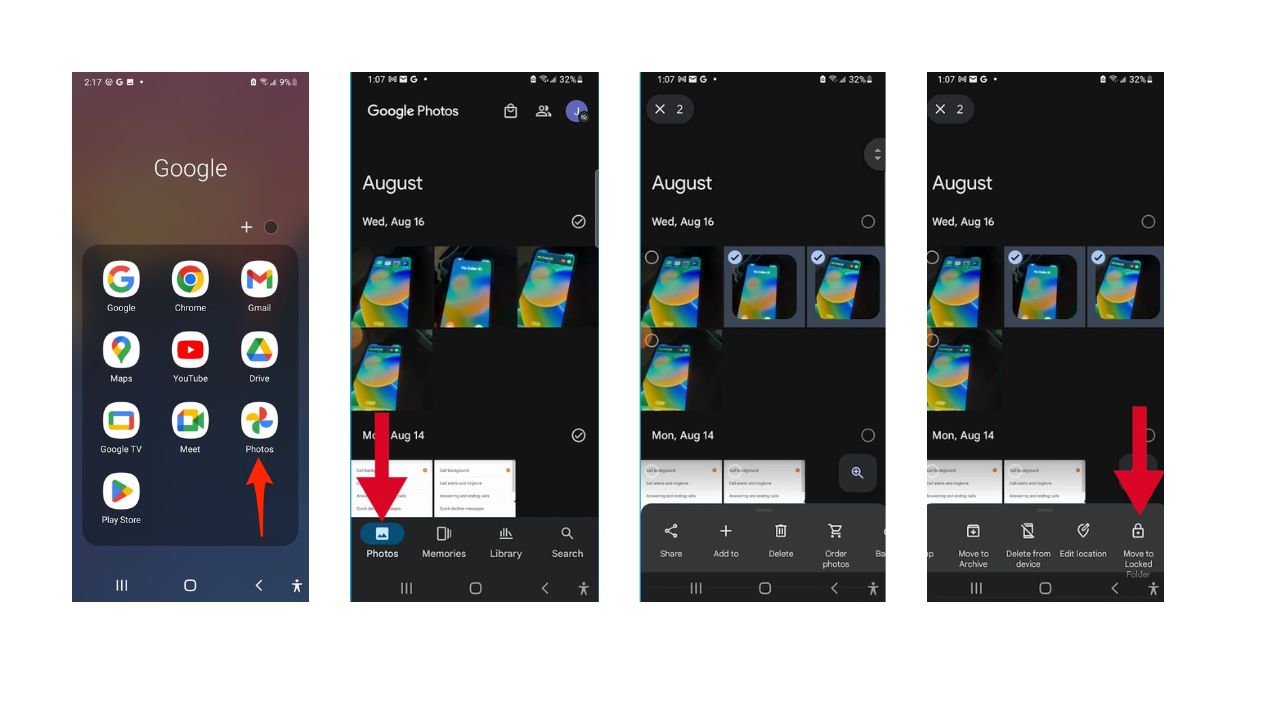
- Open Google Photos
- Click on the Photos tab
- Long tap an image and select any media files you want to hide
- Tap the locked icon with the words Move to Locked Folder underneath
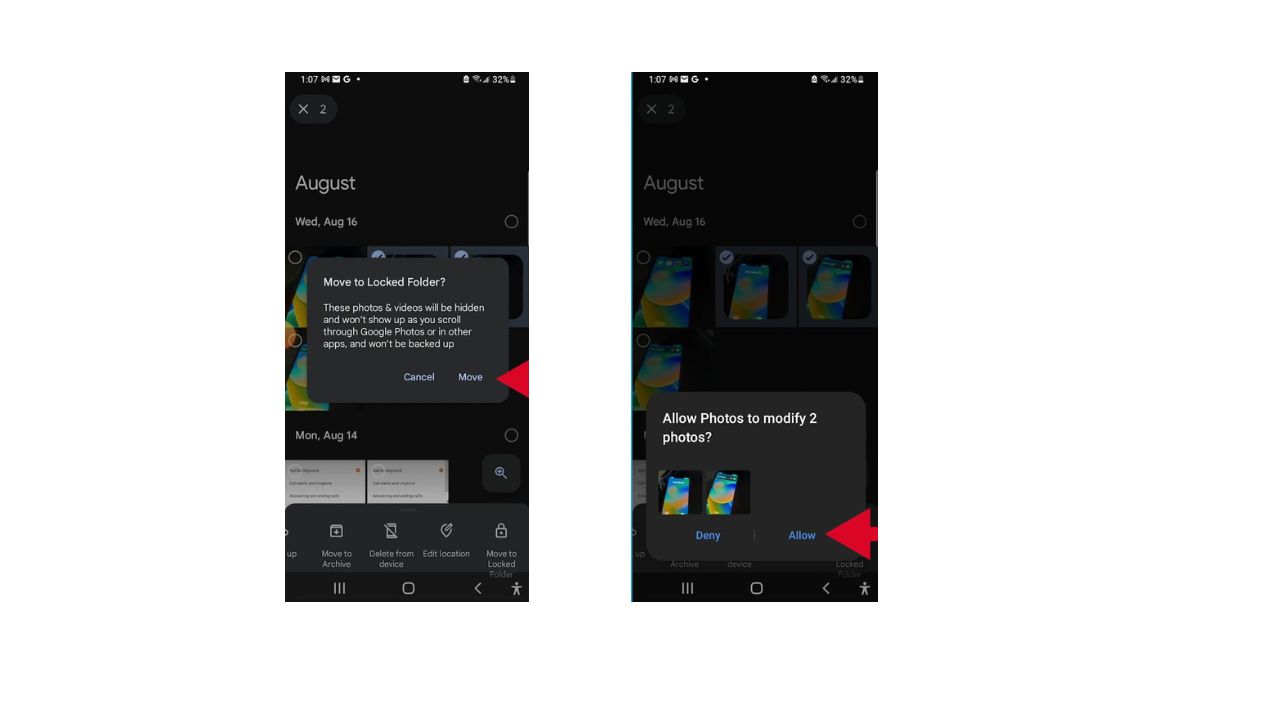
- Click Move to confirm your decision
- Then tap Allow when asked to allow Photos to modify this photo
- Alternatively, if you’re only moving one photo, tap the photo, swipe up, and select Move to locked folder
- Then tap Move to confirm and Allow when asked Allow Photos to modify this photo
MORE: HOW TO TAKE PHOTOS IN LOW LIGHT USING YOUR PHONE
How to view your locked photos
To view your locked photos, you need to go back to the locked folder and unlock it with your phone’s authentication method. Here’s how:
Settings may vary depending on your Android phone’s manufacturer
- Open Google Photos
- Go to the Library tab at the bottom and tap it
- Then click Utilities
- Then tap Locked Folder and enter your PIN or fingerprint
Watch the latest episode of The CyberGuy Report.

Missed this event? Sign up via the registration form and see our live recording.
See Kurt’s latest Amazon picks for useful gadgets, smart home upgrades and everyday tech worth grabbing while the deals last.
You will see your hidden photos in the Locked Folder. You can also delete them from there if you want.
Kurt’s key takeaways
Google Photos is a great app for organizing and backing up your photos. It also has a built-in Locked Folder feature that can help you hide your personal photos from snoops. By following these simple steps, you can create a Locked Folder, add photos to it, and view them whenever you want. Now you can safely open your photos without worrying about nosy people peeking over your shoulder.
Have you ever had an experience where the Locked Folder feature in Google Photos (or a similar app) would have been useful? Let us know in the comments below.
TO GET MORE OF MY SECURITY ALERTS, SUBSCRIBE TO MY FREE CYBERGUY REPORT NEWSLETTER
🎙 Now Streaming: My New Podcast: The CyberGuy Report
Kurt’s Top Deals
Deals move fast and inventory can be limited, so don’t wait too long.
| 🔥 Editor’s pick  Summer entertaining Ninja SLUSHi Machine (26% off) Frozen drinks and slushies at home in minutes. | |
| 💰 Top deal  Outdoor essential TYPEC Solar Bug Zapper (36% off) Solar-powered bug zappers for patios and camping. |


3 comments
Thank you for your cool little useful helpful tricks that come in handy and sometimes were things that I might’ve had to or would’ve went to, to go research and find by using some back door to find on the internet
On my iPhone you are able to set up a different passcode from the one used to unlock the phone. Is this possible on an Android?
Thank you..
Hi Barb, on Android devices, you can set up different types of screen locks, such as PIN, pattern, password, or biometric options like fingerprint or facial recognition. However, Android doesn’t natively support having separate passcodes for different functions like iOS does.
Here’s how you can set up or change your screen lock on an Android device:
1) Open Settings: Go to your device’s Settings app.
2) Security: Tap on Security or Security & Privacy.
3) Screen Lock: Tap on Screen Lock and choose the type of lock you want to use (PIN, pattern, or password).
4) Follow Instructions: Follow the on-screen instructions to set up your new screen lock.
For more detailed steps, you can check out this guide.