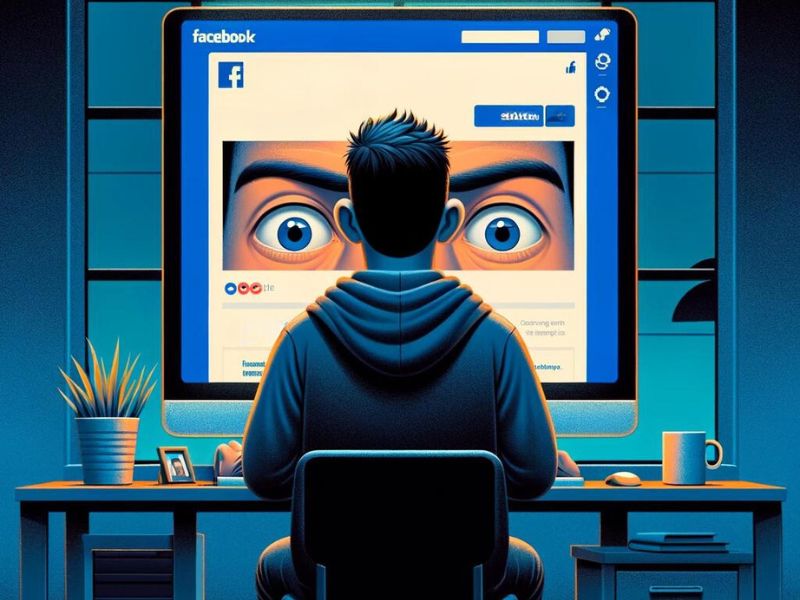
- Facebook does not track your Google searches directly, but it gathers data through cookies, pixels, and partner sites.
- Meta can use your activity on its platforms, including AI interactions, to personalize ads.
- The platform does not automatically read your private messages or access your camera roll without permission.
- You can limit ad targeting using Off-Facebook Activity controls, ad preferences, blockers, and privacy tools.
Do you ever feel like your Facebook is listening to you, or watching your every move? That whenever you search for something on another website or have a conversation with a friend, the next minute you’re seeing ads on Facebook for that same thing?
This is no coincidence. Although Facebook has denied that our phones listen to us, they do have other ways of finding out what we are talking about, listening to, and searching for. In some cases, it seems like they know what we’re thinking, too.
If you’re feeling a bit creeped out by all this, we don’t blame you. The good news is that while Facebook does have many capabilities, it isn’t omnipresent, and there are ways to escape Facebook’s creepy ad tracking so you can scroll in peace.
Does Facebook know what I’m searching on Google?
If you’re wondering whether or not Facebook can track what you search for on Google, the answer is no. (Though it sure does feel like it, right?)
Though Facebook isn’t able to track what you’re searching for in Google, It does use tracking cookies that are stored on your computer or mobile device to “get to know you” better. These cookies log information about your online activity, which they can get while the Facebook app is on your phone and you’re running other apps in the background.
However, Facebook’s tracking isn’t limited to just the app on your smartphone; it extends beyond that, covering various digital footprints you leave online, regardless of the device used. They can also collect data from third parties to understand your behavior based on which sites or apps you visit or what you like on Facebook.
The data Facebook gathers may include:
- The content you create, including posts, comments, or audio messages
- What types of content, apps, and features that you view or interact with
- Information about friends, followers, groups, accounts, Facebook pages, and other pages you interact with
- What you share through features that you explicitly authorize – Facebook does not automatically access your camera roll or photos without your permission
- Your Facebook search history
- Facebook does not directly receive your Google search history from Google or most other search engines.
Even without access to what you search on Google, they still know a lot about you, and they can share that information with companies that want to target you via ads.
What is Facebook’s ad tracking?
Based on all this information that Facebook can collect, companies can use ad tracking to target you with ads highly relevant to your browsing activity, interests, conversations on Facebook Messenger, and potentially even interactions on WhatsApp (which is also owned by Meta, Facebook’s parent company).
Facebook ad tracking enables advertisers to monitor how users interact with their ads on the platform, providing insights into clicks, impressions, and conversions. Without this information, companies are not able to target people with their ads as well as they do.
As we mentioned, Facebook has several ways of sharing your data with others, but these days, it’s very easy to do via Facebook Pixel. Facebook Pixel is a small line of code placed on a website that collects valuable data about user behavior. This helps advertisers understand the effectiveness of their ads, optimize future campaigns, and retarget visitors based on their site behavior.
An example of how Facebook ad tracking works behind the scenes
Let’s illustrate how this works, using the example of what a reader had asked us about searching for a dentist and then seeing relevant ads on their Facebook:
If someone is searching for a dentist and then sees an ad for a dentist on their Facebook, it might seem like Facebook is directly tracking their searches in a web browser. While Facebook itself doesn’t monitor browser searches outside its platform, here’s how it can happen:
How one convincing SSA scam nearly tricked a reader, and the five red flags to check before you click.

Join Kurt Saturday, June 13 at 10 AM ET for quick phone privacy and security fixes.
See Kurt’s 2026 picks for practical tech and everyday upgrades.
Facebook Pixel: If you visit a dentist’s website that has the Facebook Pixel installed, this action can be tracked and relayed back to Facebook, which then might show you ads related to dentistry.
Partner Data: Facebook partners with data brokers and other online platforms to exchange information about users’ online behaviors. Even if Facebook isn’t directly tracking your searches, these partnerships might help Facebook obtain information about your interests, including looking for a dentist.
Activity on Facebook: Your behavior on Facebook itself, such as liking pages related to a dentist’s office or sending a message to a friend to ask about dentists, can signal to Facebook’s algorithms that you might be interested in seeing dental ads.
Device and Location Data: If you’ve allowed Facebook access to your location, it might use this information to show ads from local businesses, including dentists in your area, based on the assumption that local services are relevant to you.
Even though Facebook itself likely doesn’t receive your search history directly from most search engines, there are ways your browsing activity could still influence the ads you see on Facebook based on privacy policies and agreements.
Meta has introduced the use of AI interaction data (e.g., what you say to Meta’s AI features) as an input for ad personalization across its platforms. That means things you voluntarily share in AI chats may influence the ads and recommendations you see.
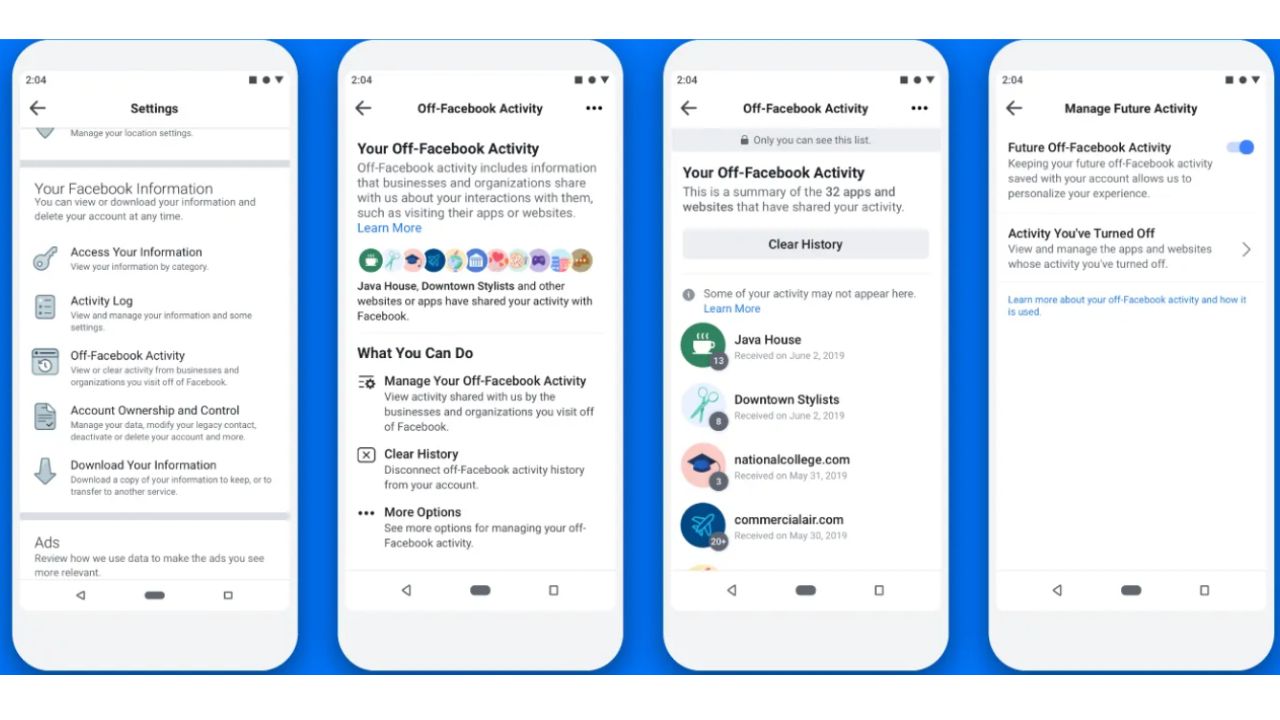
Ways to limit the number of targeted ads you see on Facebook
If you’re tired of Facebook targeting you with ads, there are ways to put a stop to it.
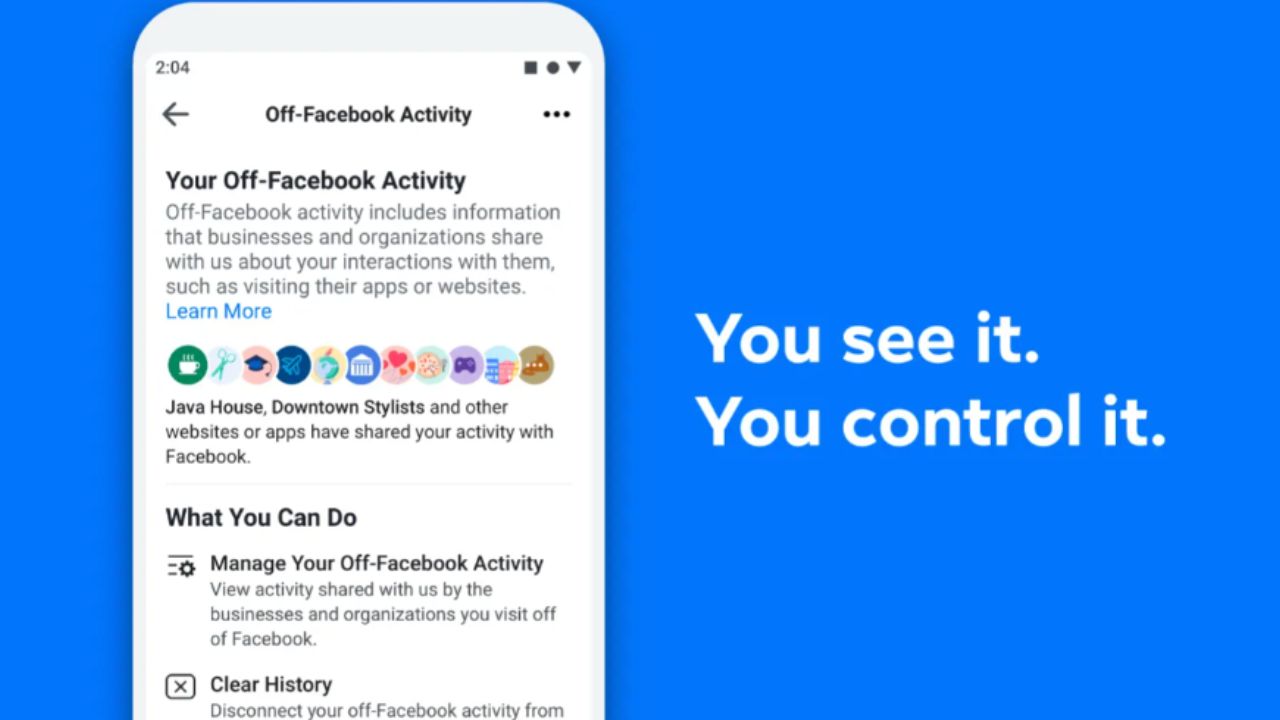
1) How to find Off-Facebook Activity now
- Open the Facebook app
- Tap your profile picture (bottom right on iPhone)
- Tap the three horizontal lines in the upper right
- Tap Settings and privacy
- Tap Settings
- Tap Accounts Center (it may just say “Accounts Center,” not “Meta Accounts Center”)
- Tap Your information and permissions
- Tap Your activity off Meta technologies
From here, you have several options to control or disconnect the information businesses send to Meta:
- Disconnect specific activity: Choose specific activities to disconnect from your profile.
- Clear previous activity: Remove any existing tracked data.
- Manage future activity: Control how future activity is tracked and associated with your account.
To disable this feature on your computer:
- Go to https://www.facebook.com in your web browser and log in to your Facebook account.
- Click your profile picture in the top right corner
- Tap the three horizontal lines in the upper right
- Click Settings & Privacy > Settings
- Then click “Your information and permissions.”
From here, you have several options to control or disconnect the information businesses send to Meta:
- Disconnect specific activity: Choose specific activities to disconnect from your profile.
- Clear previous activity: Remove any existing tracked data.
- Manage future activity: Control how future activity is tracked and associated with your account.
By using this tool, you can take more control over your online privacy and limit the impact of targeted ads based on your browsing history.
2. Ad preferences
- Log in to the Facebook app on your smartphone
- Tap the Menu button located in the bottom right corner
- Scroll down and select “Meta Accounts Center”
- Tap “Ad Preferences.”
- Tap “Manage info”
- Scroll down and click Ad Preferences
- Here, you can view “Customize ads” and “Manage info”
- If you want to hide ads from certain advertisers, click Customize ads > See all next to where it says “Advertisers you saw ads from”
- Below All Advertisers You’ve Seen Most Recently, you’ll see a list of advertisers. Click on the advertiser
- Then tap Hide Ads for any advertisers you’d like to not see ads from
On Computer:
- Go to https://www.facebook.com in your web browser and log in to your Facebook account.
- Click your profile picture in the top right corner
- Click Settings & Privacy > Settings
- Select Meta Accounts Center from the lefthand menu, and click “See more in Accounts Center”.
- Then click Ad Preferences
- Here, you can view “Ad Activity” and the “Advertisers you saw ads from”
- If you want to hide ads from certain advertisers, click See all next to where it says “Advertisers you saw ads from”
- Below All Advertisers You’ve Seen Most Recently, you’ll see a list of advertisers. Click on the advertiser
- Then tap Hide Ads for any advertisers you’d like to not see ads from
Please note that changing your ad preferences influences which ads you see, but it won’t change the total number of ads you see. Also, keep in mind that there is no way to hide all ads.
3. Use an ad blocker
Ad blockers are essential tools that prevent intrusive advertisements while you browse the internet. When you visit a website, the ad blocker scans for any content that’s on its blacklist and promptly identifies it as advertising material. Blocking ads on Facebook is particularly beneficial for safeguarding against malware. Numerous ads contain viruses that could potentially infect your device.
Our top pick for an ad blocker comes free with your subscription to ExpressVPN. If interested, feel free to use our discount link: ExpressVPN – 78% off 24-month plan (plus get 4 extra months free) (read more here)
4. Use a VPN to protect your browsing privacy
Even if Facebook doesn’t know what you’re searching for on Google, they are getting enough information elsewhere to be able to target you with specific ads. That being said, it’s certainly not a bad idea to take extra steps to protect your browsing privacy where you can.
Consider using a VPN to protect against hackers snooping on your device as well. VPNs will protect you from those who want to track and identify your potential location and the websites that you visit
A reliable VPN is essential for protecting your online privacy and ensuring a secure, high-speed connection. Based on extensive testing, here are our top recommendations:
ExpressVPN is the go-to choice for those who prioritize ultra-fast speeds, reliability, and top-tier security. With servers in 105 countries, ExpressVPN delivers blazing-fast performance for streaming, gaming, and secure browsing. It supports P2P file sharing, offers best-in-class encryption, and maintains a strict no-logs policy—with all servers running on RAM for enhanced privacy. You can connect up to 10 devices simultaneously, and setup takes under 2 minutes. Plus, with 24/7 live customer support and a 30-day money-back guarantee, ExpressVPN is a premium choice for security-focused users who want speed without compromise.
CyberGuy Exclusive ExpressVPN Deals:
✅ Save 61% – Get 3 months FREE with 12-month plan for $4.99/month. Try 30 days risk-free.
✅ Save 78% – Get 4 months FREE with 24-month plan for $2.79/month. Try 30 days risk-free.
Related Articles:
- Cloned on Facebook? Here’s how to take back control
- How Facebook secretly collects your information even if you haven’t signed up
- Lost access? Here’s how to reclaim your Facebook account
Kurt’s key takeaways
If you’re a Facebook user but you’re getting tired of seeing targeted ads all the time, try implementing the suggestions in this article to see if that helps minimize the number of targeted ads you are seeing. But keep in mind, you can never have 100% privacy when online or using these platforms, which is a consideration that has led many people to close their accounts or limit their activity.
Have you tried limiting the number of targeted ads you get on Facebook? What were the results? Let us know in the comments below.
FOR MORE OF MY TIPS, SUBSCRIBE TO MY FREE CYBERGUY REPORT NEWSLETTER HERE
Copyright 2026 CyberGuy.com. All rights reserved. CyberGuy.com articles and content may contain affiliate links that earn a commission when purchases are made.
🎙 Now Streaming: My New Podcast: The CyberGuy Report
Kurt’s Top Deals
Deals move fast and inventory can be limited, so don’t wait too long.
| 🔥 Editor’s pick  Summer entertaining Ninja SLUSHi Machine (26% off) Frozen drinks and slushies at home in minutes. | |
| 💰 Top deal  Outdoor essential TYPEC Solar Bug Zapper (36% off) Solar-powered bug zappers for patios and camping. |