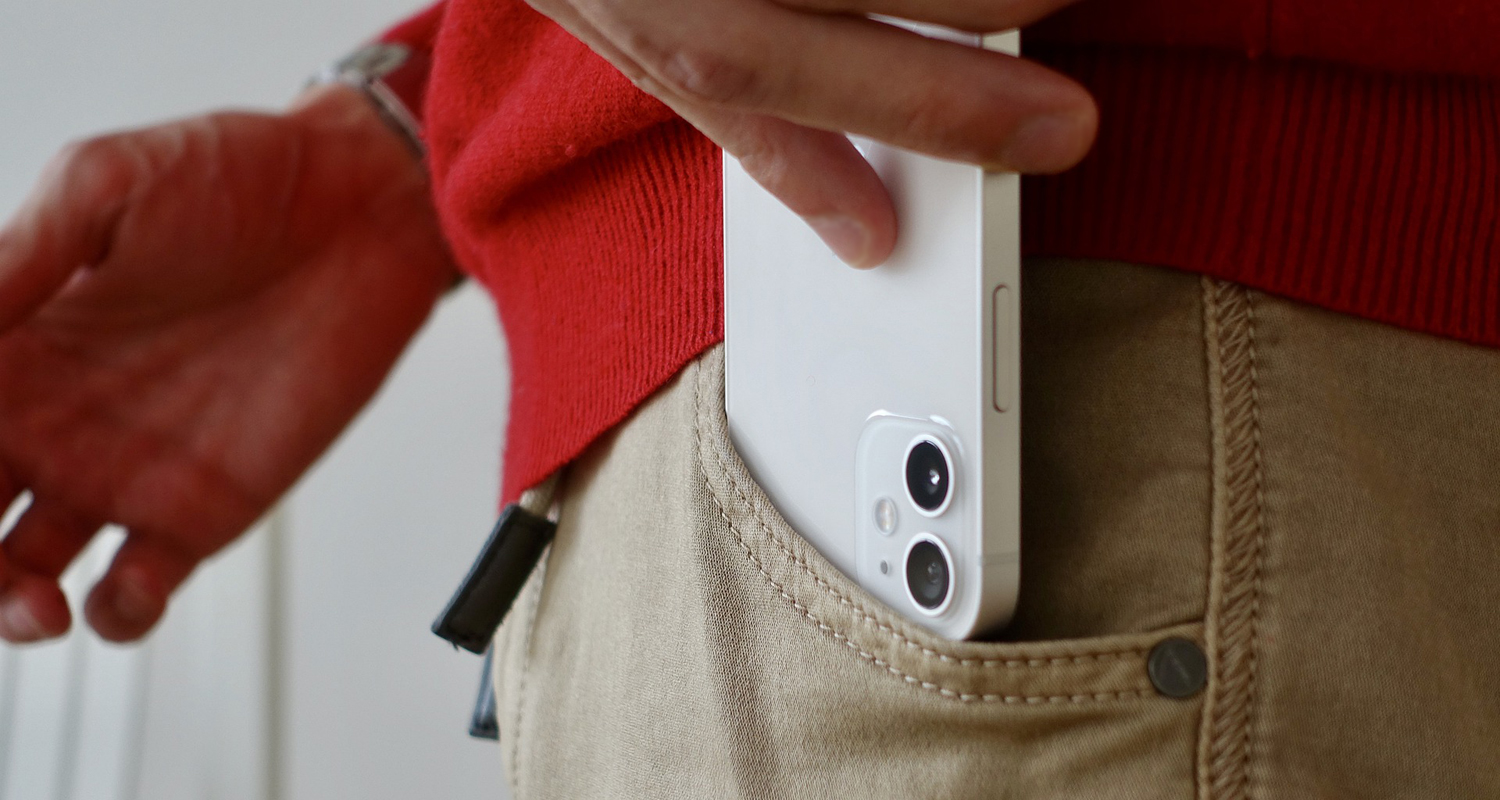
It happens multiple times to the best of us. We inadvertently mishandle our phone and either accidentally dial someone who either answers or reaches their voicemail to hear every detail of our conversation.
Now another troubling mistake is happening with a text message pocket dial that includes an accidental voice recording that is sent without you even knowing it. Don’t worry, follow this simple steps to keep all these unintended blunders from creating embarrassing moments.
How to stop pocket dialing
1) Make sure to lock your screen.
By auto-locking your screen, there is less likelihood of accidentally pressing a button.
iPhone:
-
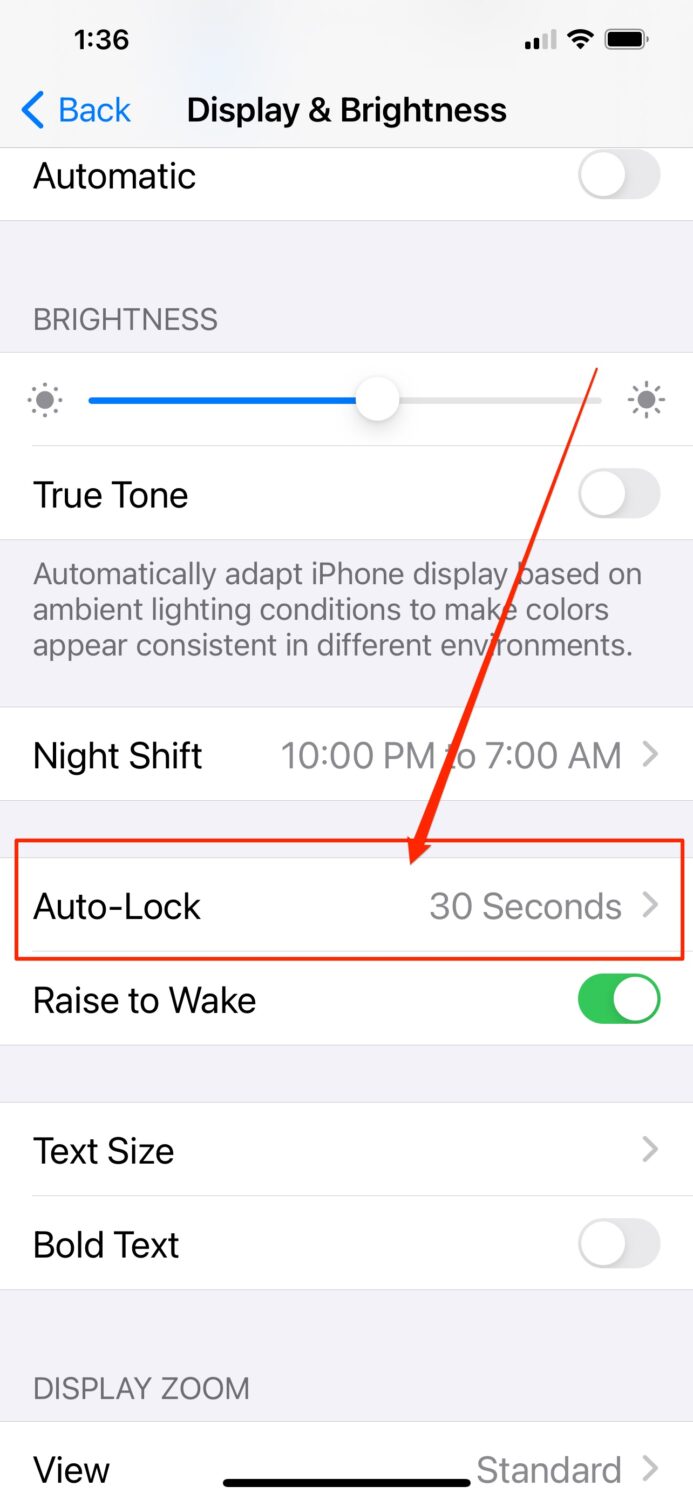
- Go to “Settings”
- Tap “Display & Brightness”
- In the “Auto-Lock” section, set to 30 seconds (this is the lowest time you can set this to)
Android
-
- Go to “Settings”
- Go to “Security”
- Click the gear icon next to “Screen Lock”
Samsung
-
- Go to “Settings”
- Go to “Security”
- Click the “Lock Screen”
- Click the “Secure Lock Settings”
Further, on a Samsung, you can block accidental touches while your phone is in a dark place like your pocket or your handbag. Here’s what you need to do:
-
- Go to “Settings”
- Tap “Display”
- Go to “Block accidental touches” and swipe toggle to the right
2) Disable “Tap to Wake” setting
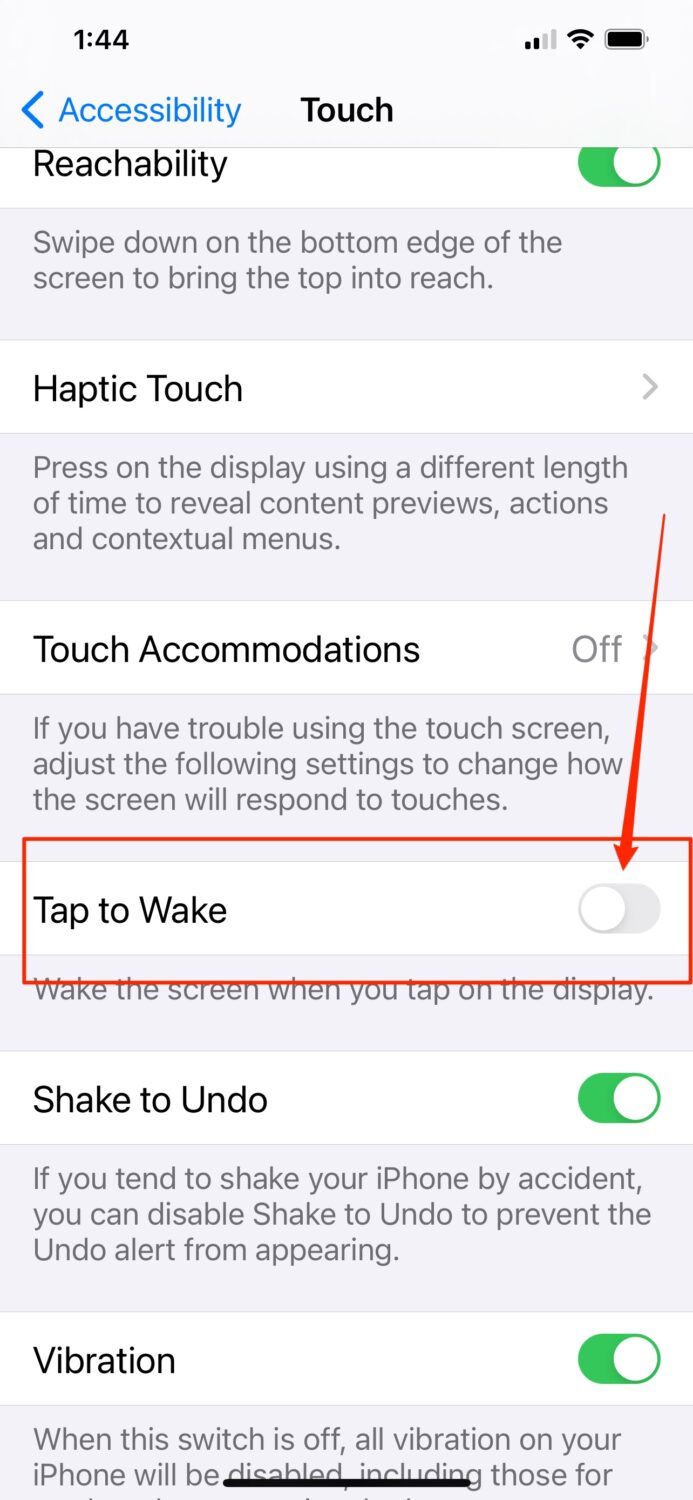
This feature gets your phone working if you simply tap it. Disable this button so you are less likely to wake up your phone while it’s in your pocket.
iPhone:
-
- Go to “Settings”
- Go to “Accessibility”
- Click “Touch”
- Click the “Tap to Wake” toggle to the left
Android
-
- Go to “Settings”
- Click “Lock screen and security”
- Click “Lock Screen Display”
- Click “on-body detection” and swipe slider to left to deactivate
Samsung
-
- Go to “Settings”
- Click “Advanced Features“
- Click “Motions and Gestures” and swipe slider to left to deactivate
How to avoid sending an audio text message on an iPhone
3) Disable “Raise to Listen” feature
The first thing you should be aware of is that in your text message, you’ll note a microphone at the far right edge of your text box. When you click it, you can record a voice message and then text it to someone right within the box.
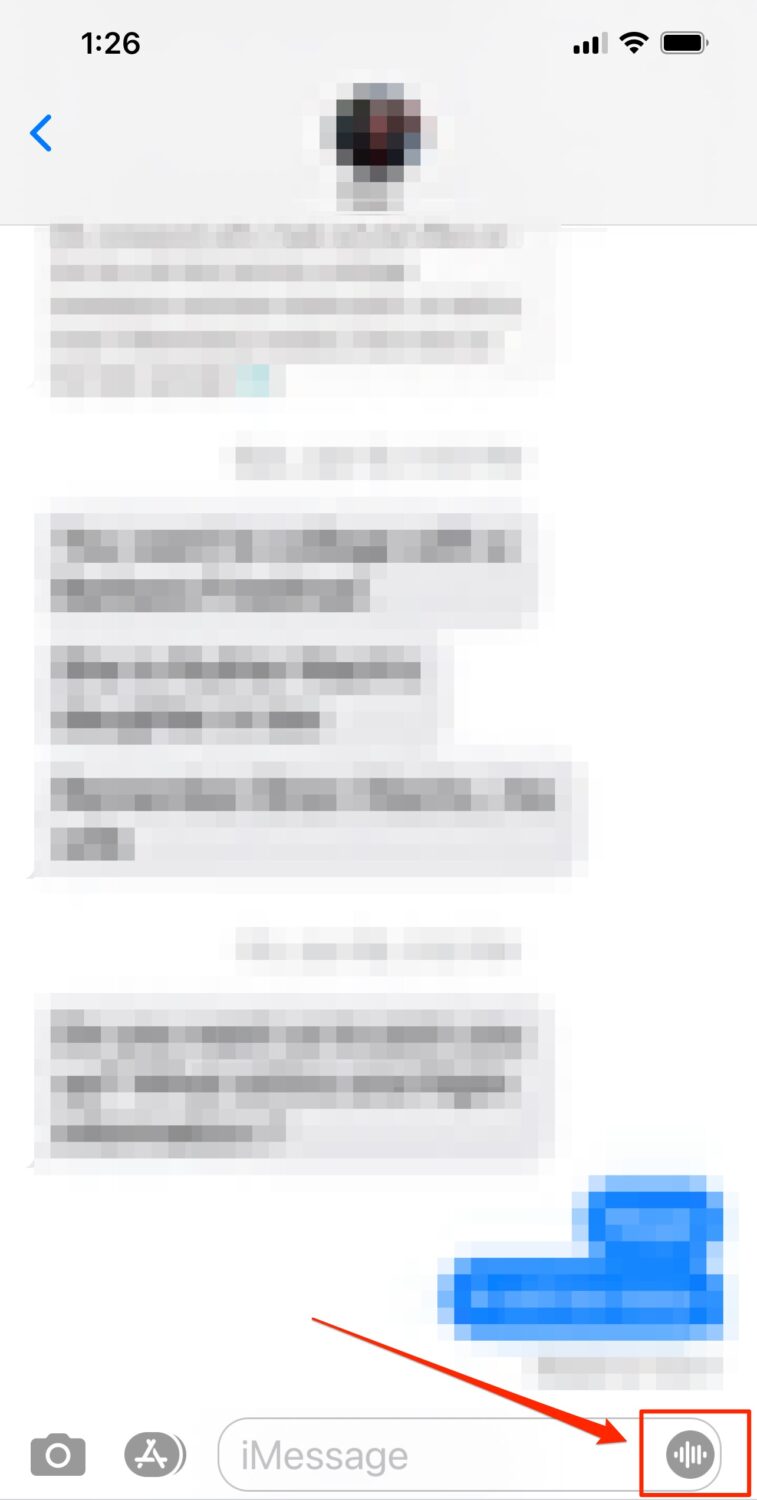
As you can imagine, many people (including myself), accidentally send voice messages to people by mishandling our phones.
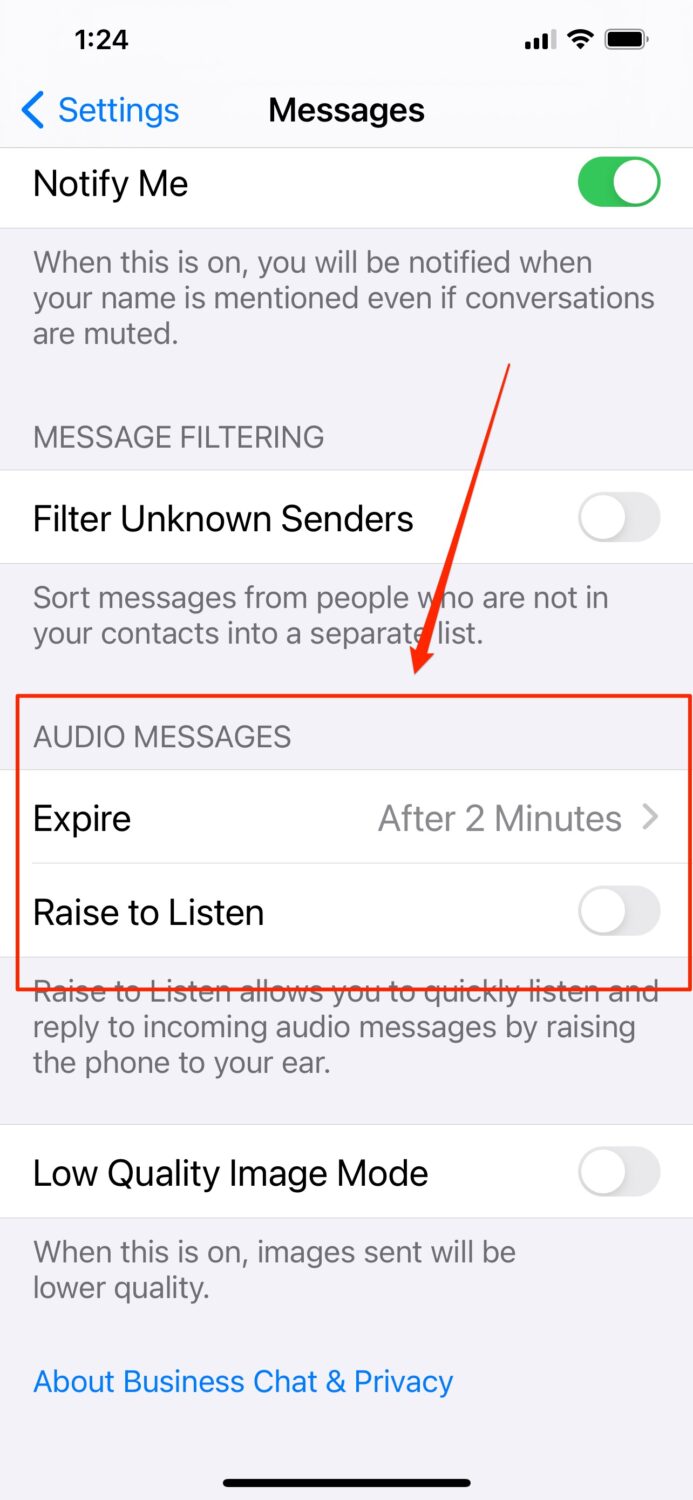
Another way accidental recordings happen is that when you’re in a text message thread and hold your iPhone to your ear, your phone may be set up so that you can quickly listen and reply to incoming audio messages by raising your phone to your ear. It will automatically start recording until you pull your iPhone away. Here’s how to disable this feature:
iPhone:
-
- Go to “Settings”
- Go to “Messages”
- Scroll to “Audio Messages” section
- Disable the “Raise to Listen”. (slide toggle to the left)
4) Set short times to expire audio messages
Unfortunately, we can’t disable the soundwave icon that appears in any given text box, but there is another option to make sure these audio messages that are sent expire.
Watch the latest episode of The CyberGuy Report.

Missed this event? Sign up via the registration form and see our live recording.
See Kurt’s Prime Day picks for useful gadgets, practical upgrades and everyday tech while the deals last.
- Go to “Settings”
- Go to “Messages”
- Tap the “Expire” panel under audio messages
- Set your audio message to expire in “2 minutes” (see image above for reference)
Do you have any fun stories where you accidentally pocket-dialed someone? Comment below.
Related:
- 8 upcoming Apple iOS16 features I’m excited about
- Map buried inside your phone reveals where you have been and photos you snapped there
- How to send your location on an iPhone or Android
- You should know what these orange and green dots at the top of your phone mean
🎙 Now Streaming: My New Podcast: The CyberGuy Report
Kurt’s Top Deals
Deals move fast and inventory can be limited, so don’t wait too long.
| 🔥 Editor’s pick  Summer entertaining Ninja SLUSHi Machine (26% off) Frozen drinks and slushies at home in minutes. | |
| 💰 Top deal  Outdoor essential TYPEC Solar Bug Zapper (36% off) Solar-powered bug zappers for patios and camping. |