



Antivirus software is not just for computers. You should also use Antivirus software on your smartphone, and you want to make sure you aren’t selecting a free option because you’re likely not getting real security protection.
Recently we shared our Best Antivirus Protection in 2025 picks and had several questions about the need for protection on an iPhone.
Does my iPhone need protection?
Yes, Apple iPhone is safer than Android devices, but neither offers full protection you would get from good third-party protection.
The Apple App store is much stricter on apps that are allowed to be downloaded and installed. Their higher-security protection makes it more difficult to have malware, but there have been many reported vulnerabilities over the years covered in this article that says you should keep your iPhone device protected. Additionally, every time Apple has you update your software, that usually means there are security flaws.
Here’s the iPhone and Android problem
Apple, and Google’s Android, can’t stop hackers fast enough. The gap of time and sheer volume of vulnerabilities are skyrocketing so much so that often a number of weeks go by before a new software update is pushed out.
All this time your smartphone is sitting open to hackers who in many cases can take control, steal credentials, learn how to access your bank accounts and you never even know it’s happening. I cannot say it enough and with loud enough emphasis – Keep your iPhone protected. Here’s how to do it with the winning antivirus protection TotalAV from my review of the best antivirus protection available for all devices.
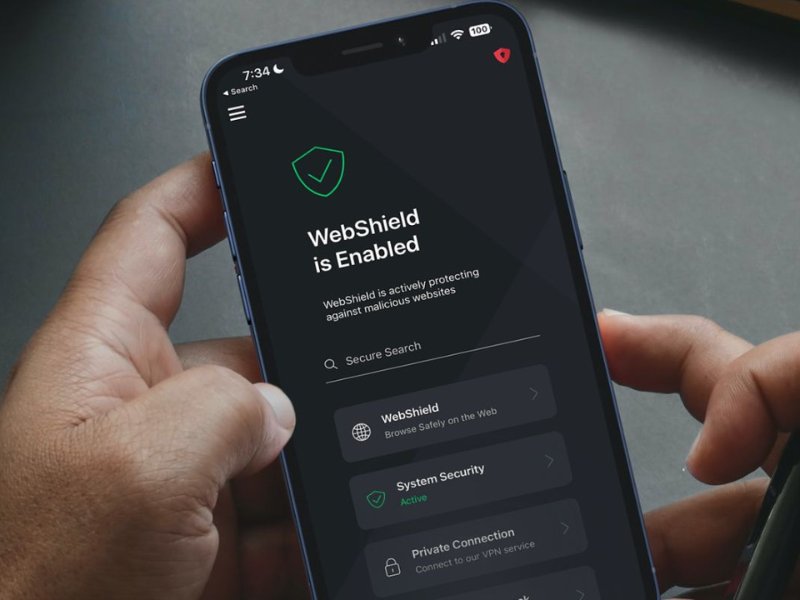
Aside from malware, TotalAV for iPhone and iPad carries out a scan for other cybersecurity concerns. Their scan checks to ensure physical lock security is in place (PIN/Password/Biometrics), if the device is up to date with Apple Security Updates and finally scans to see if the user is using the TotalAV WebShield service; which blocks access to dangerous websites – i.e. phishing and scams.
Step 1: How to install TotalAV on an iPhone & iPad
- Purchase product here: Special CyberGuy limited-time deal: $19 your first year (80% off) (protects 5 devices)
- Please note TotalAV offers several upgrades during the purchase process. If you do not want them, be sure to click the gray “No Thanks” button on each screen.
- Once purchased, download the Total AV app from the App store here
- Open the TotalAV App
- Enter your TotalAV Username & Password
- Click Login
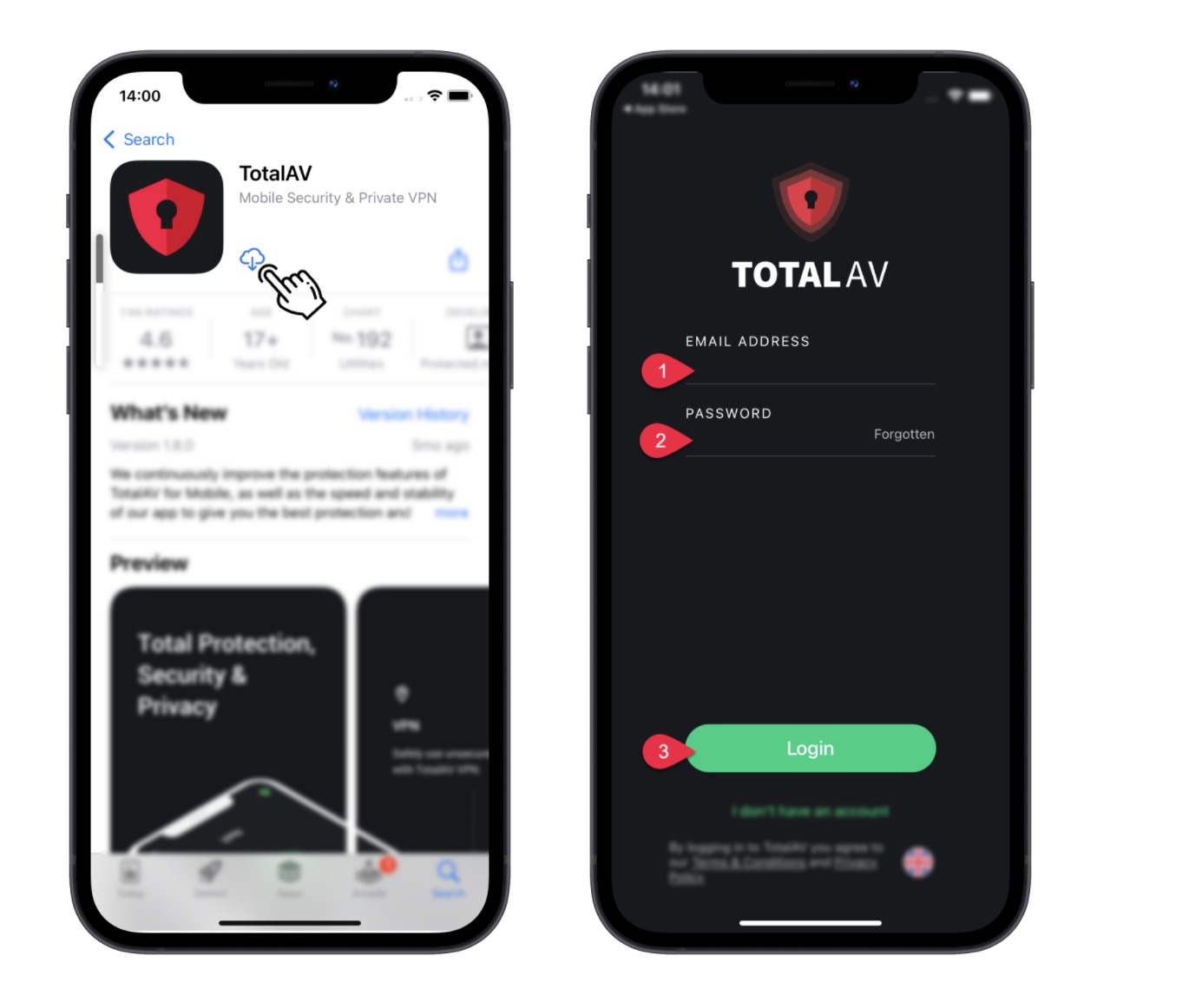
You have now successfully installed TotalAV on iOS!
Step 2: How to keep your iPhone & iPad protected with TotalAV
After installing TotalAV on your iPhone:
1) Turn on Webshield.
TotalAV’s WebShield uses AI and cloud-based technology to provide the first line of defense against online malware, phishing and other harmful websites. It does this by checking and filtering any websites you visit against our block list.
WebShield on iOS® is used within Safari®. Follow the steps below to enable WebShield in Safari.
1) Ensure TotalAV is installed.
2) Open Safari
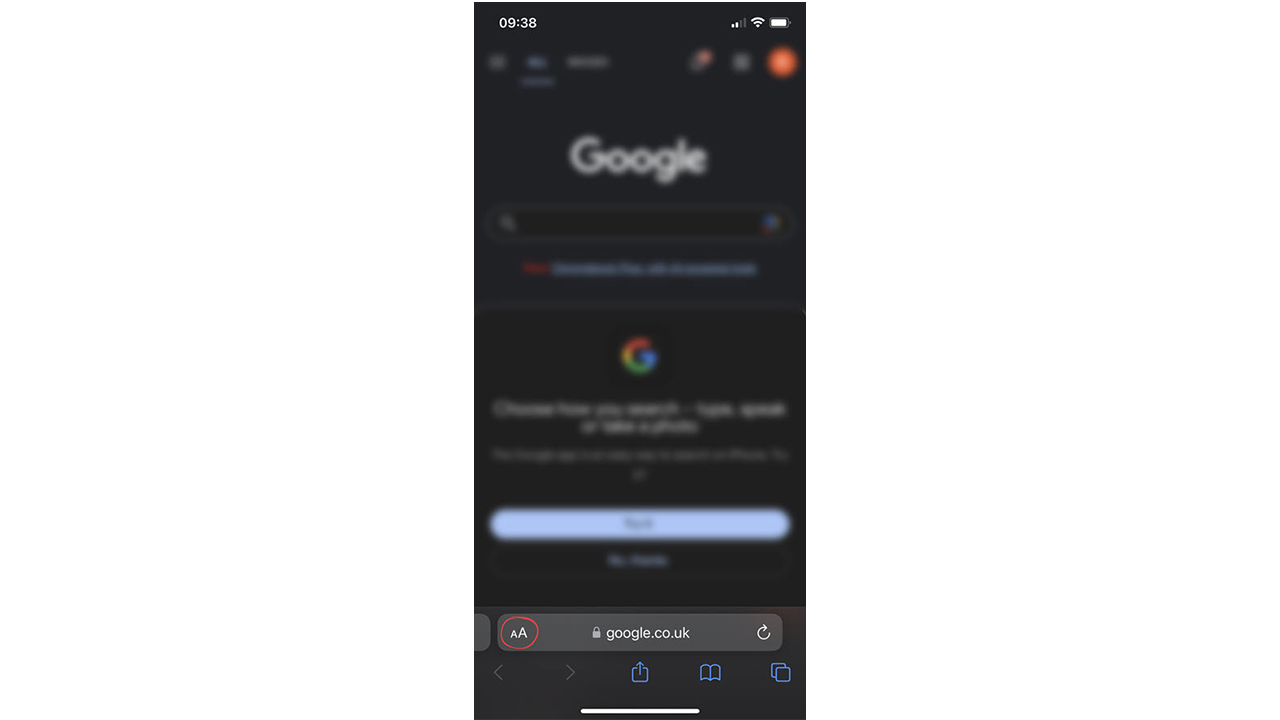
3) Open a webpage (e.g. https://google.com)
4) Tap ‘aA‘ on the address bar
How one convincing SSA scam nearly tricked a reader, and the five red flags to check before you click.
Saturday, June 13 at 10 AM ET.
See Kurt’s 2026 picks for every kind of dad.
[Ep. 34] Is that Social Security email in your inbox real?
```
5) Tap ‘Manage Extensions‘
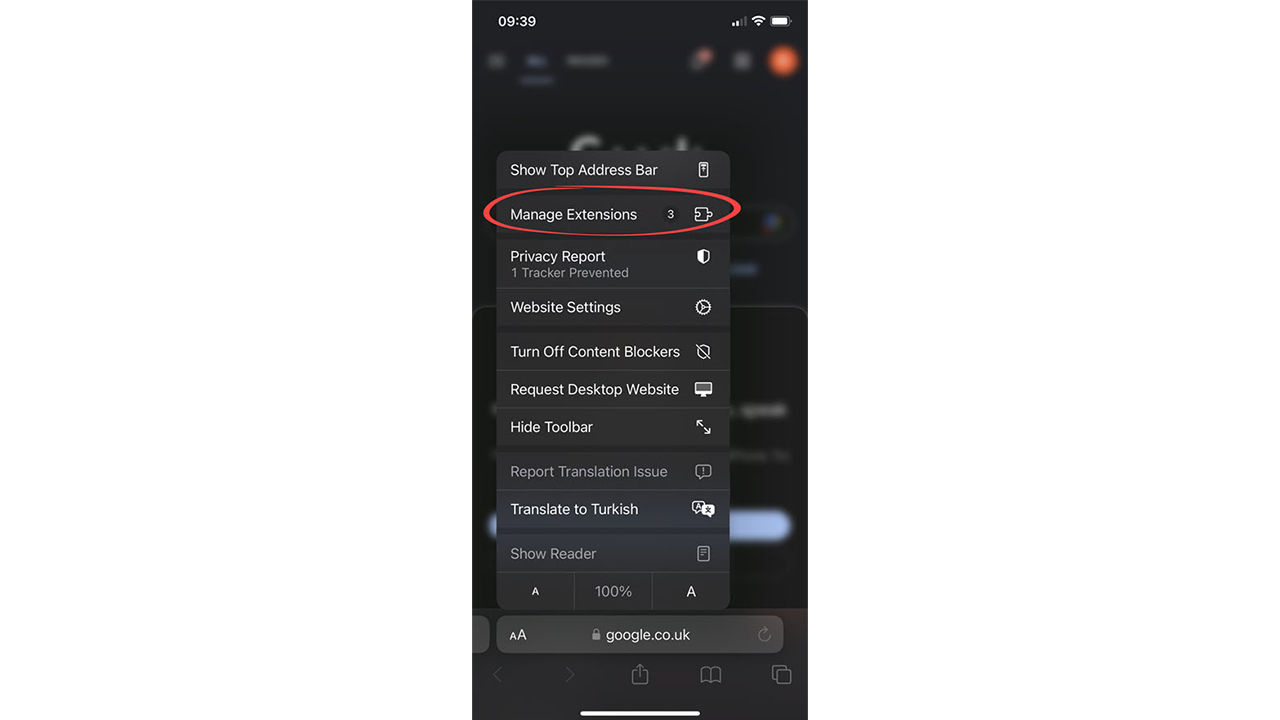
6) Tap ‘TotalAV WebShield‘
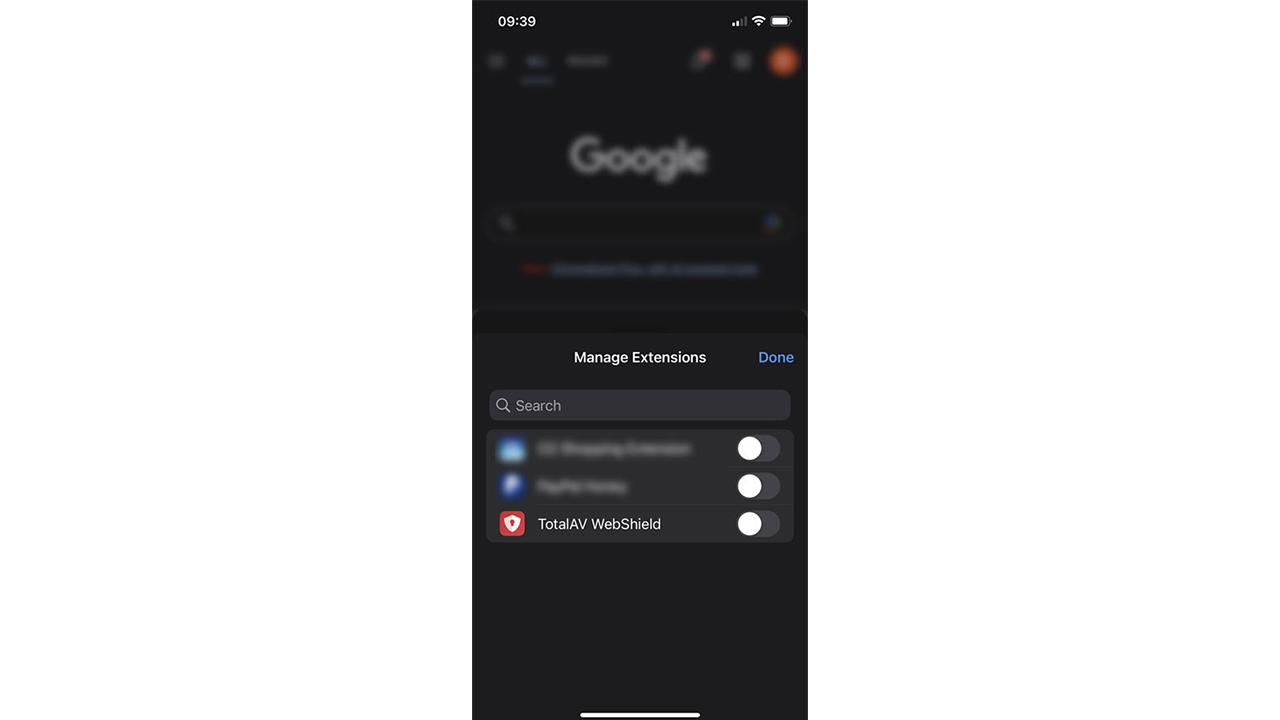
7) Open TotalAV again and activate WebShield.
Total WebShield will now be active on your device.
Total WebShield will now be active on your Safari browser.
If you ever experience what you think may be malware on an iPhone, an app may have a glitch, not have been updated, or just have buggy features. Delete old apps that haven’t been used or updated, and try fully closing out apps that cause you problems:
- If you have an iPhone X or later, you’ll swipe up from the bottom half of the screen. If your iPhone has a home button, double tap.
- Swipe up on the app to fully close it. (Pro tip: You should periodically close out your apps to keep your iPhone running as quickly as possible.)
Be sure to protect ALL your devices with TotalAV here: Special CyberGuy limited-time deal: $19 your first year (80% off)
Related:
- Learn how to install TotalAV on all your devices – Follow these steps
- Does my iPhone need antivirus protection?
- How to run a virus scan on your computer
- Free Antivirus Software: Should you use it?
- Windows Defender vs Antivirus software: free protection falls short
- Kaspersky Antivirus Software On U.S. National Security Threat List – Remove and Replace this software now
Copyright 2025 CyberGuy.com. All rights reserved. CyberGuy.com articles and content may contain affiliate links that earn a commission when purchases are made.
🎙 Now Streaming: My New Podcast: The CyberGuy Report
Kurt’s Top Deals
Deals move fast and inventory can be limited, so don’t wait too long.
| 🔥 Editor’s pick  Summer entertaining Ninja SLUSHi Machine (26% off) Frozen drinks and slushies at home in minutes. | |
| 💰 Top deal  Outdoor essential TYPEC Solar Bug Zapper (36% off) Solar-powered bug zappers for patios and camping. |


6 comments
Nice article. Now to implement it. Thanks!
How do I know if my iPhone is bugged?
Hi Tim, read more about this topic here.
Hi Kurt, Love following you…you feel like a champion for those of us who are not techies!
What is the best way to securely list passwords for my PC and I phone? Currently do it on paper, have over 100
Hi Robert, please read more about our picks for best password managers here.