



We’re conditioned to think our email address is harmless. Most of us think it’s just an ID, a way to get receipts and shipping updates, but that’s not it.
Your email is the skeleton key to your online identity. It’s what companies use to build behavioral profiles, target ads, link purchases, and sometimes worse, facilitate fraud after a breach. And when you reuse the same email address everywhere, you make that key universal.
To keep things private, I use an alias for online shopping to stay anonymous, cut down on spam, and more. Let’s discuss what aliases are, why they matter, and how they quietly turn the tables in your favor.

How email aliases help you stay anonymous online
Each time you enter your main email on a shopping site, you give that company a lasting way to connect your behavior across different platforms, devices, and timeframes. They might hash or encrypt your email, but the behavioral patterns remain. You can still be tracked, but aliases interrupt that chain.
Instead of sharing my actual email address, I create a unique one for each website. The emails still reach me through forwarding, but the company never sees my real address. That small change prevents them from linking my activity with other accounts or sites. It is not a perfect solution, but it adds just enough friction to disrupt the tracking systems.
Every alias I use becomes a kind of tracker. If one starts getting spam, I know which site sold or lost my data. Most people don’t know where the breach happened, they just assume “it happens.” I take a different approach. When an alias starts getting unwanted emails, I do not try to unsubscribe or set up filters or waste time guessing. I simply disable the alias, and the problem is gone.

Stop companies from tracking you with email aliases
The average e-commerce site uses between 15 and 30 third-party scripts, analytics trackers, ad pixels, behavioral beacons, according to a study. Even if the site itself is honest, its stack probably isn’t. Your email passes through layers of infrastructure, mailing tools, CRM platforms, shipping plugins. And all it takes is one misconfiguration or a careless developer for your data to end up in the wrong hands.
An alias reduces the blast radius. If the site gets breached your core identity remains untouched.
Aliases don’t just protect privacy, they improve behavior. When I started using them, I found myself thinking more clearly about where I was signing up and why. The mental pause required to generate a new alias made me more deliberate. And it gave structure to the mess. I could set rules like all product warranties go to products@myalias.com, all newsletters to news@myalias.com.

How to create an alias using Gmail
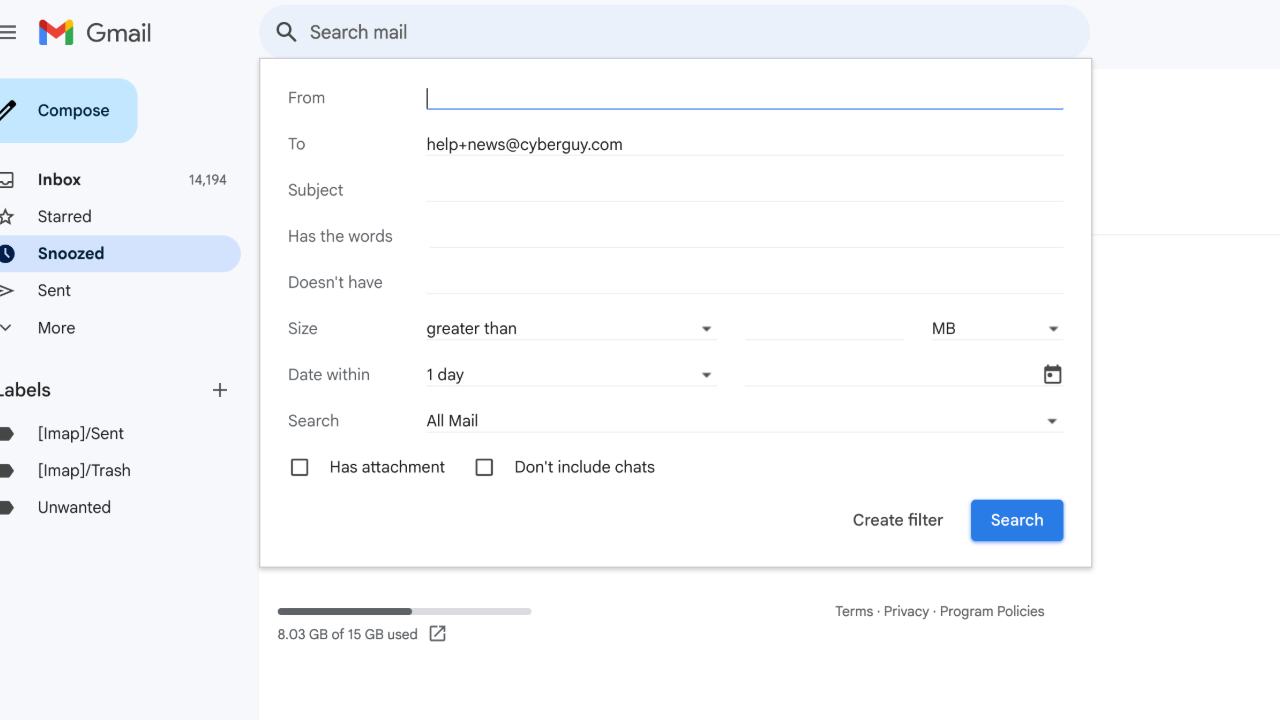
Gmail doesn’t allow you to create a completely separate alias, but it offers workarounds using “+ addressing” or by adding dots to your existing email address. However, these methods don’t prevent an unscrupulous sender from seeing your primary address, so exercise caution when using them with untrusted correspondents. Follow the steps below to get started:
Option 1: Create an alias using the “plus (+) trick”
Use your existing Gmail address and add a “+” followed by any keyword before “@gmail.com.”
Example: If your email is yourname@gmail.com, you can use:
Watch the latest episode of The CyberGuy Report.

Missed this event? Sign up via the registration form and see our live recording.
See Kurt’s latest Amazon picks for useful gadgets, smart home upgrades and everyday tech worth grabbing while the deals last.
- yourname+work@gmail.com
- yourname+newsletters@gmail.com
- yourname+shopping@gmail.com
No additional setup is needed—just start using this alias when signing up for services or sharing your email.
Option 2: Create an Alias Using the “Dot (.) Trick”
Gmail ignores dots (.) in email addresses, so you can create variations of your email:
Example: If your email is yourname@gmail.com, you can use:
- your.name@gmail.com
- y.o.u.r.n.a.m.e@gmail.com
- yo.urn.ame@gmail.com
All variations will deliver emails to your main inbox automatically.
How to Create an Alias in Outlook.com
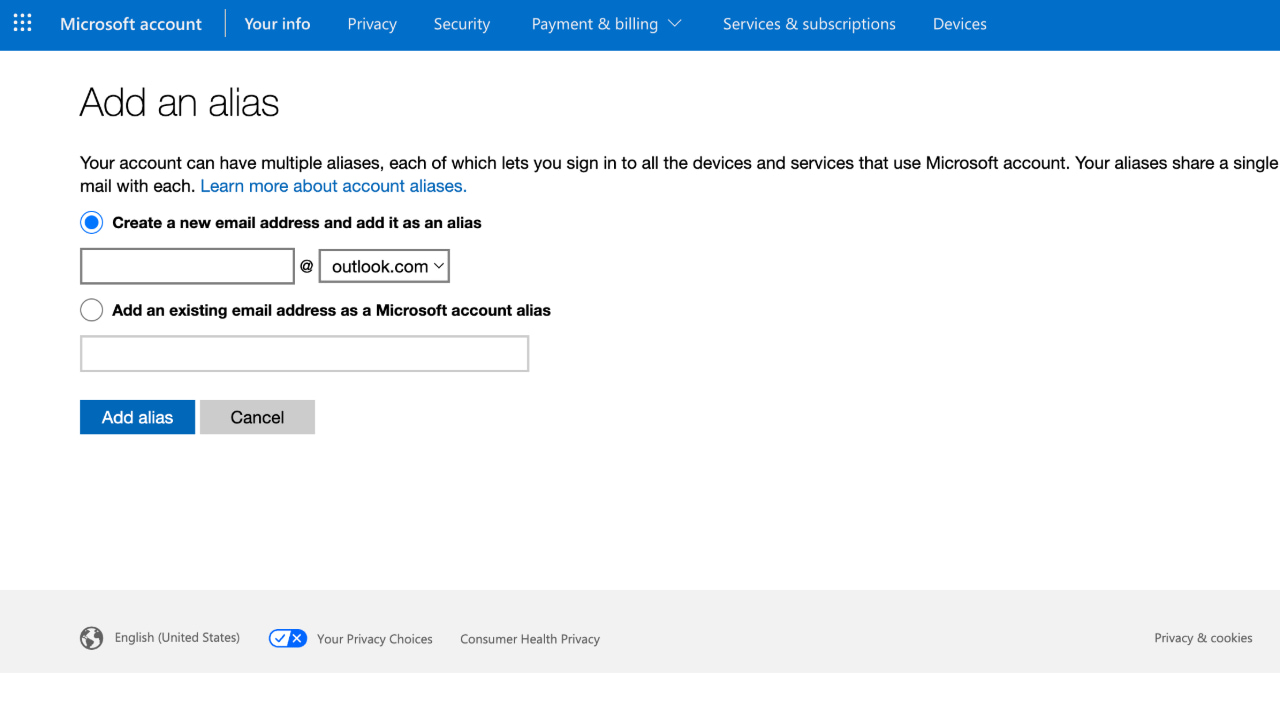
Outlook.com allows you to create additional email addresses (aliases) that are linked to your primary account. Emails sent to an alias will arrive in your primary inbox, and you can send messages using the alias as well.
Example:
If your primary email is johnsmith@outlook.com, you can create an alias like john.smith123@outlook.com. Emails sent to john.smith123@outlook.com will still go to johnsmith@outlook.com, but you can choose to send emails using either address.
Steps to Create an Alias:
- Sign in to your Outlook.com account.
- Click the gear icon in the upper-right corner to open Settings.
- Scroll down and select View all Outlook settings.
- Navigate to Mail
- Then click Sync email.
- Click Manage or choose a primary alias under Account alias.
- Select Add email and follow the prompts to create your new alias.
- Choose whether to create a new Outlook.com email as an alias or use an existing email (non-Outlook) as an alias.
- Click Add alias to confirm.
Once added, you can send emails using your alias by selecting it in the “From” field when composing a new message.
Important limitations to note:
- You can add up to 10 aliases in total
- There’s a limit of 10 new aliases that can be created in one year
- You can only add two aliases per week
- Existing Hotmail, Live, Outlook.com, and MSN addresses can’t be added as aliases
- Aliases can only contain letters, numbers, dots (.), underscores (_), or hyphens (-)
- It’s no longer possible to create new aliases with @hotmail, @live.com, or @msn.com domains
HOW TO REMOVE YOUR PRIVATE DATA FROM THE INTERNET
How to create an alias using your Apple ID
Apple allows you to create up to three email aliases through iCloud. These aliases can be used for specific purposes, helping you manage your inbox effectively. Here’s how to create one:
- Go to icloud.com/mail and sign in to your Apple Account if necessary.
- Click the gear icon at the top of the Mailboxes list, then choose Settings.
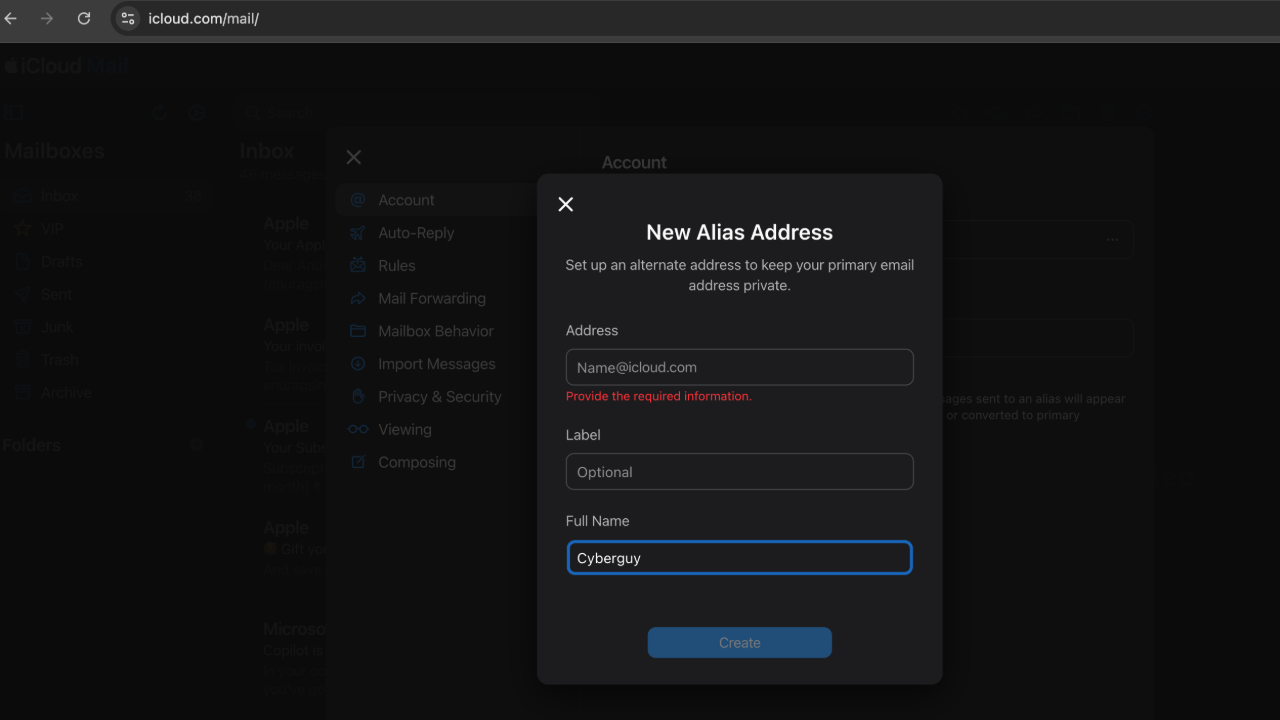
- Click Account, then click Add Alias.
- Provide the requested information:
- Alias Address: Enter the text to create your alias (e.g., alias@icloud.com). The alias must contain between 3 and 20 characters.
- Label: Assign a label for the alias. Aliases are listed alphabetically by their labels.
- Full Name: Enter the name that will appear in the From field of emails you send using this alias.
- Click Create to finalize the alias.
- Once created, any email sent to this alias will be forwarded to your primary iCloud email address. For example, if your primary email is yourname@icloud.com and you create an alias shopping@icloud.com, any emails sent to shopping@icloud.com will appear in your yourname@icloud.com inbox. This allows you to use different addresses for different purposes while keeping everything in one place.
It’s important to note that you can still create up to three email aliases through iCloud. Remember that while these aliases provide some flexibility, they do not create separate Apple IDs or completely hide your primary iCloud email address.
Using the “Hide My Email” feature on Apple devices
Hide My Email is a feature available with iCloud+ that allows you to create unique, random email addresses that are forwarded to your personal email account. This helps keep your real email address private when filling out forms, signing up for newsletters, or sending emails. Here’s how to set up Hide My Email:
- Go to Settings on your iPhone or iPad.
- Tap your name at the top, then tap iCloud.
- Tap Hide My Email. Here, you can create and manage your unique email addresses.
- Tap Create New Address and follow the on-screen instructions to generate a new random email address.
Here’s how to deactivate a Hide My Email address.
- Go to Settings on your iPhone or iPad.
- Tap your name at the top, then tap iCloud.
- Tap Hide My Email.
- Tap an existing address.
- Click Deactivate Email Address to stop forwarding emails to your personal account.
- Confirm your decision by clicking Deactivate.
You can also generate Hide My Email addresses directly in Safari, Mail, and supported third-party apps by tapping the email address field and selecting Hide My Email above the keyboard.
Note that Hide My Email has limitations. You need an iCloud+ subscription to use Hide My Email. This feature is not available with the free iCloud plan. While there is no official limit on the number of aliases you can create, some people have reported creating hundreds of addresses without issue. Hide My Email works with iCloud+, Apple Pay, and the Mail app. Support for other apps and services is expanding but may not be available for all. Some people have reported occasional issues with email deliverability when using Hide My Email addresses. Managing multiple aliases can become cumbersome, especially if you need to deactivate or update them frequently.
How to create a new email alias in Yahoo Mail
- Open Yahoo Mail:
- Go to Yahoo Mail and sign in to your account.
- Access Settings:
- Click on the gear icon in the top-right corner to open the settings menu.
- Select More Settings from the dropdown menu.
- Navigate to Mailboxes:
- In the left-hand menu, click on Mailboxes.
- Add a New Alias:
- Under the Email alias section, click the Add button.
- Enter the name of your new email alias (without the “@yahoo.com” part) in the field labeled Create a new Yahoo Mail address.
- Click the Set Up button.
- Provide Additional Information:
- Enter your name, a description for the alias, and choose whether you want replies to be sent to the alias or your main Yahoo email address.
- Click the Finish button.
- Limitations:
- Limited Number of Aliases: You can only create one main email alias that can both send and receive messages. Additionally, you can create up to 10 send-only email addresses and 500 disposable email addresses.
- Editing Restrictions: You can only edit your email alias up to two times within a 12-month period. This means you need to choose your alias carefully.
- Compatibility Issues: Some websites and services may not accept email aliases, especially those that use the “+” character in the address. This can limit the usefulness of aliases for certain sign-ups.
- Potential for Mix-Ups: Using multiple aliases can sometimes lead to confusion or mix-ups, especially if you forget which alias you used for a particular service.
- Spam and Security: While aliases can help manage spam, they are not foolproof. Spammers can still send emails to your aliases, and if an alias is compromised, it can lead to spam in your main inbox.
- Communication Challenges: Managing multiple aliases can complicate communication, especially if you need to reply from the correct alias to maintain clear and consistent communication.
Create a second AOL account instead of an alias
AOL no longer offers traditional alias addresses. Instead, the company suggests creating a brand new AOL email account if you want to keep separate addresses. You can then forward messages from one account to the other or use both depending on your needs. Here are the steps to set up a second AOL account:
- Go to mail.aol.com and click Create an Account.
- Fill in your information and choose a new AOL username.
- Complete the verification process with your phone number or alternate email.
- Once your new account is active, log into it and set up forwarding to your primary AOL inbox (found under Settings → Mail Forwarding).
Use this second address for sign-ups, work, or any purpose where you’d normally want an alias.

Private and secure email option with unlimited aliases
While many email providers offer basic alias functionality, most have significant limitations. Gmail’s “+” addressing and dot tricks, Outlook’s linked aliases, and Apple’s iCloud aliases all provide some flexibility, but they often fall short of true privacy protection.
You can get an Exclusive deal for CyberGuy readers: 50% off: $23.98 for first year ($2.50 per month, billed annually). Includes a free 7-day trial.
Some of StartMail's best perks include:
- StartMail email address
- 20 GB of email
- Unlimited aliases
- Access email on any device
- Import your contacts easily
- No ads, no tracking
- Send encrypted emails to anyone
Why it matters: You stay anonymous, avoid data leaks, and never have to change your main email address again.
Related Links:
- How to stop spam mail, political texts, and email spam for good
- New Gmail tool makes it easy to unsubscribe from emails in bulk
- How to detect fake Amazon emails and avoid impersonation scams
Kurt’s key takeaway
We’ve made progress when it comes to password hygiene. Many of us now use password managers and enable two-factor authentication, but when it comes to email, the habits haven’t changed much. Most people still rely on a single email address for everything, including shopping, banking, subscriptions, work, even family communication. That’s not just inefficient, but also a security risk. Using email aliases is a simple way to fragment your digital identity. It adds complexity for attackers and reduces the chances of a single breach affecting multiple accounts.
Would you still use your main email for everything if you knew it made you easier to track? Let us know in the comments below.
FOR MORE OF MY SECURITY ALERTS, SUBSCRIBE TO MY FREE CYBERGUY REPORT NEWSLETTER HERE
Copyright 2025 CyberGuy.com. All rights reserved. CyberGuy.com articles and content may contain affiliate links that earn a commission when purchases are made.
🎙 Now Streaming: My New Podcast: The CyberGuy Report
Kurt’s Top Deals
Deals move fast and inventory can be limited, so don’t wait too long.
| 🔥 Editor’s pick  Summer entertaining Ninja SLUSHi Machine (26% off) Frozen drinks and slushies at home in minutes. | |
| 💰 Top deal  Outdoor essential TYPEC Solar Bug Zapper (36% off) Solar-powered bug zappers for patios and camping. |


8 comments
Kurt, doesn’t my personal VPN mitigate the need to create an Email alias?
Hi Steve, A VPN and an email alias solve two very different problems.
Your VPN protects your internet connection by hiding your IP address and encrypting your traffic. That keeps your browsing private from snoops, hackers, and even your internet provider, but it doesn’t affect the actual email address you give out.
An email alias is about identity and spam control. It gives you flexibility—if you use an alias for shopping sites, newsletters, or less-trusted sign-ups, you can turn it off or ignore it if it starts attracting spam, while keeping your main email address clean.
So in short: your VPN doesn’t replace the need for an alias. The VPN keeps your connection private, while the alias keeps your inbox manageable. They’re complementary tools, not substitutes.
I, like the majority of cell phone users, don’t have an Apple phone. How about telling how to do it on an Android phone? Also, How about telling us how to do an email alias for Gmail. I have a couple of hundred friend and most all of us use Gmail. We all used AOL in the late ’90s and Yahoo in the early 2000s. but most of us moved to Gmail in the 2010s. Yeah, I know..we are old.
Hi Wally, please see the section “How to create an alias using Gmail” in our article above.
Maybe I’m not thinking this out correctly and I feel like this question is a stupid question, so to say.
I’ve had an alias with my general email account and I have not been using it because I don’t get how if your Gmail address is the address used to exchange emails (mostly business), how to change over to the alias address with these parties that already know me by my certain address. Do you do changes of address?
Thank you for any suggestions and advice.
Hi, Be. An email alias is basically another doorway into the same inbox, so both your main Gmail and your alias deliver messages to you. The main difference is which address you choose to send from. If people already know you by your main Gmail address, they’ll keep using it unless you tell them otherwise—there’s no automatic “change of address” like with the post office. To start using your alias, you’d add it under Gmail settings (Accounts and Import → Send mail as) and then select it as the “From” address when composing emails. If you want contacts to switch, you’d need to let them know, often by mentioning it in your signature, until they update their records. If your goal is to cut down on spam, it may be easier to keep your main Gmail for personal and business correspondence and use the alias only for new sign-ups or specific purposes going forward.
Thanks for this great info!
great article! really helpful – thank you!