



Sometimes I can’t find my glasses, and instead of reading an article on my phone, I’ll have my phone read it to me. This is a great trick, too, if you are driving or outside exercising and have a pair of AirPods or headsets plugged in. All it takes is one little adjustment to unleash the power of your phone to read to you whenever you want.
Here’s what you need to do for both iPhones and Androids:
How to have your iPhone read text to you
The following works on iOS 12 and later.
First, we need to adjust our settings:
- Click Settings
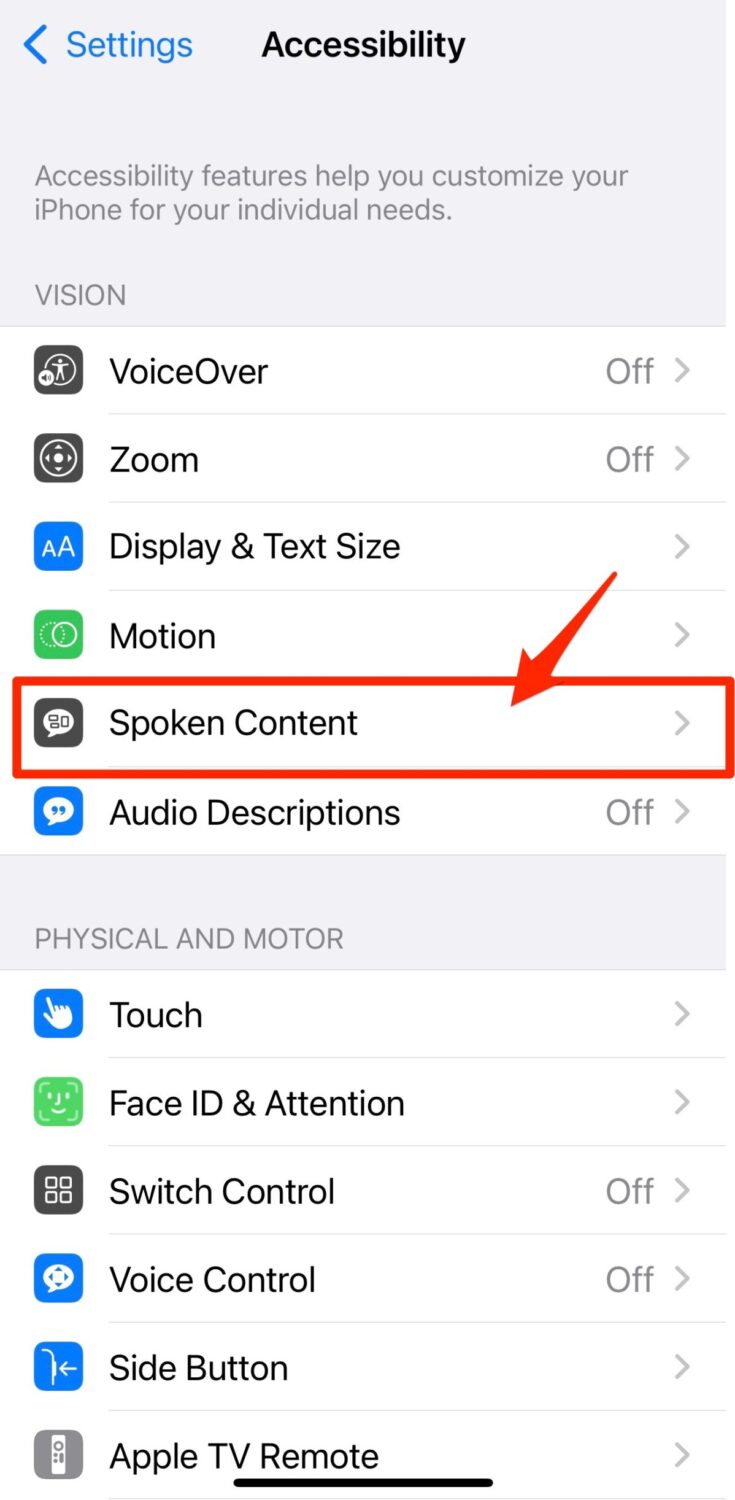
- Click Accessibility
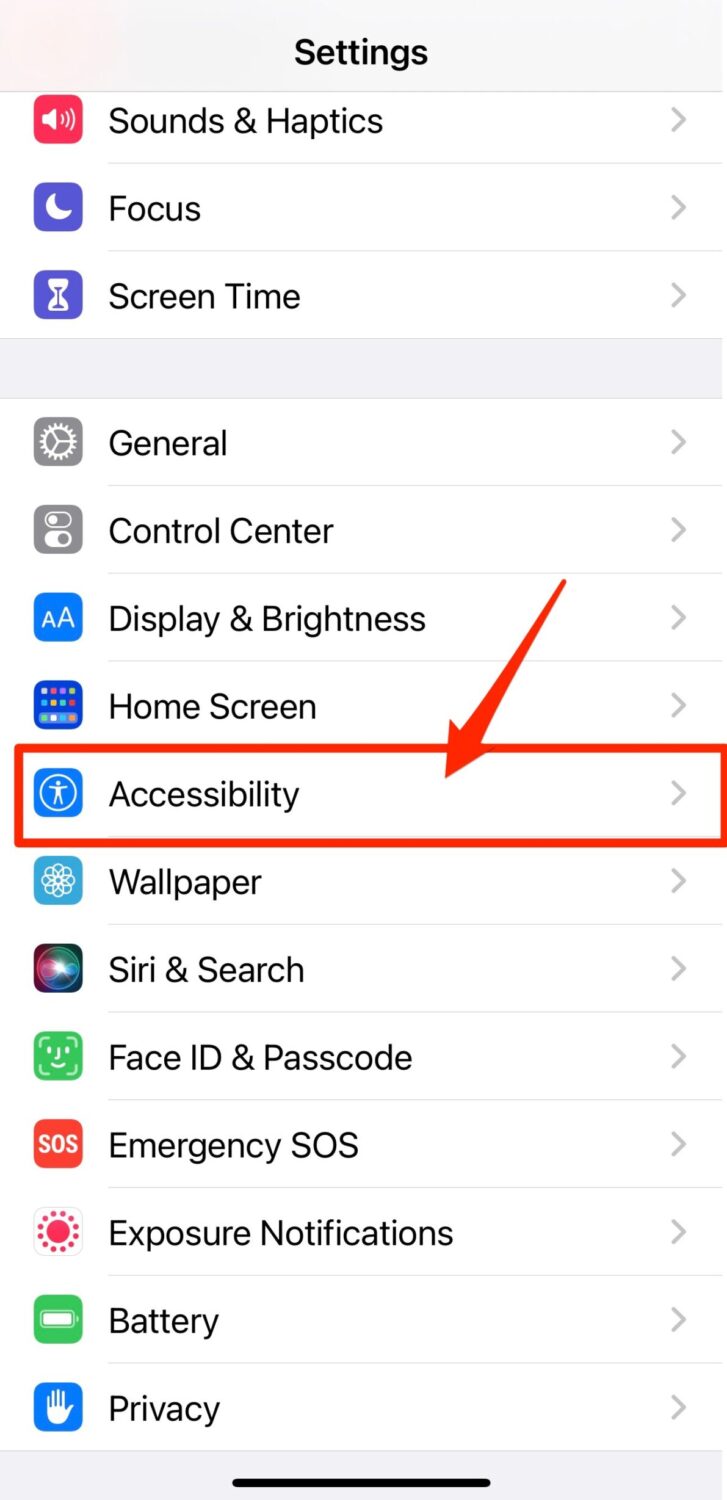
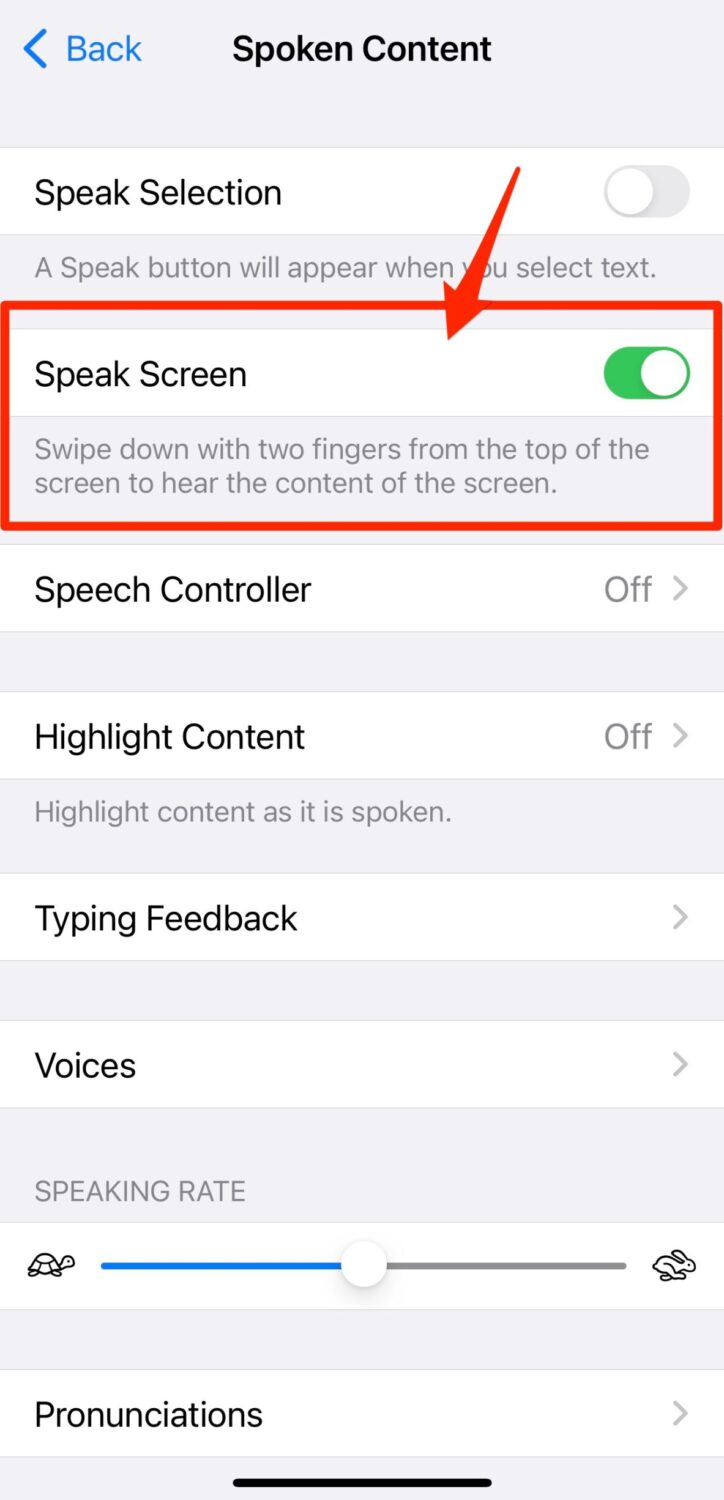
- Click Spoken Content
- Slide the “Speak Screen” toggle to the right
Now, here’s how to have your iPhone read your screen:
- Asking Siri – “Hey Siri, speak screen”
- On any screen (article, email, etc..),
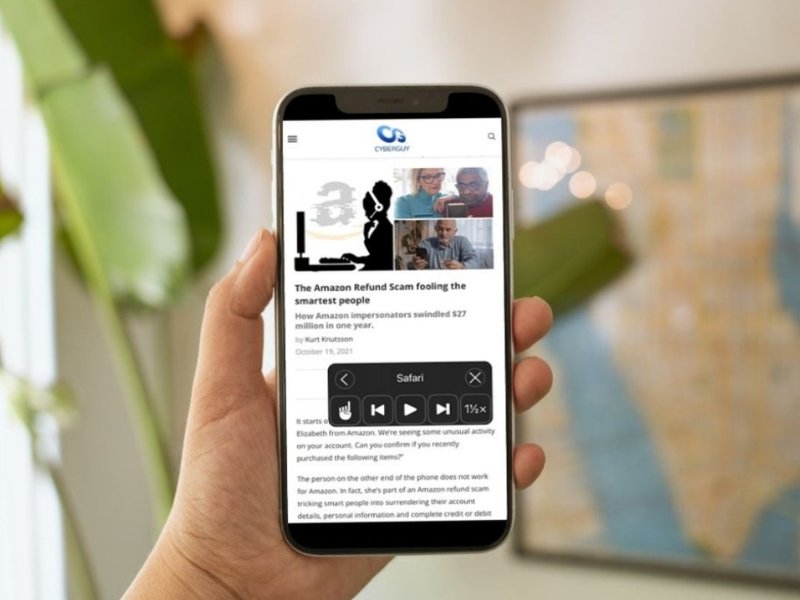
- Tap the top of your screen with two fingers and swipe down. It’s a bit tricky, but you need to do it at the very top of your screen near where the camera is, and do it rapidly. When it starts to speak to you, you’ll notice that there is a panel that is displayed. Often I’ll change it from 1x to 1.5x so that Siri reads it to me quickly OR
- In the navigation bar where you type in the web address, you’ll see an AA at the beginning of the bar. Click it and in the menu that pops up click “Listen to Page”

Watch the latest episode of The CyberGuy Report.

Missed this event? Sign up via the registration form and see our live recording.
See Kurt’s latest Amazon picks for useful gadgets, smart home upgrades and everyday tech worth grabbing while the deals last.
How to have your Samsung read text to you
Settings may vary depending on your Android phone’s manufacturer
- Install the Android Accessibility Suite app from the Play Store.
- Go to Settings, then Accessibility, then Installed Apps, and then Select to Speak.
- Enable the Select to Speak shortcut and choose the preferred keys or button to activate it.
- Open an app that has the text you want to read aloud and tap on the accessibility button.
- Choose the settings, voice, and language for the text-to-speech engine.
- Use the play, pause, skip, and select buttons to control the text reading.
- You can also adjust the settings for speech rate, language, and engine if needed.
How to have your Android read text to you
Settings may vary depending on your Android phone’s manufacturer
The following works on Android 11 and up.
First, let’s adjust our settings:
- Click Settings
- Click Accessibility and scroll down and tap Select to Speak
- Turn on Select to Speak shortcut
Now, here’s how to have your Android read your screen:
- To activate the “Select to Speak” shortcut, do a two-finger swipe-up
- Now you can either tap specific words on the screen or click the Play button which will then read everything on your screen.
Kurt’s key takeaways
Whether your glasses have gone missing again or you just want to multitask hands-free, having your phone read aloud to you is a game-changer. With just a few quick settings tweaks, both iPhone and Android users can turn any article, email, or screen into an instant audiobook. It’s one of those small tricks that can make a big difference in your day.
Have you tried this feature yet—or do you have another favorite accessibility tip? Drop it in the comments and help the rest of us out!
Copyright 2026 CyberGuy.com. All rights reserved. CyberGuy.com articles and content may contain affiliate links that earn a commission when purchases are made.
3 comments
Thanks for the tips, I can now have the screen read to me. Still loads of problems with the inability of the system to differentiate between the same word with two or more pronunciations, e.g. LIVE, – as in a live broadcast; or I live in a house. A good start but still Way to Go!
samsung phone turned on talk back and now i can not turn my phone off. Talk Back identifies each key but won’t activate any function including shutting the phone off.HEIP!!!
Hi Jerry, your Samsung phone isn’t frozen, TalkBack just changes how the screen works. Try this first: press and hold Volume Up and Volume Down together for 3 to 5 seconds until you hear TalkBack turn off. If that doesn’t work, force-restart the phone by holding Power and Volume Down together for 10 to 15 seconds until it shuts off and reboots. Once it’s back on, go to Settings > Accessibility > TalkBack and turn it off properly. Remember, while TalkBack is on, you must single-tap to highlight and double-tap to activate, which is why nothing seems to respond.