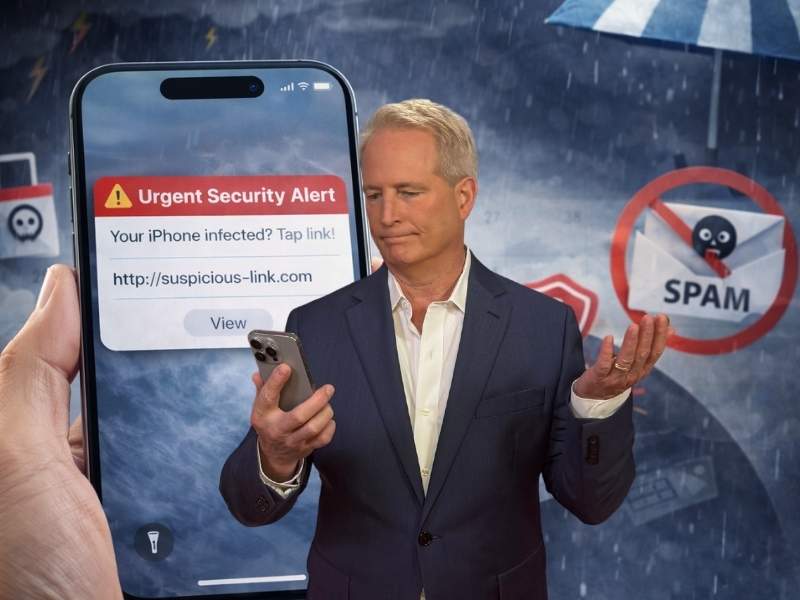
- Fake calendar invites can appear without installing any app.
- Most spam alerts come from hidden calendar subscriptions.
- Clicking the alert can lead to phishing sites that steal data.
- You can remove the subscription in Settings and stop the spam.
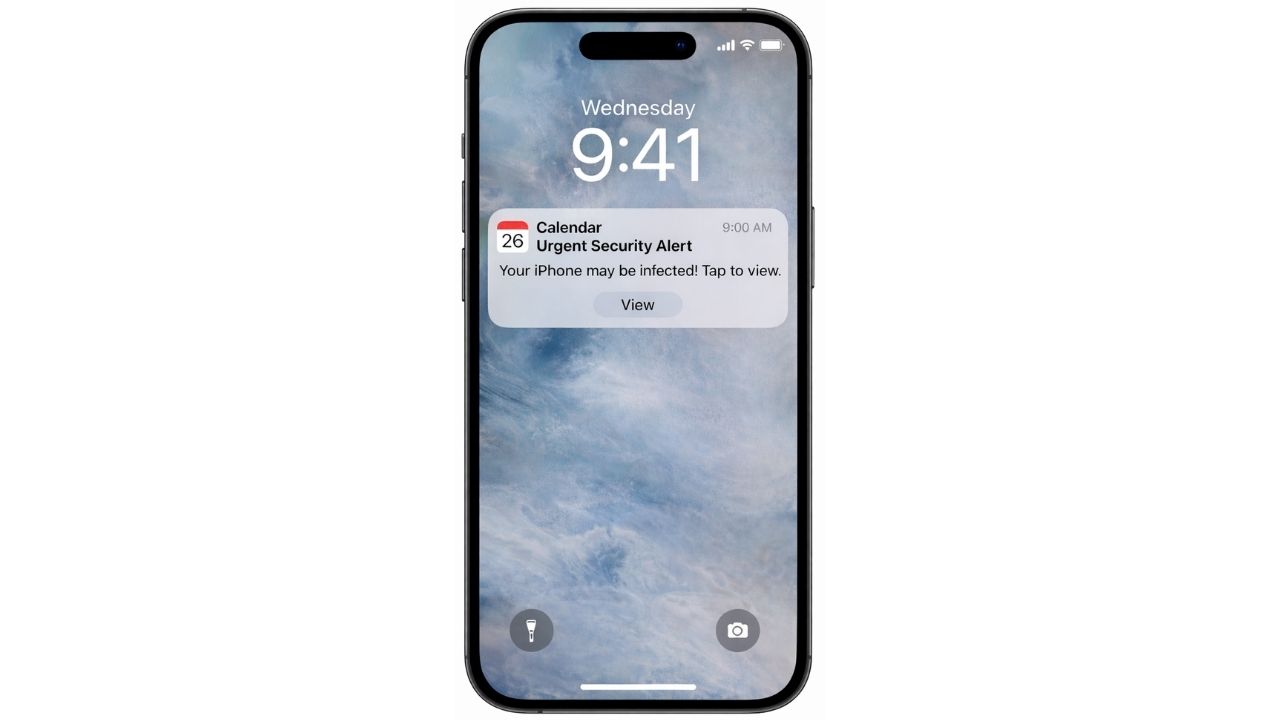
You glance at your phone and see it. A calendar alert warns you that your iPhone is infected. Or that you won a prize. Or that your account will be locked. Your first thought might be panic. Your second step should be to pause.
Many Apple users are reporting a wave of fake calendar invites that appear out of nowhere. These alerts are not malware. However, they are a scam tactic. And they can quickly clutter your calendar with junk events and suspicious links. Let’s break down what is happening and how to fix it.
How fake calendar invites get onto your iPhone
Here is the surprising part. Most of the time, no app is installed. Nothing comes through the App Store. You do not download anything obvious.
Instead, the problem often starts with a single tap. You might click a bad link in a message or on a website. That page can quietly prompt you to subscribe to a calendar. Once you tap approve, even by accident, the spam events begin to flow in.
Because it is a subscription, the alerts show up directly in your iOS notifications. Even if the related email lands in junk mail, the calendar event can still appear on your device. It feels invasive. But according to users discussing the issue on Reddit’s r/Apple forum, it usually does not mean your phone was hacked.
As one commenter put it, if scammers are using calendar events to reach you, they likely did not break into your device. They simply tricked you into subscribing.
Why iPhone calendar spam alerts feel urgent and real
Scammers design these fake calendar invites to trigger panic fast. For example, one alert may claim your iPhone has a virus, while another promises a prize or warns that your account will be suspended. Instead of giving you time to think, the message pushes you to act immediately. As a result, many people tap before they pause.
However, that second click is where the real risk begins. In many cases, it redirects you to a phishing site that asks for passwords, credit card details or other personal information. Although the calendar alert itself is not malware, engaging with it can expose you to identity theft or financial fraud. In other words, the danger is not the notification. It is what happens next.
How to remove iPhone calendar spam invites
The good news is that removing the spam usually takes only a few steps.
Step 1: Check your subscribed calendars
- Go to Settings
- Scroll to the bottom and tap Apps
- Click Calendar
- Tap Calendar Accounts
- Click Subscribed Calendars
- Look for any subscription you do not recognize. Delete it.
That single action often stops the flood of alerts.
Step 2: Remove the spam subscription inside the Calendar app
- Open the Calendar app.
- Tap the calendar icon at the bottom.
- Find the suspicious subscription and tap the “i” next to it. Confirm it is junk and unsubscribe.
After you unsubscribe, you may still need to manually delete leftover events.
Watch the latest episode of The CyberGuy Report.

Missed this event? Sign up via the registration form and see our live recording.
See Kurt’s latest Amazon picks for useful gadgets, smart home upgrades and everyday tech worth grabbing while the deals last.
Step 3: Offload and reinstall the Calendar app
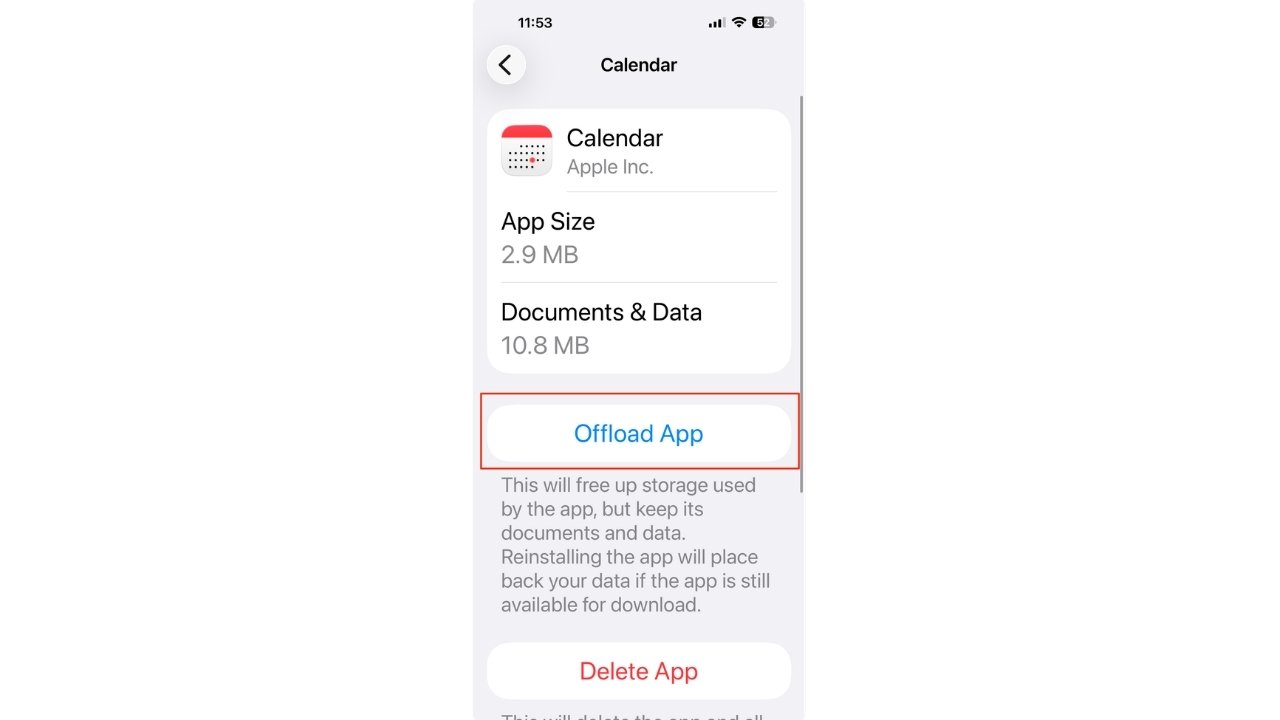
If the app continues to behave strangely, you can offload it.
Important note before you do this: Offloading the app removes the app itself but keeps your calendar data. Your events stored in iCloud, Google or other accounts remain intact. However, if you delete the app instead of offloading it, that can remove locally stored data. If your calendars are synced with iCloud or another account, your events will come back after reinstalling. Still, it is smart to confirm your calendars are syncing before making changes.
- Go to Settings
- Click General
- Tap iPhone Storage
- Click Calendar
- Tap Offload App
- Restart your phone
- Then go back to Settings > General > iPhone Storage > Calendar and tap Reinstall App. You can also tap the Calendar icon on your Home Screen. If it shows a small cloud download symbol, tap it to reinstall.
Several users reported that this solved lingering issues.
How to prevent calendar spam in the future
Now that your calendar is clean, the next step is prevention.
Here are smart habits that make a real difference:
- Keep iOS updated so security patches stay current
- Avoid tapping links in unexpected texts or pop-ups
- Use strong antivirus software to block malicious websites and phishing links before they load. Our #1 pick is Norton Antivirus Plus (Get 58% off here)
- Never engage with alerts about prizes or infections
- Consider a data removal service to limit how much of your personal information is exposed online. Our #1 pick is Incogni. Exclusive CyberGuy Deal: 60% off
- Review and remove unknown calendar subscriptions regularly
Why Apple users are frustrated
Many users point out that even when a spam invite lands in junk mail, the event can still appear on the calendar. That disconnect feels like a flaw in the system. Some argue Apple should tighten how calendar subscriptions work. Still, personal awareness goes a long way. Scammers rely on quick reactions. Slow down, verify and stay skeptical of urgency.
Related Links:
- Thousands of iPhone apps expose data inside Apple’s App Store
- Apple warns millions of iPhones are exposed to attack
- How to delete embarrassing autofill entries on your Mac or iPhone browsers
Kurt’s key takeaways
Fake iPhone calendar spam invites are annoying. They are disruptive. And they can feel alarming. However, in most cases, they are the result of a sneaky subscription, not a hacked phone. A few careful taps can remove them. A few smarter habits can keep them from returning.
The next time your phone flashes an urgent warning, will you react instantly or take a breath and investigate first? Let us know in the comments below.
FOR MORE OF MY TECH TIPS & SECURITY ALERTS, SUBSCRIBE TO MY FREE CYBERGUY REPORT NEWSLETTER HERE
Copyright 2026 CyberGuy.com. All rights reserved. CyberGuy.com articles and content may contain affiliate links that earn a commission when purchases are made.
🎙 Now Streaming: My New Podcast: The CyberGuy Report
Kurt’s Top Deals
Deals move fast and inventory can be limited, so don’t wait too long.
| 🔥 Editor’s pick  Summer entertaining Ninja SLUSHi Machine (26% off) Frozen drinks and slushies at home in minutes. | |
| 💰 Top deal  Outdoor essential TYPEC Solar Bug Zapper (36% off) Solar-powered bug zappers for patios and camping. |