Do you have an Android phone, and wish you could mute certain notifications in your text messages and emails? If you are tired of being bombarded by unwanted alerts, you are not alone.
Many people find notifications to be distracting, annoying, or even stressful. Fortunately, there is a simple way to silence these messages without leaving the conversation or missing important updates. Here is how you can mute text messages and email notifications on your Android phone.
How to mute text message notifications
Text messages can be a great way to stay in touch with your friends and family, but sometimes you may not want to hear the constant ping of new messages. Maybe you are in a meeting, studying, or just need some peace and quiet. Whatever the reason, you can mute text message notifications on your Android phone by following these steps:
- Open the Messaging app
- Then choose the conversation you want to mute
- In the top right corner, tap the three dots
- Tap Group details

- Then hit Notifications
- Tap Silent
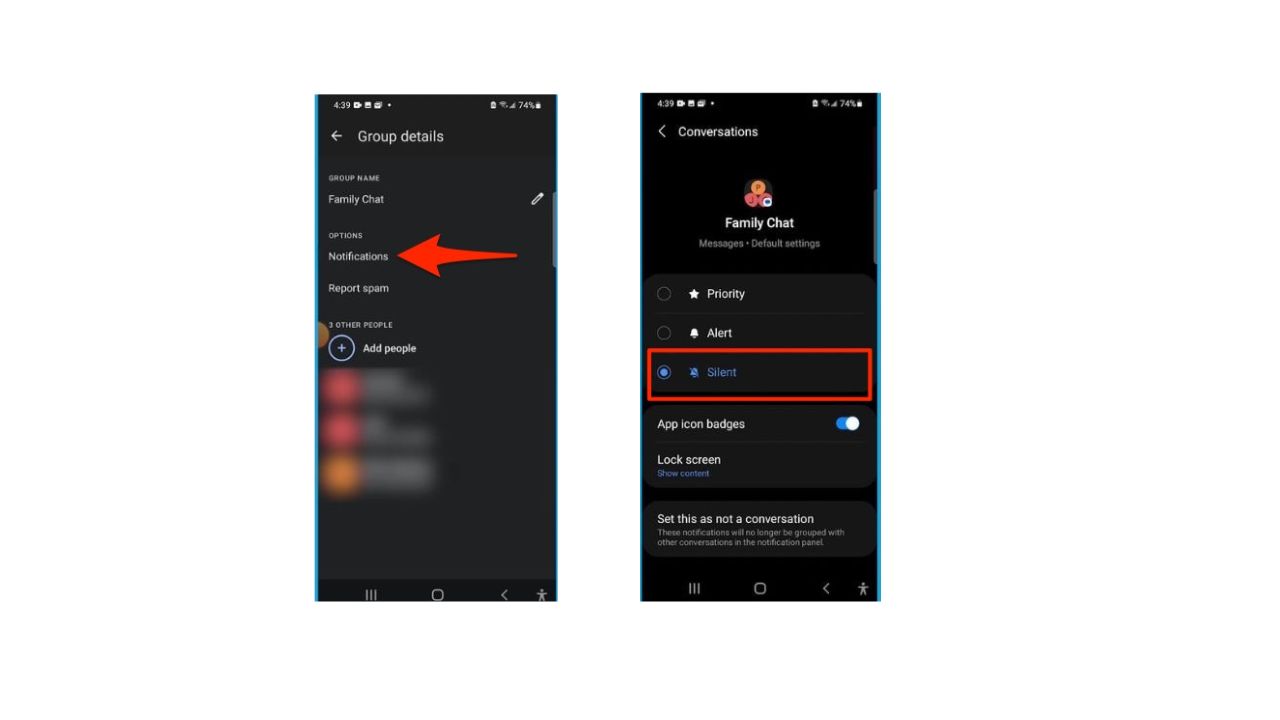
Now, you will no longer receive sound or vibration alerts for this conversation, but you can still check the messages whenever you want.
MORE: HOW TO HIDE PHOTOS ON ANDROID FROM SNOOPS
How to mute email notifications
Emails can be useful for work, school, or personal matters, but they can also clutter your inbox and your notification bar. If you want to reduce the noise and focus on the emails that matter, you can mute email notifications on your Android phone by following these steps:
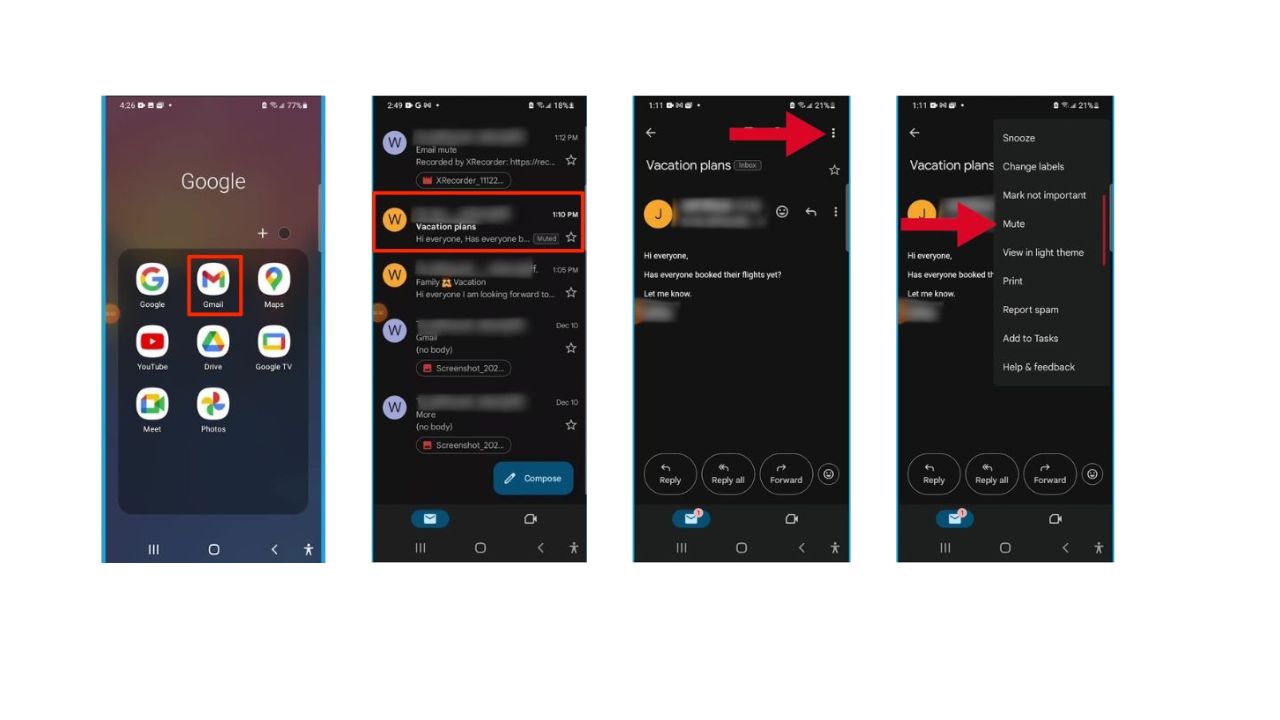
- Open the Gmail app
- Click on the email chain you want to mute
- In the top right corner, tap the three dots
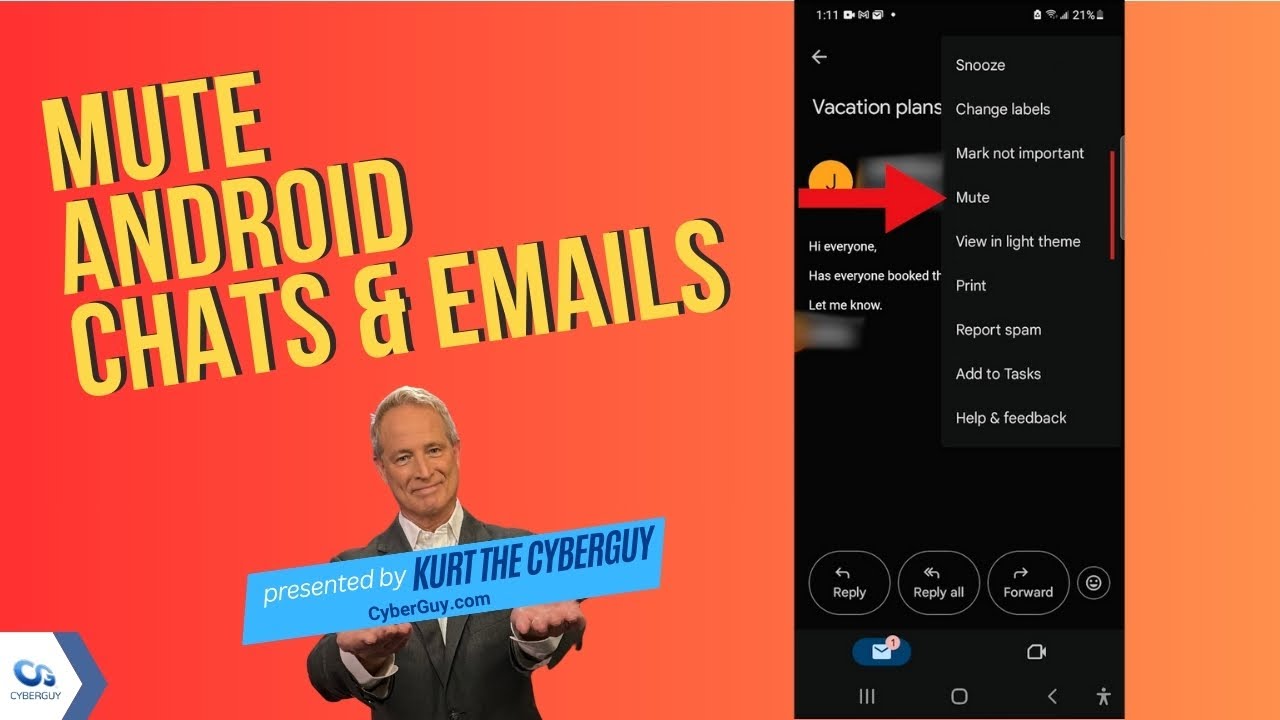
- Then tap Mute
How to check the muted messages and emails
Muting notifications does not mean that you will never see them again. You can still check the messages and emails that you muted by opening the Messaging or Gmail app and looking for the conversation or email chain that you muted. You will see a mute icon next to the muted conversation or email chain, indicating that you will not receive any sound or vibration alerts for it. You can also use the search function in the app to find the muted conversation or email chain by typing the name of the sender or the subject of the email.
How to unmute messages and emails
If you want to unmute a conversation or email chain, you can do so by following the same steps that you used to mute it.
For text messages, tap the three dots in the top right corner, tap Group details, then tap Notifications, and then tap Default.
For emails, tap the three dots in the top right corner, then tap Unmute. You will then receive notifications for the conversation or email chain as usual.
MORE: 5 THINGS YOU DIDN’T KNOW YOU CAN DO ON AN ANDROID
Kurt’s key takeaways
By muting notifications, you can reduce distractions and focus on what matters to you. But you can also keep track of the messages and emails that you muted, and unmute them whenever you want. This way, you can enjoy the best of both worlds on your Android phone.
What do you think about muting notifications on your Android phone? Is this a feature you think you’ll use, or do you prefer to keep all your notifications on? How do you balance your communication and your productivity? Let us know what you think in the comments below.
Watch the latest episode of The CyberGuy Report.

Missed this event? Sign up via the registration form and see our live recording.
See Kurt’s Prime Day picks for useful gadgets, practical upgrades and everyday tech while the deals last.
FOR MORE OF MY TECH TIPS & SECURITY ALERTS, SUBSCRIBE TO MY FREE CYBERGUY REPORT NEWSLETTER HERE
Answers to the most asked CyberGuy questions:
- What is the best way to protect your Mac, Windows, iPhone, and Android devices from getting hacked?
- What is the best way to stay private, secure, and anonymous while browsing the web?
- How can I get rid of robocalls with apps and data removal services?
🎙 Now Streaming: My New Podcast: The CyberGuy Report
Kurt’s Top Deals
Deals move fast and inventory can be limited, so don’t wait too long.
| 🔥 Editor’s pick  Summer entertaining Ninja SLUSHi Machine (26% off) Frozen drinks and slushies at home in minutes. | |
| 💰 Top deal  Outdoor essential TYPEC Solar Bug Zapper (36% off) Solar-powered bug zappers for patios and camping. |