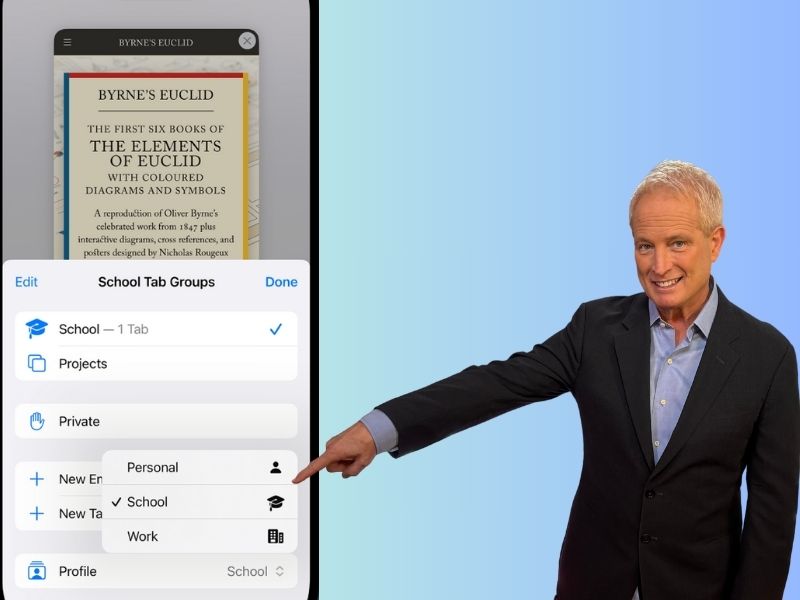
Do you ever feel overwhelmed by the number of tabs you have open in Safari? Do you wish you could easily separate your work and personal browsing without losing your progress or preferences? If so, you might want to try out the new Safari profiles feature in iOS 17.
What are ‘Safari Profiles’?
Safari profiles let you create different profiles for different purposes, each with its own history, data, tabs, groups, and favorites. This way, you can keep your browser organized and switch between profiles with just a few taps.
For example, you can have a profile for your home renovation project, another one for your work emails and documents, and another one for your online shopping and social media. I love using this new feature to keep things sorted out in my brain and not just my web browser.
Safari profiles are synced across all your devices that are signed in with your Apple ID, so you can access them on your iPhone, iPad, and Mac. Here’s how to create, use, and delete Safari profiles on your iPhone.
How to create a Safari profile on your iPhone
Creating a Safari profile on your iPhone is easy and quick. Here are the steps you need to follow:
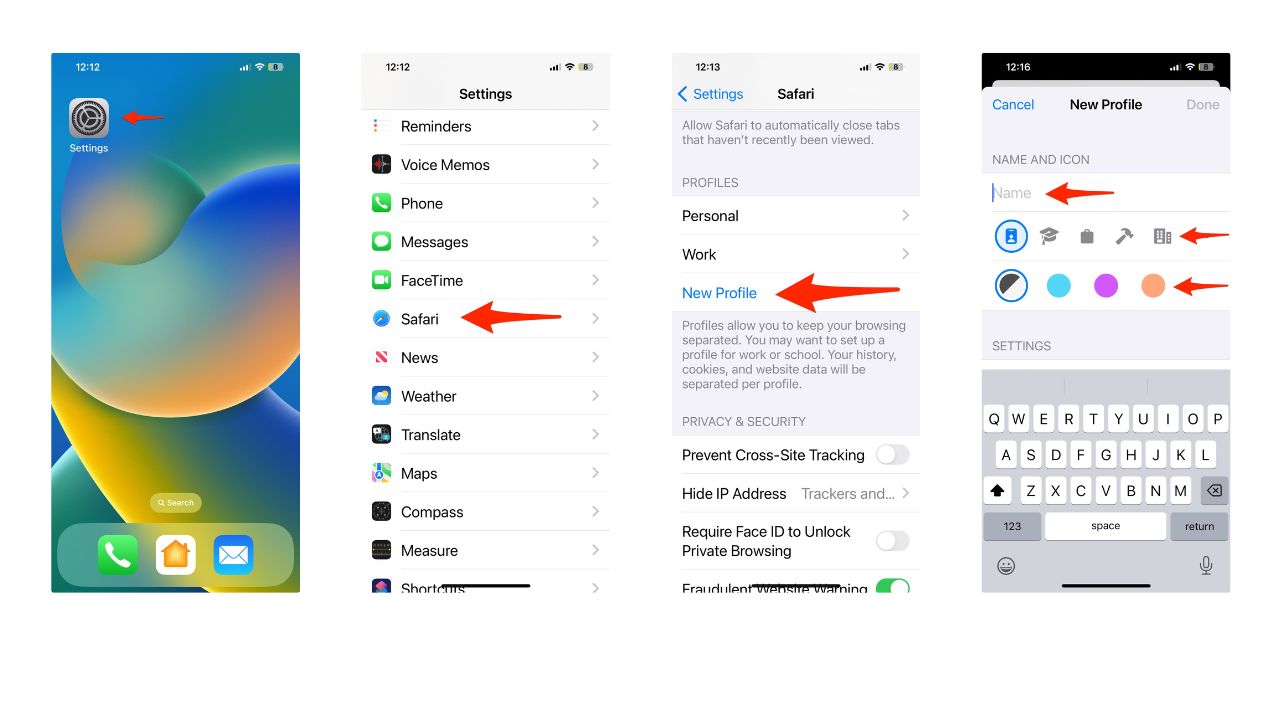
- On your iPhone, go to Settings
- Tap Safari
- Then tap New Profile
- Tap Name, enter a name for this profile, then choose an icon and color
- Below Settings, tap Favorites to choose a bookmarks folder
- Tap Open New Tabs and choose the page you want new tabs to open to
- Then tap < Back and Done in the upper right of the screen
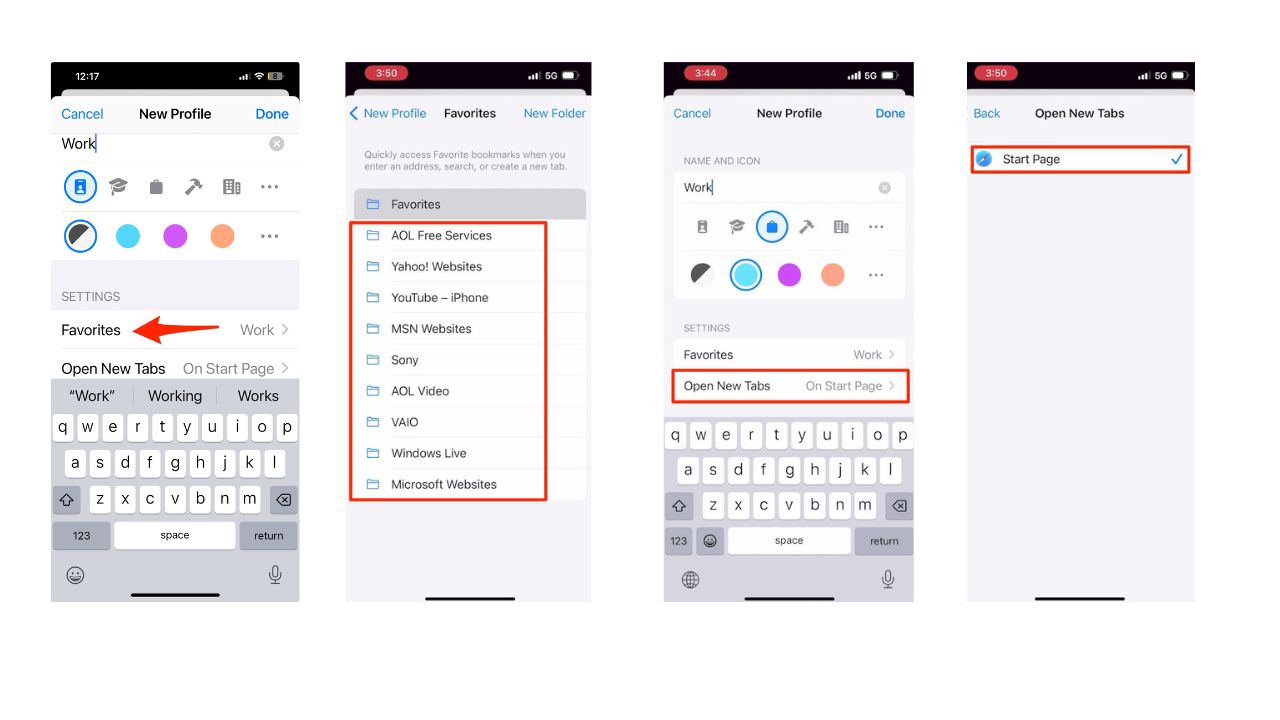
Now, you have created a new Safari profile on your iPhone. You can repeat these steps to create as many profiles as you want.
MORE: HIDDEN IPHONE SETTINGS TO CHANGE THE MOMENT YOU DOWNLOAD THE NEW ISO 17
How to switch between Safari profiles on your iPhone
Once you have created your Safari profiles, you can easily switch between them while browsing in Safari. Here is how you can do that:
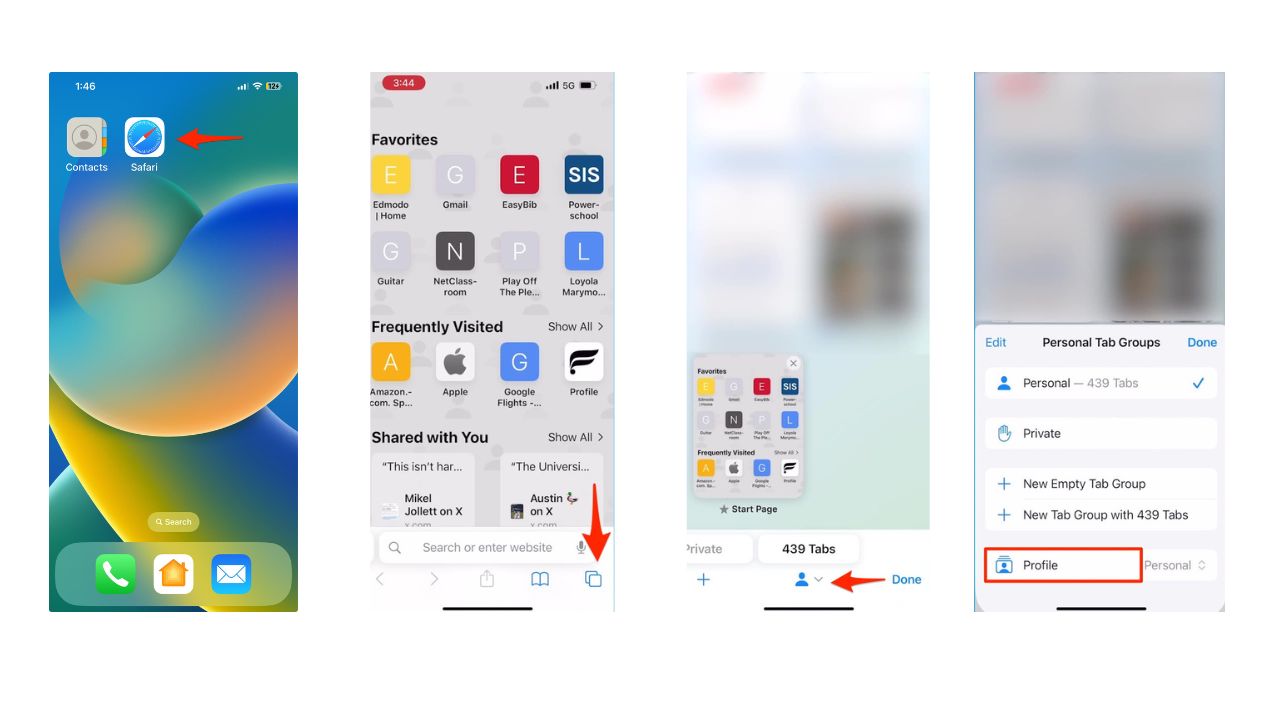
- On your iPhone, open the Safari app
- Tap the Tabs button on the bottom right. It’s the icon with the squares overlapping each other.
- Then tap the arrow facing down
- Tap Profile
-
- Then select the profile you want to use
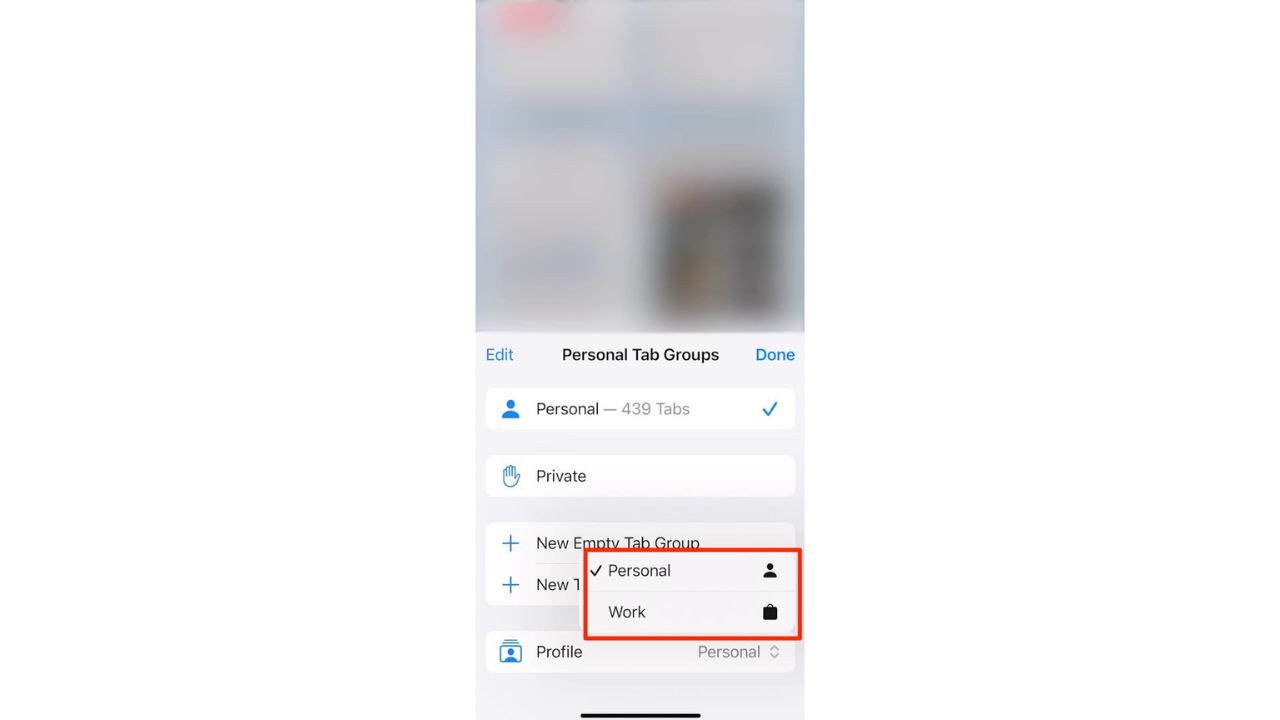
You will see the tabs, groups, and favorites of the selected profile. You can also see the name, icon, and color of the profile on the top left of the screen. To switch back to another profile, just repeat these steps.
MORE: HOW TO LEAVE A VIDEO MESSAGE ON FACETIME WITH IOS 17
How to delete a Safari profile on your iPhone
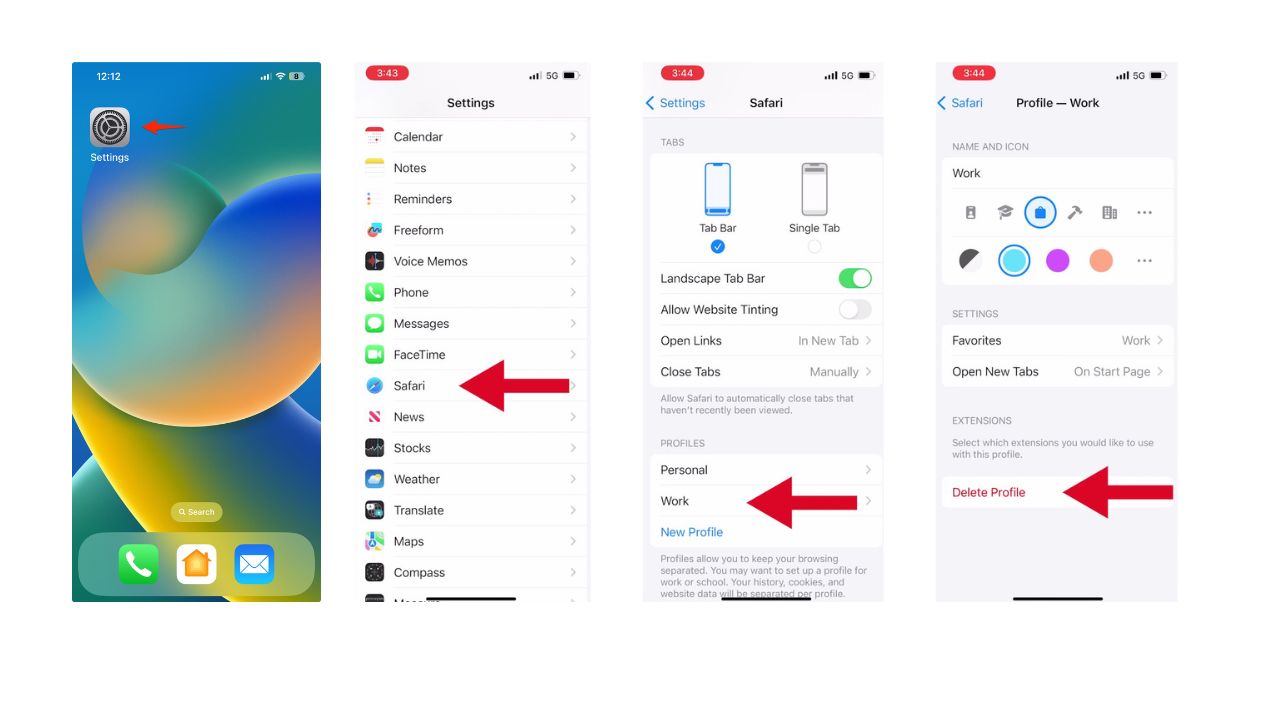
If you no longer need a Safari profile, you can delete it at any time. However, be careful, as this action can’t be undone. Here is how you can delete a Safari profile on your iPhone:
- Go to Settings
- Click Safari
- Then tap a Profile
- Tap Delete Profile
Watch the latest episode of The CyberGuy Report.

Missed this event? Sign up via the registration form and see our live recording.
See Kurt’s latest Amazon picks for useful gadgets, smart home upgrades and everyday tech worth grabbing while the deals last.
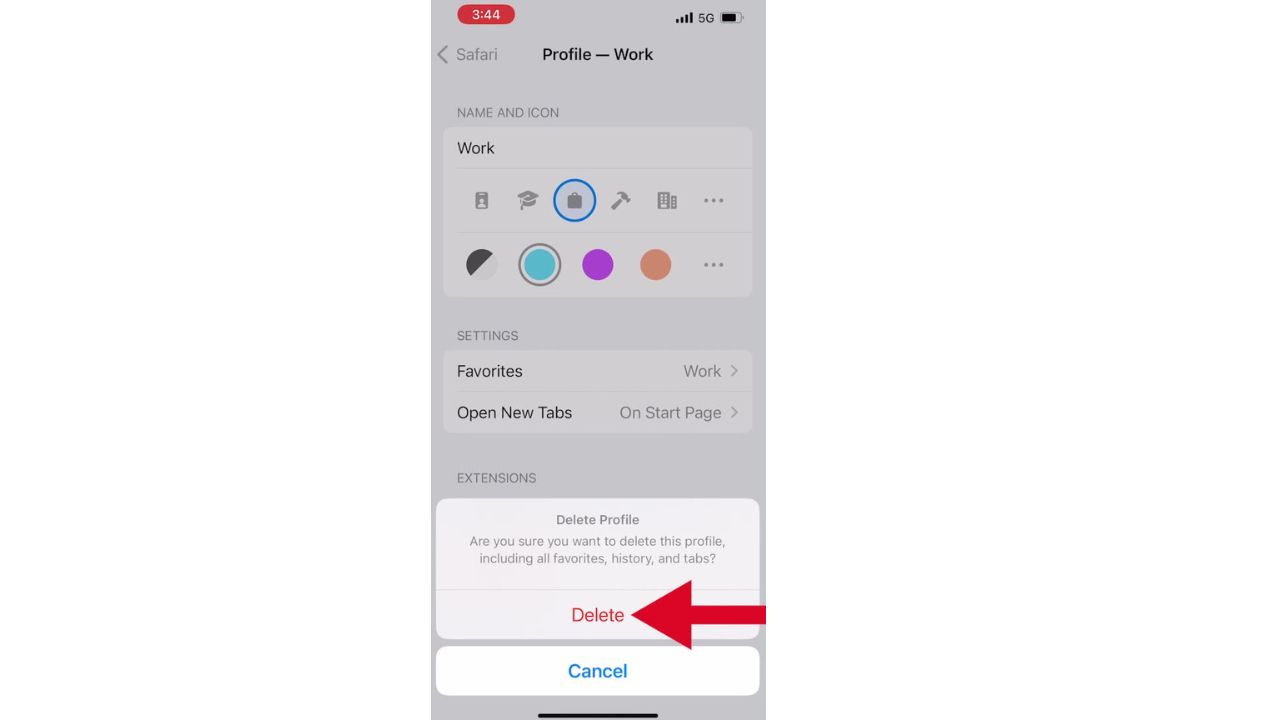
- You will see a confirmation message asking you if you want to delete the profile and its data, including favorites, history, and tabs. Tap Delete to confirm
Kurt’s key takeaways
Safari profiles are a great way to keep your browser organized and switch between different purposes. You can create, use, and delete Safari profiles on your iPhone with ease. Safari profiles also work on Mac with Safari in very similar ways. Try them out and see how they can make your browsing experience more convenient and enjoyable.
How do you think the new Safari profiles could change the way you browse on your devices, and what creative uses do you foresee for this feature in managing your online activities? Let us know in the comments below.
🎙 Now Streaming: My New Podcast: The CyberGuy Report
Kurt’s Top Deals
Deals move fast and inventory can be limited, so don’t wait too long.
| 🔥 Editor’s pick  Summer entertaining Ninja SLUSHi Machine (26% off) Frozen drinks and slushies at home in minutes. | |
| 💰 Top deal  Outdoor essential TYPEC Solar Bug Zapper (36% off) Solar-powered bug zappers for patios and camping. |