



iOS 18 brings a host of new features to your iPhone, but it’s also important to consider your privacy. Here are three settings you might want to turn off to enhance your privacy after updating to iOS 18. Please note the privacy settings mentioned below for iOS 18 on iPhones generally apply to iPads as well as both iOS and iPadOS share many of the same privacy features and settings.
Credit: Apple
Updating to iOS 18
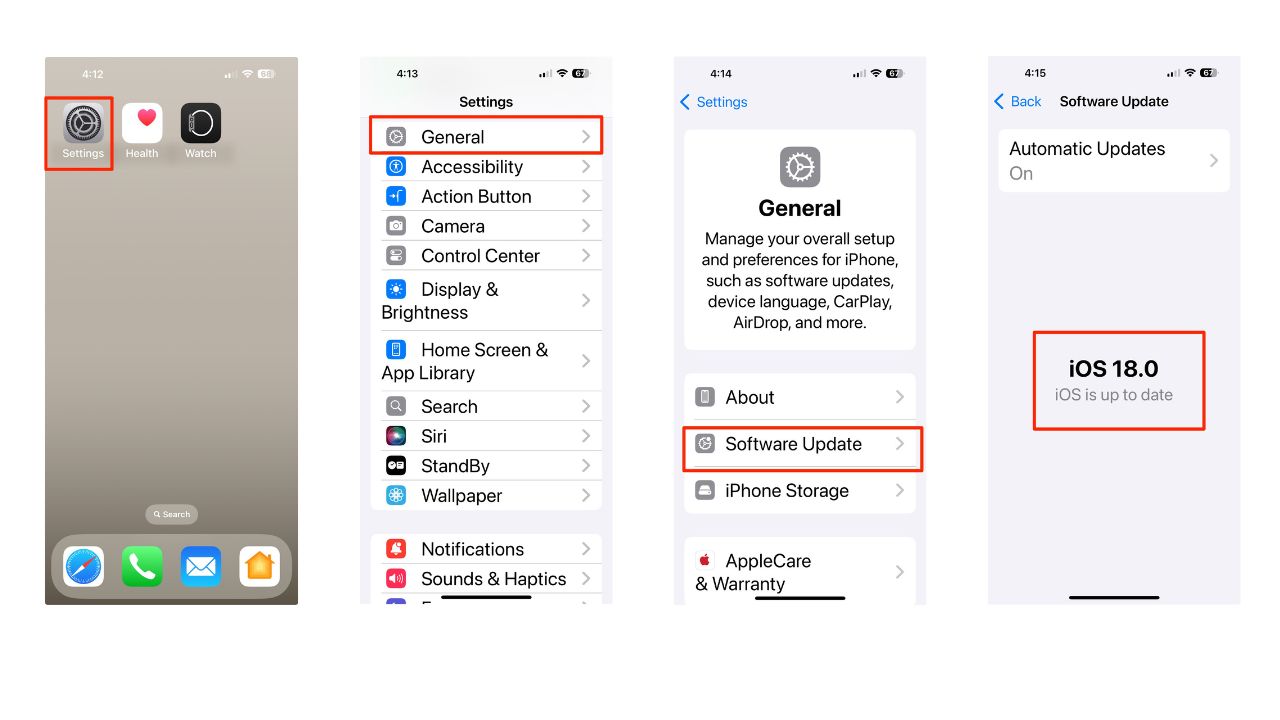
Before we dive into the settings, make sure your iPhone is running iOS 18. To update:
- Open the Settings app
- Tap on “General”
- Select “Software Update”
- If an update is available, tap “Download and Install”, or “Update Now”
- Follow the on-screen instructions to complete the update.
HOW SCAMMERS ARE USING YOUR PERSONAL DATA FOR FINANCIAL SCAMS AND HOW TO STOP THEM
1) Improve Search
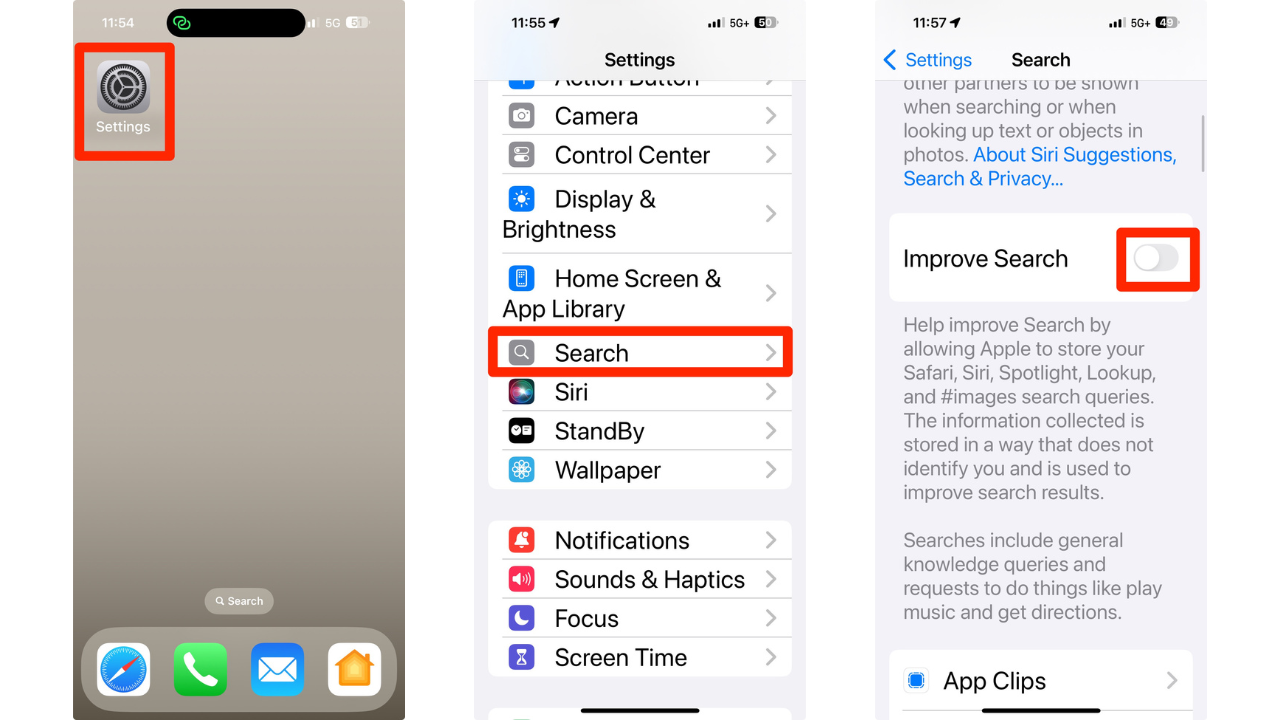
The “Improve Search” feature allows Apple to store your searches from Safari, Siri, Images, and more. If privacy is a top concern, you might want to disable this. Here’s how to turn it off:
- Open the Settings app
- Scroll down and tap on “Search”
- Find “Improve Search” or, “Help Apple Improve Search” and toggle it off
HOW TO PROTECT YOUR IPHONE & IPAD FROM MALWARE
2) Shared with You
In iOS 18, the “Shared with You” feature shares content from your Messages with other apps. This means that when you share certain types of content through Messages, it can automatically be displayed or utilized in relevant apps without needing to manually transfer or open the content again. Here are a few examples of how this feature can be used:
Photos and videos: If you share a photo or video in a conversation, it can automatically appear in your Photos app, making it easy to access and edit without having to save it manually.
Links and articles: When you share a link to an article or a website, it can automatically appear in your Reading List in Safari or in a news app that you use, allowing you to read it later without having to search for the link again.
Watch the latest episode of The CyberGuy Report.

Missed this event? Sign up via the registration form and see our live recording.
See Kurt’s latest Amazon picks for useful gadgets, smart home upgrades and everyday tech worth grabbing while the deals last.
Calendar events: If someone sends you an event or appointment details, it can automatically be added to your Calendar app, ensuring you don’t miss important dates and events.
Music and podcasts: Sharing a song or podcast episode can automatically add it to your Music or Podcasts app, making it easy to listen to shared content without additional steps.
Documents and files: When you share a document or file, it can automatically be saved in your Files app, allowing you to access and manage it from one central location.
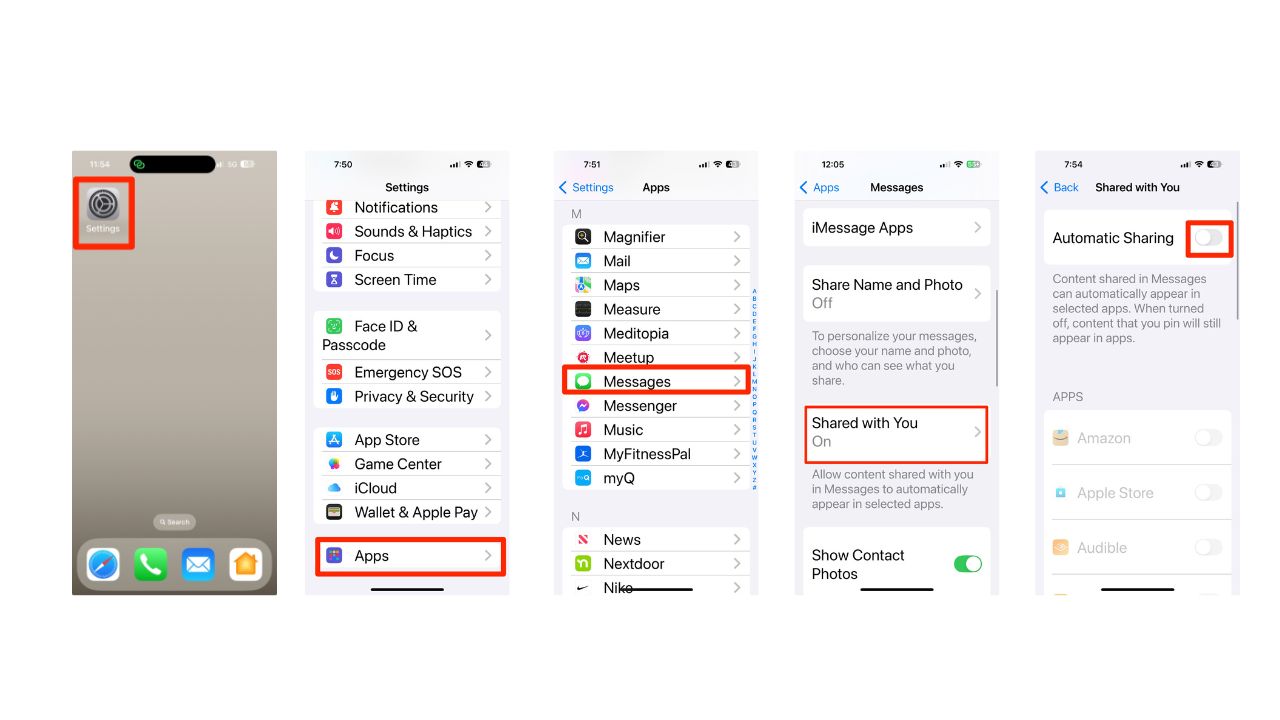
This feature reduces the need for repetitive actions and makes it easier to keep track of shared content across different apps. However, if you have private conversations or information you’d rather keep contained, consider disabling them. Here’s how to turn it off:
- Open Settings
- Tap on “Apps”
- Scroll down and tap on “Messages“
- Tap on “Shared with You”
- Toggle off “Automatic Sharing”
THE APPLE WATCH COULD HELP YOU UNCOVER HIDDEN SLEEP APNEA
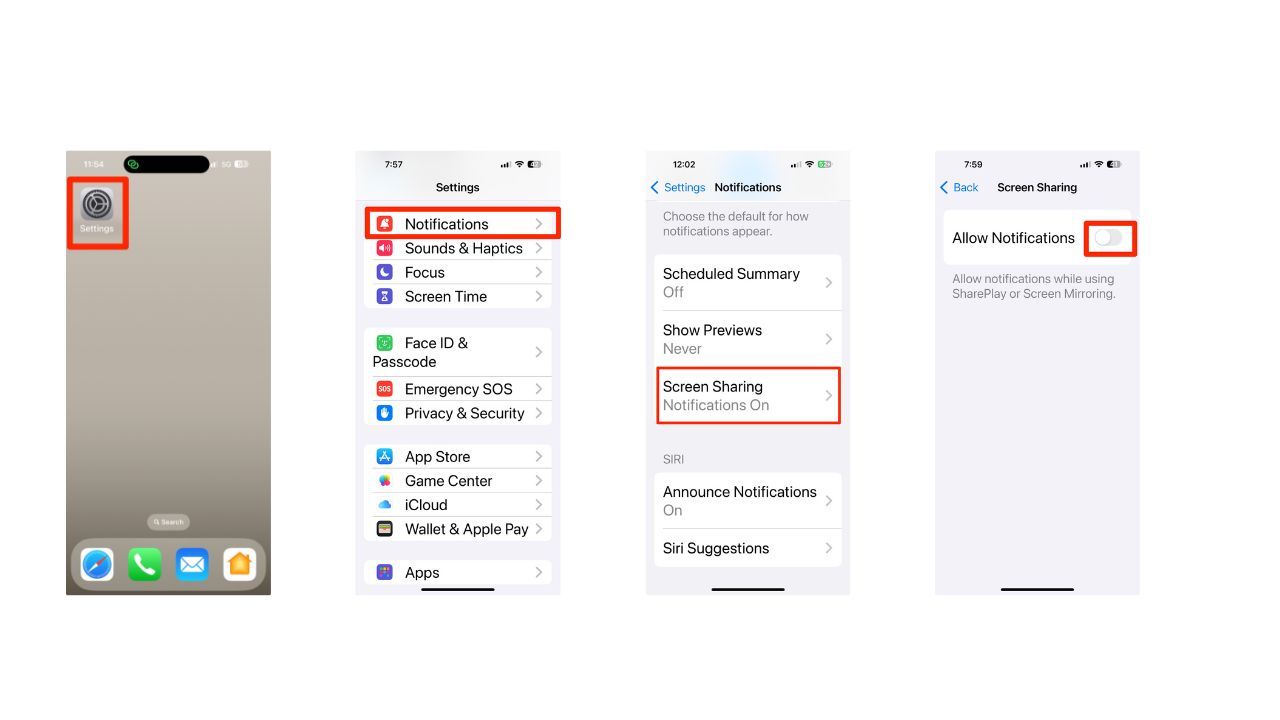
3) Screen Sharing notifications
When sharing your screen on a TV or during FaceTime, your notifications might be visible to others. Here’s how to prevent that by turning off “Screen Sharing” notifications:
- Go to Settings
- Tap on “Notifications”
- Scroll down and tap on “Screen Sharing”
- Toggle off “Allow Notifications”
Kurt’s key takeaways
By adjusting these three settings, you can significantly enhance your privacy in iOS 18. Remember, it’s always a good idea to regularly review your privacy settings to ensure they align with your preferences. While these features can be useful, it’s important to weigh their benefits against your privacy concerns.
Are there any additional privacy concerns you have that you wish Apple would address in future updates? Let us know in the comments below.
FOR MORE OF MY TIPS, SUBSCRIBE TO MY FREE CYBERGUY REPORT NEWSLETTER HERE
🎙 Now Streaming: My New Podcast: The CyberGuy Report
Kurt’s Top Deals
Deals move fast and inventory can be limited, so don’t wait too long.
| 🔥 Editor’s pick  Summer entertaining Ninja SLUSHi Machine (26% off) Frozen drinks and slushies at home in minutes. | |
| 💰 Top deal  Outdoor essential TYPEC Solar Bug Zapper (36% off) Solar-powered bug zappers for patios and camping. |


9 comments
I like all the information, but this must be for new phones. Need to put up for older phones. Like five years or so.
Hi Delfina, make sure to update your software so you have the latest iOS and follow our tips in the article above. Settings > General > Software Update. iPhone XR and later (iPhones 11 through 16 can update to iOS 18)
My iphone has automatic updates turned on. Despite this, I just had to manually prompt it to update to ios17.7.
Do you have similar recommendations for iOS 18.01 for iPad? Some differences.
Hi Gordon, the privacy settings mentioned for iOS 18 on iPhones generally apply to iPads as well as both iOS and iPadOS share many of the same privacy features and settings.
Very easy thank you
Thanks, I find your site very helpful.
Thanks for your great tips, Kurt. I read your email first every morning.
Thank you for the information and insight!