In the digital age, securing your personal data is more important than ever, especially on devices that travel with us everywhere, like our smartphones. If you’re an Android user, you’re in luck because there are several built-in features to help you lock down your device. Let’s dive into some of these options and ensure your information stays safe and secure. (iPhone and iPad users, follow these tips)
GET SECURITY ALERTS, EXPERT TIPS – SIGN UP FOR KURT’S NEWSLETTER – THE CYBERGUY REPORT HERE
Understanding your Android’s settings
Firstly, it’s crucial to understand that the settings we’ll discuss may vary depending on your Android phone’s manufacturer. So, if you don’t find the exact option, don’t worry—just look for similar terms or consult your phone’s help guide.
BEST ANTIVIRUS FOR ANDROIDS – CYBERGUY PICKS 2025
How to lock your Android
To start, let’s explore the standard lock options available on most Android devices:
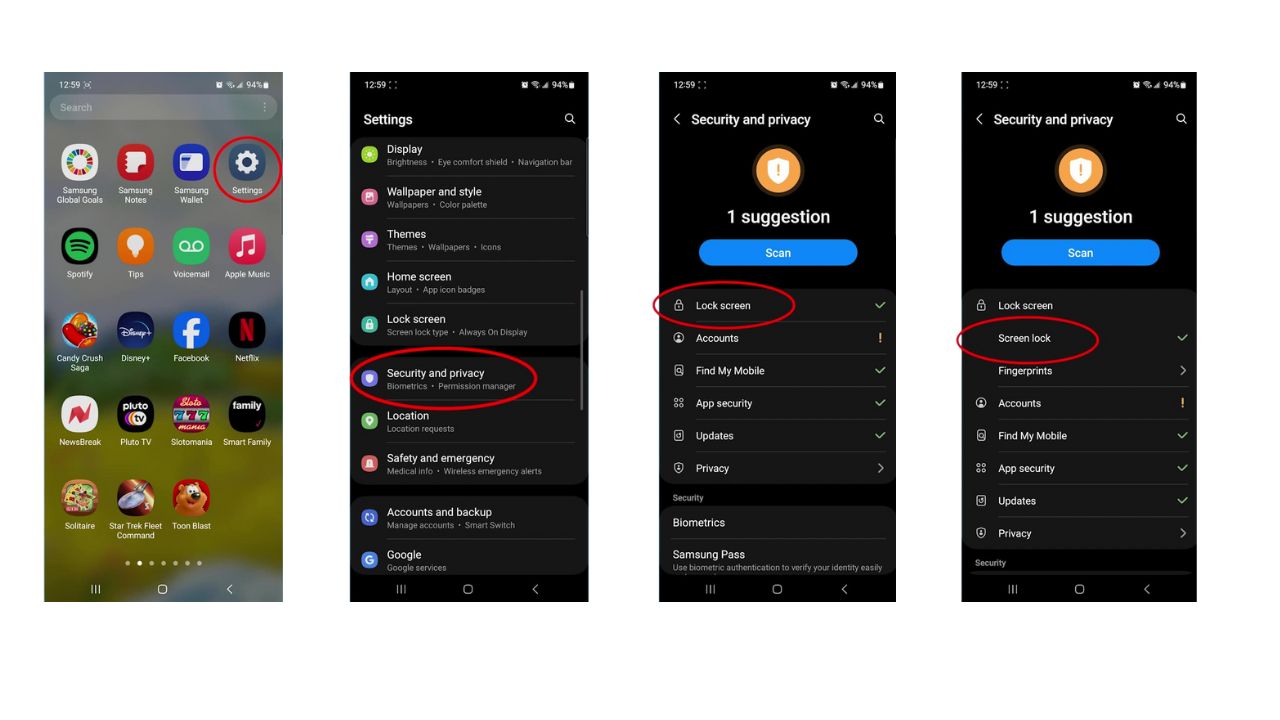
- Go to Settings. You’ll want to look for the gear icon on your home screen or app drawer and tap it
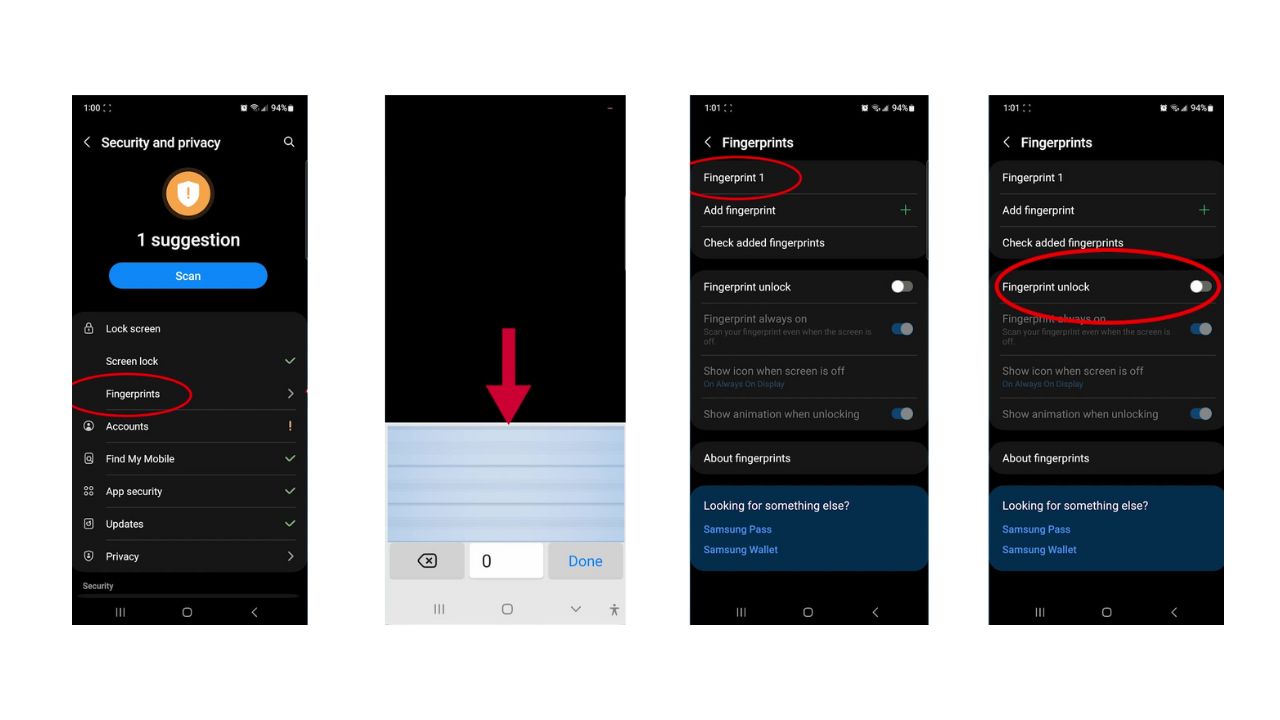
- Scroll down until you find the ‘Security and Privacy’ option and tap it
- Within the security settings, find and tap on Lock Screen
- Next, select ‘Screen Lock’ to view your current security method
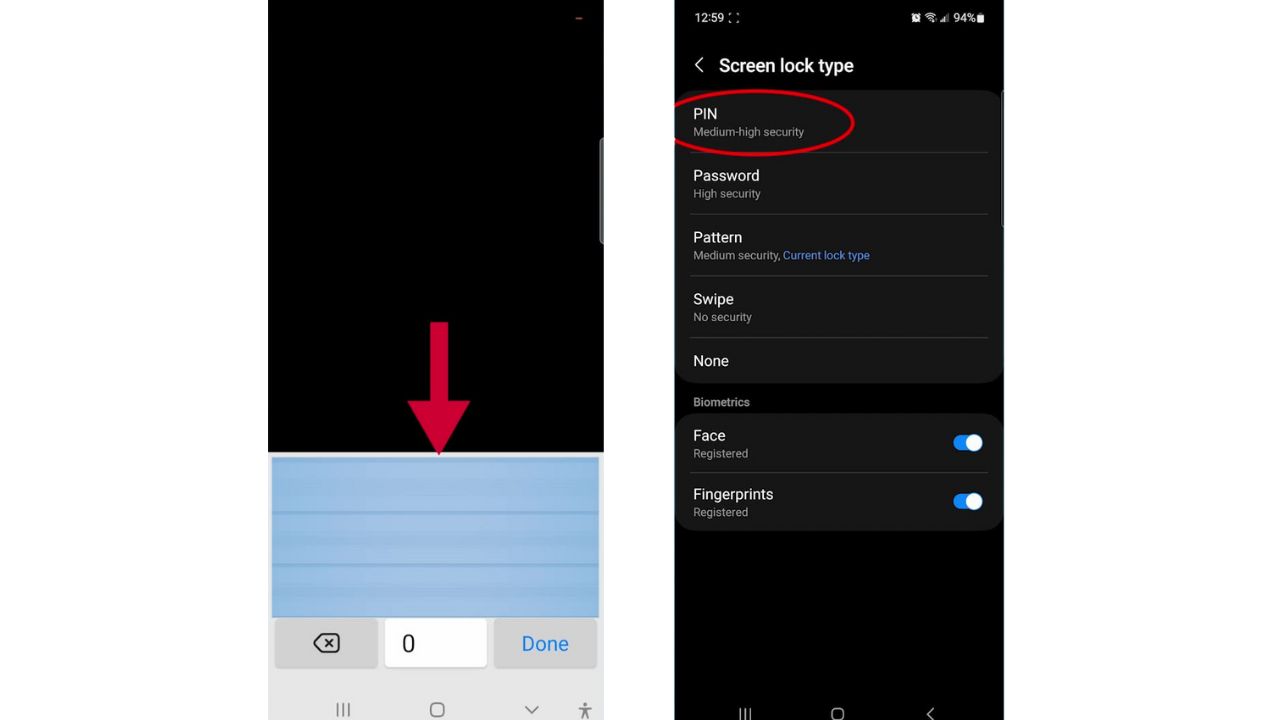
- Enter your current password, PIN, pattern, etc., to proceed
- You’ll see a list of all the options you can use, such as a PIN, pattern, or password. Select the one you prefer and set it up
BEST ACCESSORIES FOR YOUR ANDROID
How to enable biometric security options
Now, let’s move on to the more advanced biometric options:
- If your phone has a fingerprint scanner, consider using fingerprints for security
- Input your current password to access these settings
- Here, you can rename any set Fingerprints, add new ones, and check what fingerprints are named
- Ensure the ‘Fingerprint Unlock’ option is enabled so you can use it on your lock screen
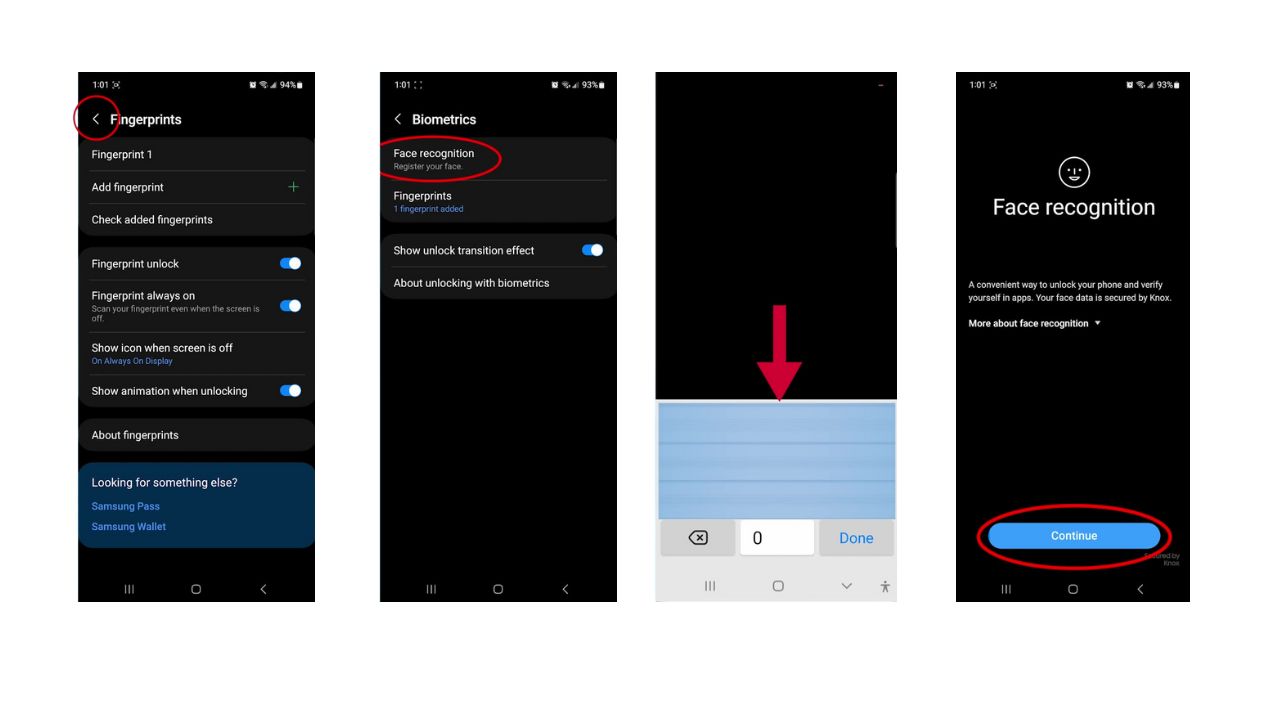
- Go back by clicking the back arrow
- Tap Face Recognition
- Input your current password
- If you haven’t set up face recognition yet, it’ll prompt you to do so by clicking Continue
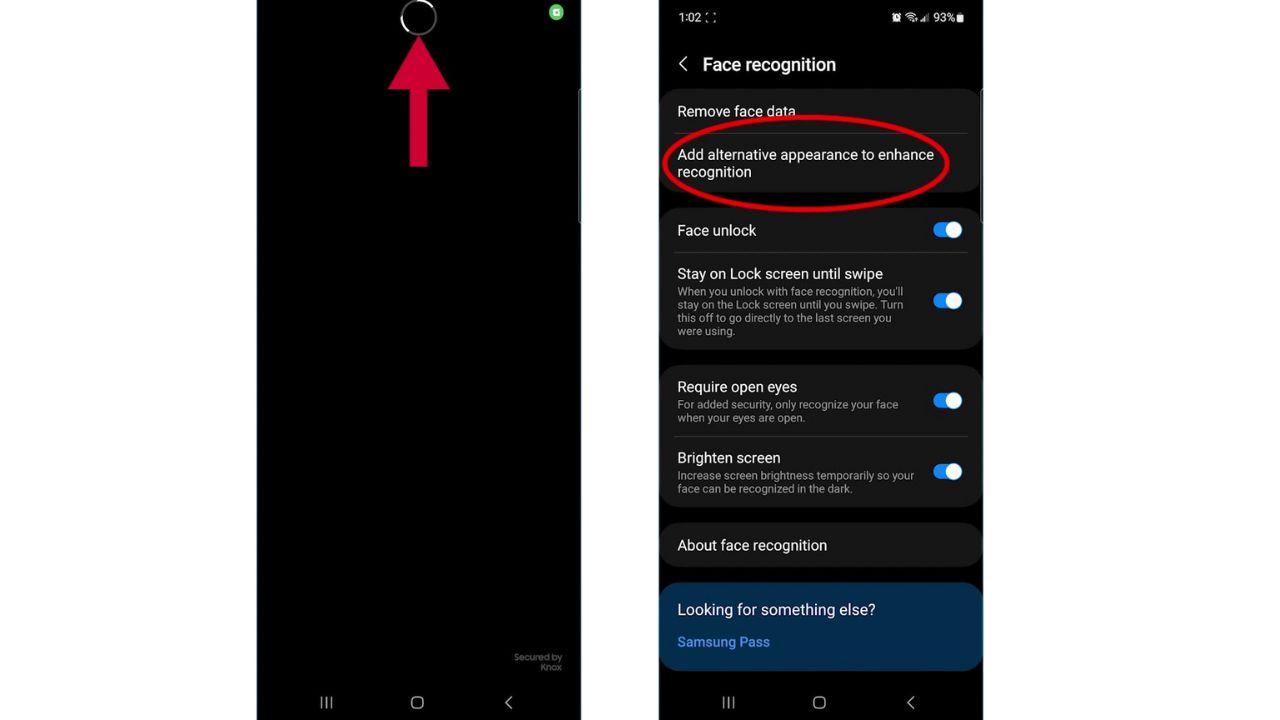
- Hold your phone in front of your face to capture your likeness
- Once set up, you’ll have options to remove your face data or Add alternative appearance to enhance recognition
By taking advantage of built-in security features like screen locks, fingerprint scanners, and face recognition, you can safeguard your personal data and enjoy peace of mind while using your smartphone.
Watch the latest episode of The CyberGuy Report.

Missed this event? Sign up via the registration form and see our live recording.
See Kurt’s latest Amazon picks for useful gadgets, smart home upgrades and everyday tech worth grabbing while the deals last.
Kurt’s key takeaways
Securing your Android device is a simple yet vital step in protecting your digital life. Whether you choose a traditional method like a PIN or pattern or opt for biometric security, the key is to select a method that you’ll consistently use. Remember, the strongest lock is the one you’ll always engage. So, take a moment to review your security settings and give yourself the peace of mind that comes with a well-protected device.
If you could add or improve one security feature on your Android device, what would it be and why? Let us know in the comments below.
FOR MORE OF MY SECURITY ALERTS, SUBSCRIBE TO MY FREE CYBERGUY REPORT NEWSLETTER HERE
Copyright 2025 CyberGuy.com. All rights reserved. CyberGuy.com articles and content may contain affiliate links that earn a commission when purchases are made.
🎙 Now Streaming: My New Podcast: The CyberGuy Report
Kurt’s Top Deals
Deals move fast and inventory can be limited, so don’t wait too long.
| 🔥 Editor’s pick  Summer entertaining Ninja SLUSHi Machine (26% off) Frozen drinks and slushies at home in minutes. | |
| 💰 Top deal  Outdoor essential TYPEC Solar Bug Zapper (36% off) Solar-powered bug zappers for patios and camping. |