



Do you ever wish there was a quicker way of replying to a text or email? There actually is, and I have a nifty little trick up my sleeve to show you how to speed up sending texts and emails.
It’s a clever shortcut that saves you time and brainpower when you’re on the go. With this great feature, all you have to do is type in a short phrase, and presto! Your phone will automatically replace it with the longer, more elaborate version you create.
For example, whenever I want to refer to my moniker ‘CyberGuy”, all I have to do is type “cg” and it does the rest. When I type my initials “kk”, it converts it on the fly automatically to “Kurt Knutsson”. It’s simple and saves so much time.
How to create your own text shortcuts on your iOS device
All you have to do is just follow these steps below to unlock the power of phrase-replacing with the Text Replacement feature.
- Click Settings
- Click General
- Click Keyboard
- Click Text Replacement (2nd row)
- Click the “+” button at the top
- Enter a phrase and the associated shortcut
- Click Save in the upper right-hand corner
Most popular shortcuts
You can create a shortcut similar to these frequently used ones you see below:
Phrase: Be right back
Shortcut: BRB
Phrase: Good Bye
Shortcut: GB
Phrase: Good Morning
Shortcut: GM
Phrase: OMW
Shortcut On My Way!
Phrase: Thank you
Shortcut: TK
Phrase: Talk to you later
Shortcut: TTYL
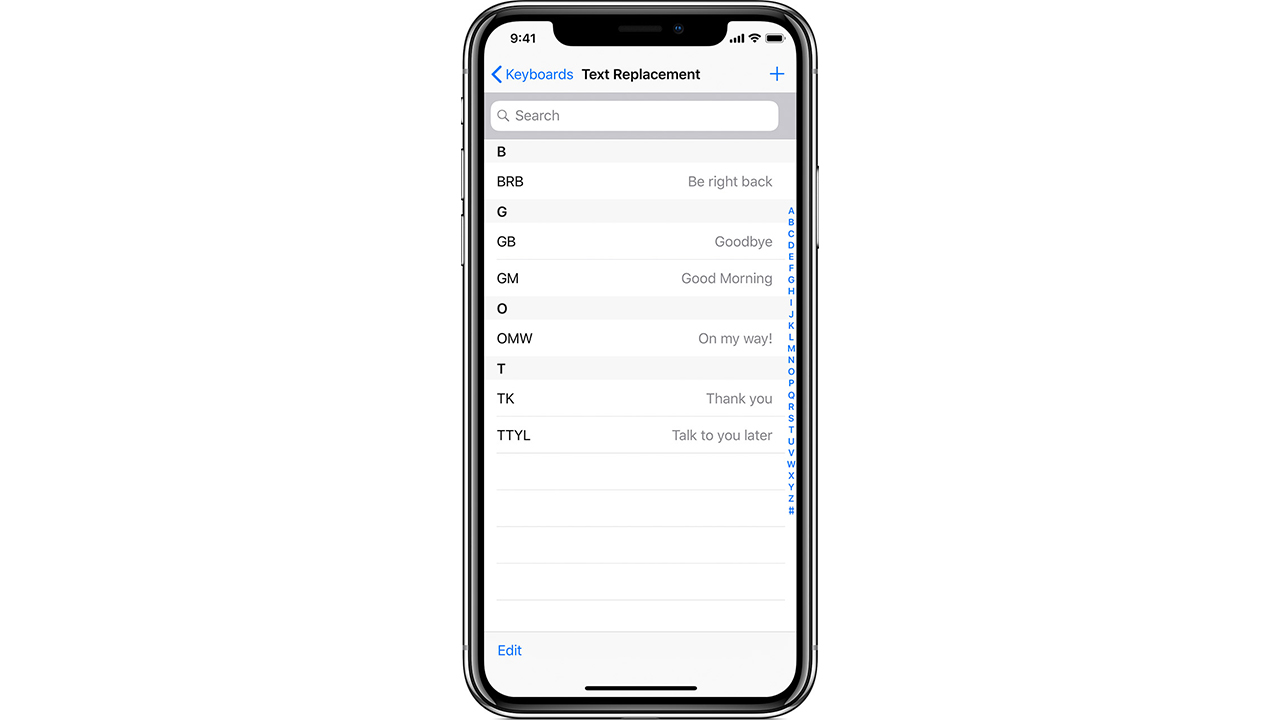
After you create your shortcuts, now, try opening an email or text message and typing your shortcut, and then press return. You’ll see that your phone will now automatically swap that shortcut out for the longer phrase.
How to delete a text shortcut on your iOS device using text replacement
Let’s say you now want to delete a text shortcut that you’ve created using text replacement. Here’s how to get rid of it on your iOS device.
How one convincing SSA scam nearly tricked a reader, and the five red flags to check before you click.

Saturday, June 13 at 10 AM ET.
See Kurt’s 2026 picks for every kind of dad.
[Ep. 34] Is that Social Security email in your inbox real?
```- Open the Settings app
- Scroll down and tap General
- Tap on Keyboard
- Locate the shortcut you want to delete and swipe on it to the left side
- When the Delete button appears, click on it

MORE: HOW TO CREATE OR LEAVE A GROUP TEXT
How to create your own text shortcuts on your Samsung device
Settings may work on other Android devices, although it may vary depending on your Android phone’s manufacturer
- Click Settings
- Scroll to General management
- Click Samsung Keyboard settings
- If you have a different keyboard set as your default, head to Keyboard list and default to find Samsung Keyboard – for this trick to work, you’ll need Samsung Keyboard set as your default. You can do that at the top of this page. Then, select “Samsung Keyboard” before the next step.
- Select Text Replacement
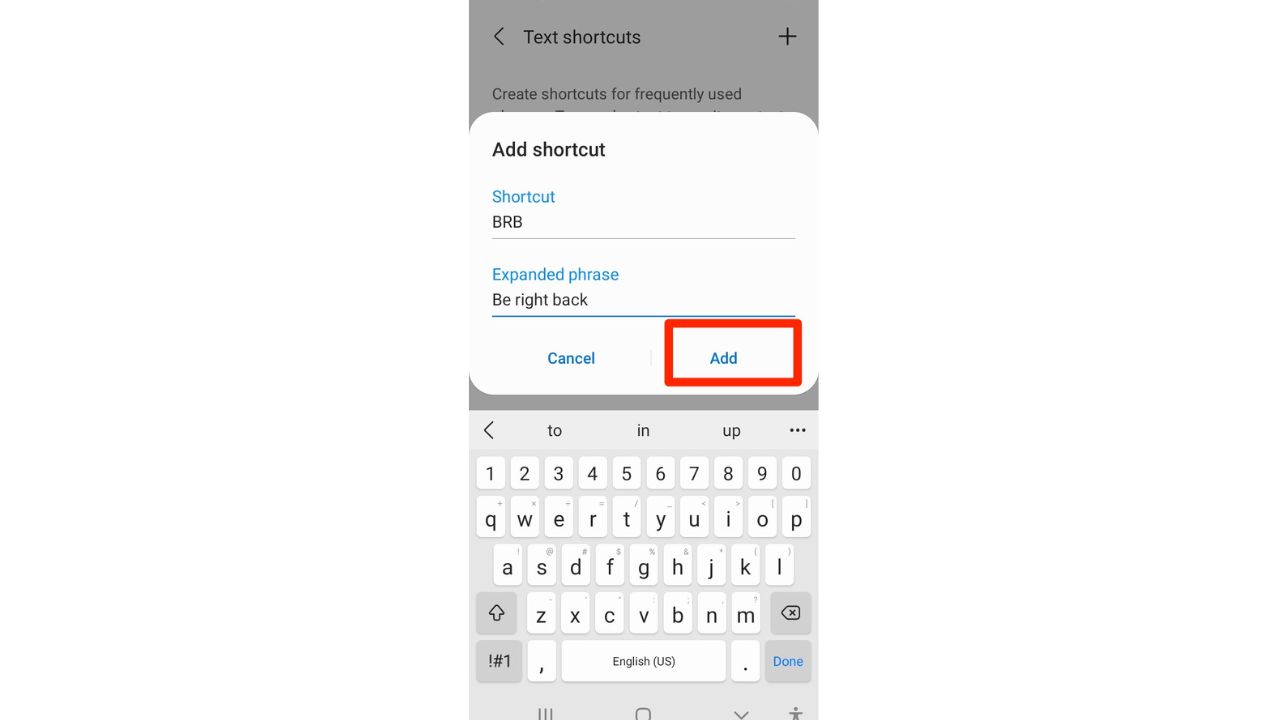
- Click More typing options, or on some devices, you may not see this, and you can proceed to click Text shortcuts and then click the ADD/+ button in the upper right
- Enter the shortcut and the expanded phrase and then click “add“
How to delete a text shortcut on your Samsung device
To delete a text shortcut you created on your Samsung device, access the keyboard settings and remove the desired shortcut entry from the list. Here’s how to do it.
- Click Settings
- Scroll to General Management and click it
- Click Samsung Keyboard settings
- Click More typing options, or on some devices, you may not see this, and you can proceed to click Text shortcuts and then find the text shortcut you want to delete and click on it
- Click the Delete button or the trash can in the upper right of the screen. Then hit delete again to confirm your decision.
MORE: HOW TO DICTATE TEXTS TO YOUR PHONE AND COMPUTER THE EASY WAY
Kurt’s key takeaways
If you want to save some time sending texts and emails, go ahead and create some custom shortcuts on your iOS or Android device and let your phone work its wizardry, saving you time and brainpower when you’re on the go.
With a little phrase-replacing magic, “BRB” becomes “Be right back,” “GM” transforms into “Good Morning,” and “OMW” magically expands to “On my way!” So go ahead, unlock the power of text replacement, and let the shortcuts do the talking.
If you ever change your mind, you can always delete the shortcuts just as easily as you created them. Happy texting and emailing.
What are some other time-saving smartphone tricks or features you wish more people knew about? Let us know by commenting below.
FOR MORE OF MY SECURITY ALERTS, SUBSCRIBE TO MY FREE CYBERGUY REPORT NEWSLETTER HERE
Related:
- How your old iPhone can do new amazing things with iOS 16
- 6 cool iPhone hacks to get the most out of life
- 3 Android copy and paste tips and tricks
🎙 Now Streaming: My New Podcast: The CyberGuy Report
Kurt’s Top Deals
Deals move fast and inventory can be limited, so don’t wait too long.
| 🔥 Editor’s pick  Summer entertaining Ninja SLUSHi Machine (26% off) Frozen drinks and slushies at home in minutes. | |
| 💰 Top deal  Outdoor essential TYPEC Solar Bug Zapper (36% off) Solar-powered bug zappers for patios and camping. |


