- “Sign in with Google” can be convenient, but some apps may ask for access to your Google Account data.
- Review third-party connections regularly and remove apps you no longer use, recognize or trust.
- Google Account settings can help you check connected apps, saved passwords, devices and sign-in activity.
- If a saved password is weak, reused or compromised, change it instead of only deleting it.
Have you ever visited a website or downloaded an app, only to be asked to create an account before you can even see what it offers? Pretty annoying, right? When you are not even sure you want to use the service, handing over more information can feel like a lot.
One option many people choose is “Sign in with Google.” It can speed up the process and save you from creating yet another password.
Here’s the catch: Signing in with Google and giving an app access to your Google Account are related, but they are not always the same thing. Some apps only use Google to verify who you are. Others may ask for access to certain Google Account data or services. That is why it is important to review what you are approving before you connect a third-party app to your account.
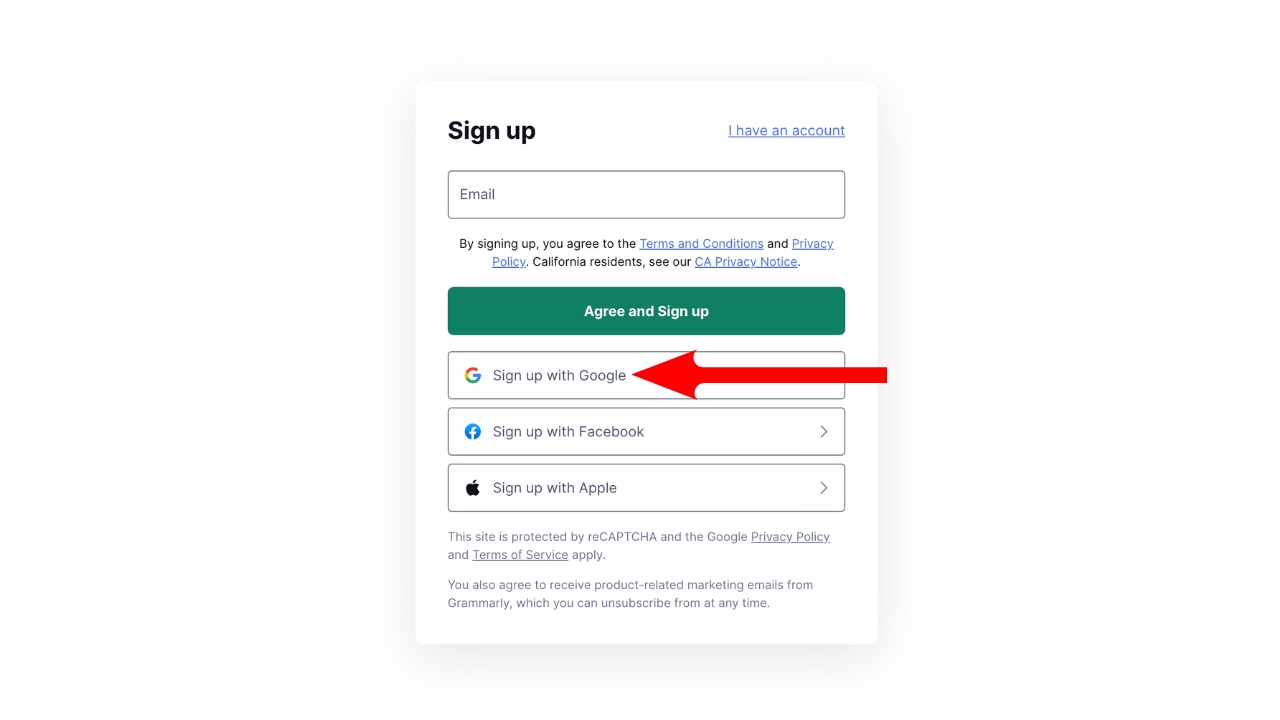
Table of Contents:
What are app permissions?
Third-party apps can be convenient. Some work closely with Google’s services to make things easier. A fitness app might connect with Google Fit. A budgeting app might work with Google Sheets. A photo tool might ask to connect with Google Photos.
The key is knowing what the app is asking to access. Before you approve anything, look at the permissions screen carefully. If an app wants access that seems unrelated to what it does, that should give you pause.
Merging data and apps for a smoother experience
By linking the data on your devices with the apps you use, you can make your digital experience feel more connected. A custom keyboard app might offer different themes or typing shortcuts. A messaging app might offer GIFs, stickers or emojis that work with your phone’s native messaging tools.
That convenience can be useful, but it also means another company may have access to parts of your digital life. The more apps you connect, the more important it becomes to review those connections regularly.
Managing apps and safeguarding your data
Although this can be convenient, you may be giving a third-party app access to parts of your Google Account. The exact access depends on what permissions you approve.
That access might include basic profile information, your email address or, in some cases, access to certain Google services. Google now groups many of these under “third-party connections,” which can include apps and services that use Sign in with Google or have some level of access to your Google Account.
That is why it is worth checking your account and removing anything you no longer use or trust.
Investigate the developer
Before connecting a third-party app to your Google Account, take a moment to check who is behind it. Look at the app’s website, Google Play Store page or App Store listing. Check for contact details, a privacy policy and signs that the developer is legitimate.
If that information is missing, vague or odd, consider it a warning sign. A trustworthy app should make it clear who runs it, what data it collects and how that data is used.
Learn from other users
User reviews can help you spot problems before you install or connect an app. Read reviews in the Google Play Store and App Store, and search the app’s name along with terms like “privacy,” “security” or “review.”
Just remember that reviews can be mixed. Use them as one signal, not the only reason to trust an app.
How to manage app permissions
Start with your Google account settings
A good place to begin is your Google Account settings. This can help you review privacy and security settings tied to your account, including connected apps, saved passwords, sign-in activity and third-party connections.
Google changes the exact layout from time to time, so the wording you see may vary slightly depending on your device, browser and account settings.
To get started:
- Go to your browser and sign in to your Google Account at myaccount.google.com.
- Click or tap your profile picture or circle in the upper right corner.
- Select Manage your Google Account.
- Look for Data & Privacy in the left navigation panel.
- Under Data & Privacy, look for Privacy Checkup.
- If you see recommendations, click or tap the prompt to review them.
- Follow the on-screen steps to review your settings.
This can take you through Google’s privacy and account controls. Depending on your account, Google may show sections for third-party connections, activity controls, personalization settings, connected apps, saved passwords and other account tools.
These steps are similar on iPhone, Mac, Android and desktop browsers, although Google may change the wording or layout depending on your device and account.
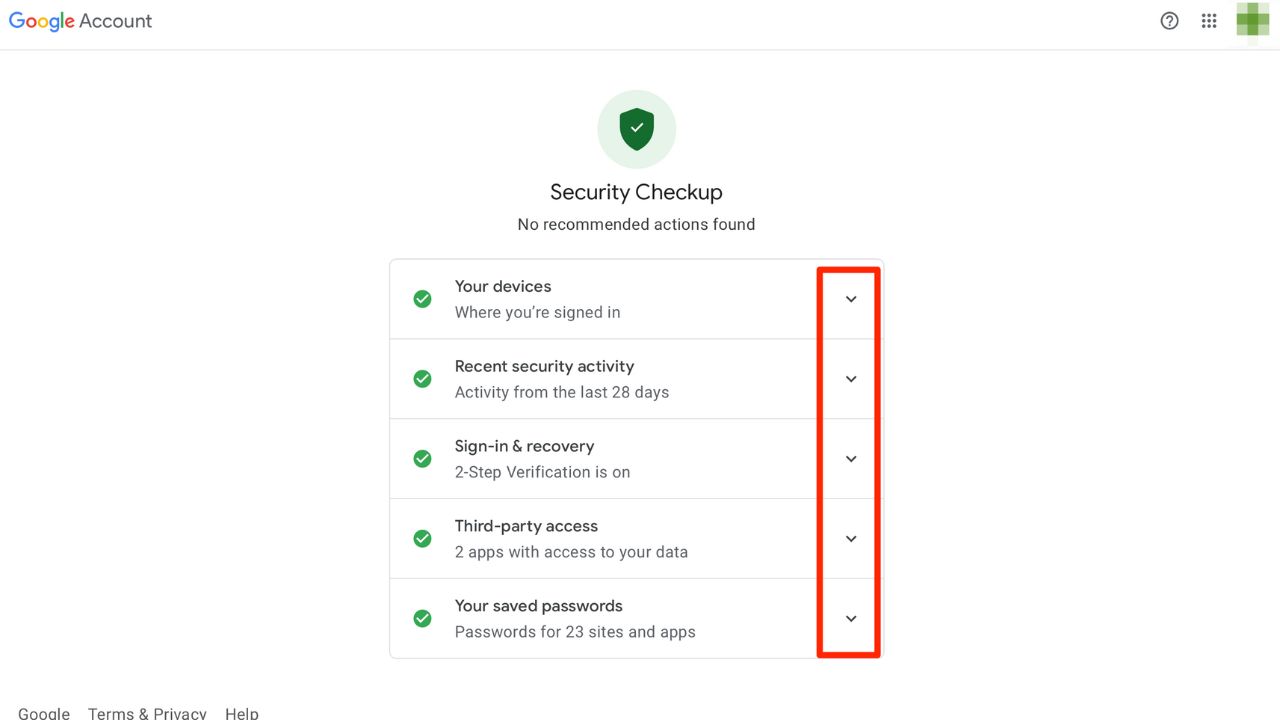
Security Checkup page options
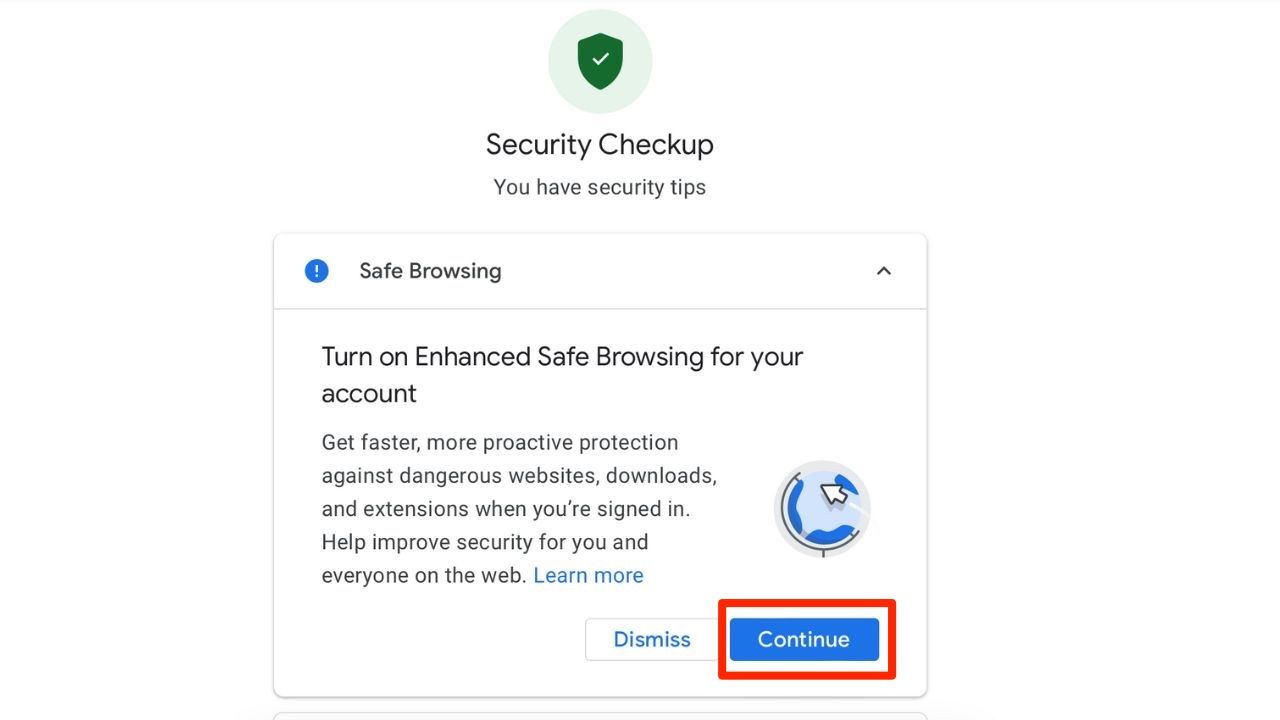
Enhanced Safe Browsing
If you haven’t set up Safe Browsing yet, it will be one of the first things you see when you log on to the Security Checkup page. If you have set it up, this feature will not appear.
Enhanced Safe Browsing for your account can provide stronger protection against phishing and malware across Google Chrome and Gmail. It can warn you about risky websites, downloads and extensions, including threats Google may not have previously known about.
To activate it:
- Go to your Google Account.
- Select Security.
- Look for Enhanced Safe Browsing for your Account.
- Select Manage Enhanced Safe Browsing.
- Turn Enhanced Safe Browsing on.
If you use Chrome and are signed in with sync turned on, enabling Enhanced Safe Browsing for your account may also turn it on in Chrome, unless you use a custom sync passphrase.
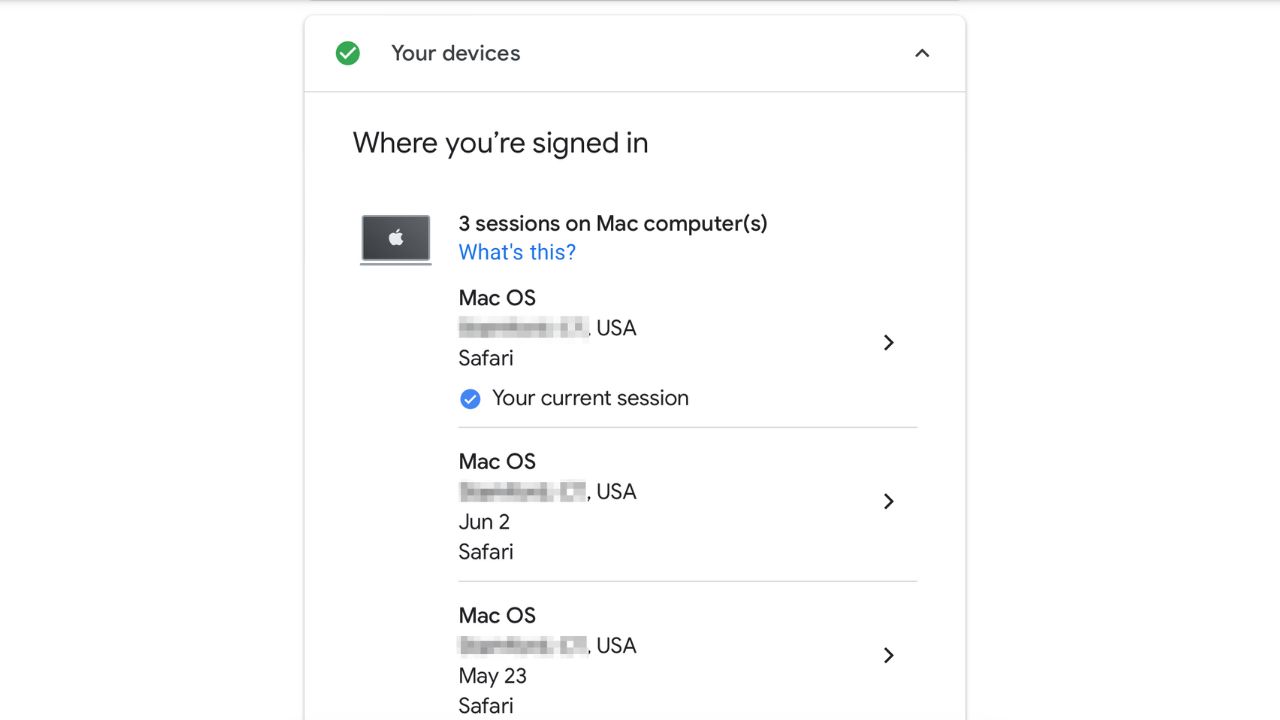
Your Devices
The Your devices section shows devices and sessions that are signed in to your Google Account or have been signed in recently.
To review them:
- Go to your Google Account.
- Select Security.
- Look for Your devices.
- Select Manage all devices.
- Review the devices and sessions listed.
- If you see a device you do not recognize, select it and follow the prompts to sign out.
Google may show devices where you are currently signed in, along with devices or sessions used in the last few weeks. Devices that are no longer signed in may appear with a “Signed out” label. If something looks suspicious, change your password and review your recovery information right away.
Recent Security Activity
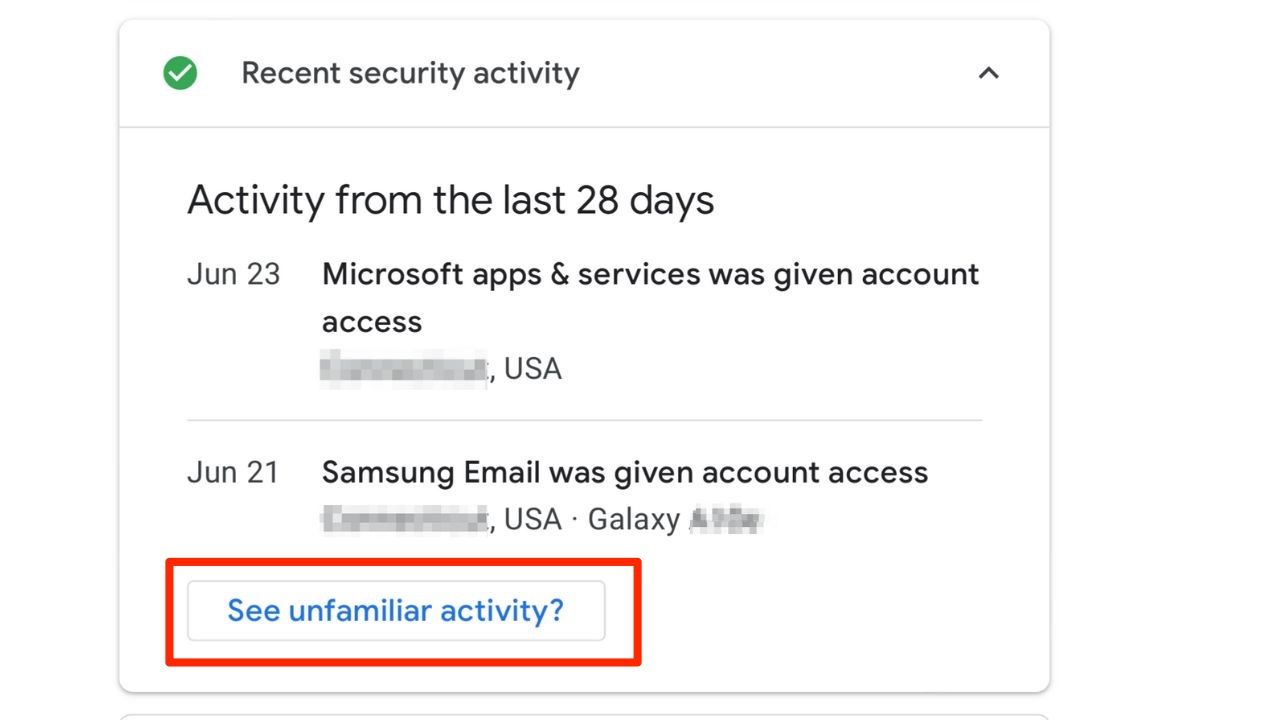
The Recent security activity section helps you review sign-ins and security-related changes on your account.
If you see activity you do not recognize, follow Google’s prompts to secure your account. That may include changing your password, reviewing your devices and checking your recovery email and phone number.
This is one of the fastest ways to spot a possible account compromise.
Sign-in & recovery
The Sign-in and recovery section lets you review the ways you can get back into your account if you forget your password, get locked out or suspect someone else has access.
Make sure your recovery phone number and recovery email are current.
You should also turn on 2-Step Verification if you have not already done so. This adds another layer of protection by requiring a second step when you sign in.
Even better, consider using passkeys where available. Passkeys can reduce your reliance on passwords and help protect you from many phishing attacks.

Third-party access
This is the section you should pay close attention to if you use “Sign in with Google” or connect apps to your Google Account.
Google now refers to many of these as third-party connections. These can include apps and services that use Sign in with Google, linked accounts or apps that have access to some Google Account data.
To review them:
- Go to your Google Account.
- Select Data and Privacy.
- Look for your third-party connections or third-party apps and services.
- Review the apps and websites connected to your account.
- Click or tap an app to see what access it has.
- Remove anything you no longer use, do not recognize or do not trust.
Be critical. Ask yourself: Do I still use this app? Does this app really need access to my Google Account? Do I trust this company with my data? If the answer is no, remove access. Removing access means the app should no longer be able to access that Google Account data going forward. However, it may have already stored data it previously received, so review the app’s own privacy settings or delete your account with that service if needed.
Your saved passwords
Google Password Manager lets you review and manage the passwords saved to your Google Account. These saved passwords and passkeys can be available across your devices when you are signed in and syncing with your Google Account.
How to check your saved passwords
- Open Chrome.
- Click or tap the three-dot menu.
- Select Passwords and autofill.
- Select Google Password Manager.
- Select Check passwords.
- Confirm it is really you if prompted. Google may ask for your password, passkey or device lock before showing saved password details.
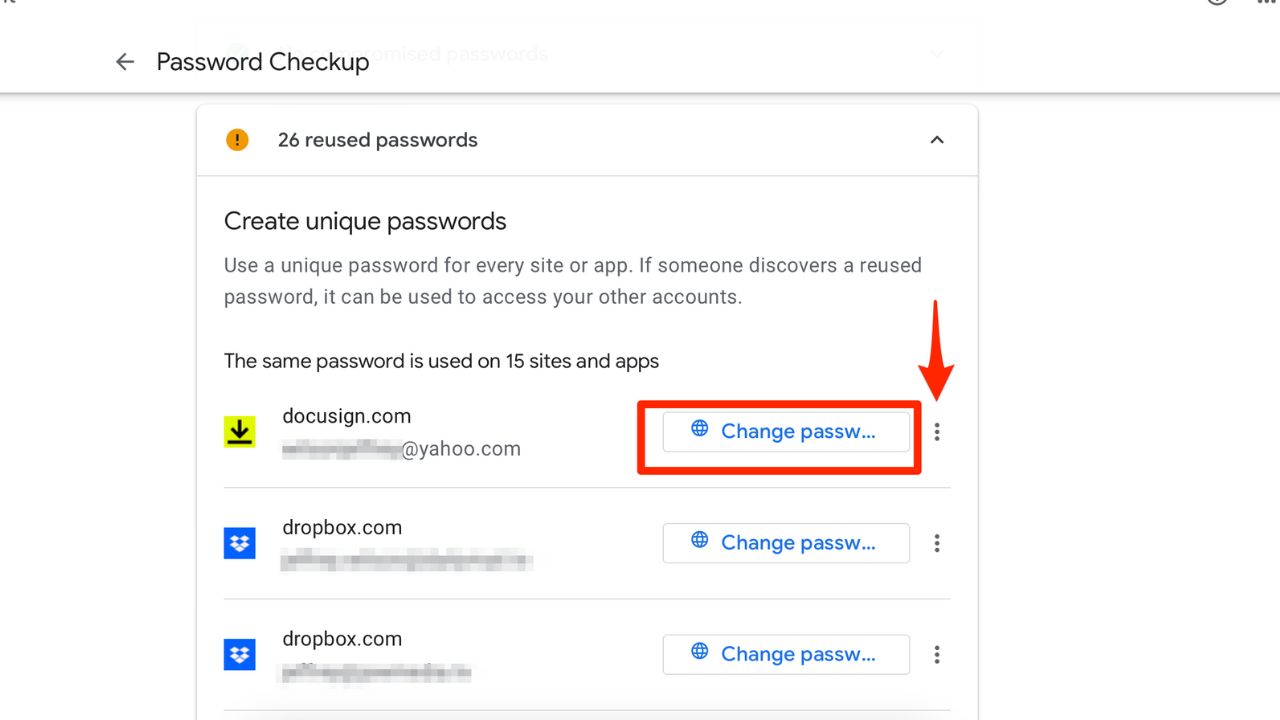
- Google Password Manager will show whether any saved passwords have been compromised, reused or flagged as weak.
- If you see a warning, select the affected account and follow the prompts to change the password. You may also see options to view, edit or delete a saved password.
- If a password was exposed in a breach, changing it is safer than only deleting it from Google Password Manager. Deleting the saved password removes it from your saved list, but it does not secure the account on that website or app.
Related Links:
- Smart travel safety tips before your next trip
- 8 safety steps to set up for someone living alone
- Is ID.me safe to use? What you need to know
Kurt’s key takeaways
While the “Sign in with Google” option may seem convenient and time-saving, it’s crucial to exercise caution when granting access to third-party apps. The trade-off for ease of use is a potential compromise of your privacy and security. Before integrating an app into your digital world, take the time to investigate the developer, read user reviews, and ensure the app aligns with your privacy standards. Furthermore, managing your app permissions through the Google Account Security Checkup can help you maintain control over your data and remove unnecessary access. By staying vigilant and following these steps, you can enjoy a streamlined digital experience without compromising your privacy.
Will you now reconsider freely saying yes to allowing apps permission to access your Google account, or has this article changed your mind? Let us know by commenting below.
FOR MORE OF MY TECH TIPS & SECURITY ALERTS, SUBSCRIBE TO MY FREE CYBERGUY REPORT NEWSLETTER HERE
Copyright 2026 CyberGuy.com. All rights reserved. CyberGuy.com articles and content may contain affiliate links that earn a commission when purchases are made.
🎙 Now Streaming: My New Podcast: The CyberGuy Report
Kurt’s Top Deals
Deals move fast and inventory can be limited, so don’t wait too long.
| 🔥 Editor’s pick  Summer entertaining Ninja SLUSHi Machine (26% off) Frozen drinks and slushies at home in minutes. | |
| 💰 Top deal  Outdoor essential TYPEC Solar Bug Zapper (36% off) Solar-powered bug zappers for patios and camping. |