



Spotty cell phone reception at home or work?
If you want to improve the quality of your phone calls and you have WiFi, do the following to allow your phone to make calls over wireless internet. You’ll be amazed how much better calls will work.
How to make WiFi calls on your iOS phone
- Click on “Settings”
- Click “Cellular”
- “Wi-Fi Calling”
- Switch “Wi-Fi Calling on This iPhone” on
- Click “Enable” Wi-Fi Calling”
How to make WiFi calls on your Android phone
- Click on “Settings”
- Click “Networks & Internet”
- Click “Mobile Network”
- Click “Advanced”
- Click “Wi-Fi Calling”
- Toggle on “Wi-Fi Calling”
How to make WiFi calls on your Samsung phone
- Click the “Phone” icon
- Tap the “More Options” (three vertical dots)
- Tap “Settings”
- Tap “Wi-Fi Calling” and then toggle the switch to the right to turn the feature on.
Don’t see “Wi-Fi Calling” in your settings?
If you don’t see the Wi-Fi Calling option on your iPhone, it’s usually not a problem with iOS. Here are a few things to check:
- Check both menus – Depending on your carrier, Wi-Fi Calling may appear under Settings → Cellular → Wi-Fi Calling or Settings → Phone → Wi-Fi Calling.
- Confirm your carrier supports it – Some smaller or prepaid carriers don’t offer Wi-Fi Calling, or you may need to call customer support to have it enabled on your account.
- Update carrier settings – Go to Settings → General → About. If a carrier update is available, you’ll see a prompt to install it.
- Reset network settings – If you recently switched to a new phone or eSIM, you may need to go to Settings → General → Transfer or Reset iPhone → Reset → Reset Network Settings. (Note: this will also reset saved Wi-Fi passwords.)
- Check your plan or location – Some business or prepaid accounts disable Wi-Fi Calling, and in certain countries it isn’t supported.
If you’ve tried all this and still don’t see it, call your carrier’s support line and ask them to confirm that Wi-Fi Calling is enabled on your account.
The cost to do this is included in most plans. When I travel overseas, I avoid roaming and international charges by typically making calls whenever I’m in a wifi setting. Once you turn on WiFi Calling, your phone will automatically use a connected WiFi network and switch back to cellular when needed on its own.
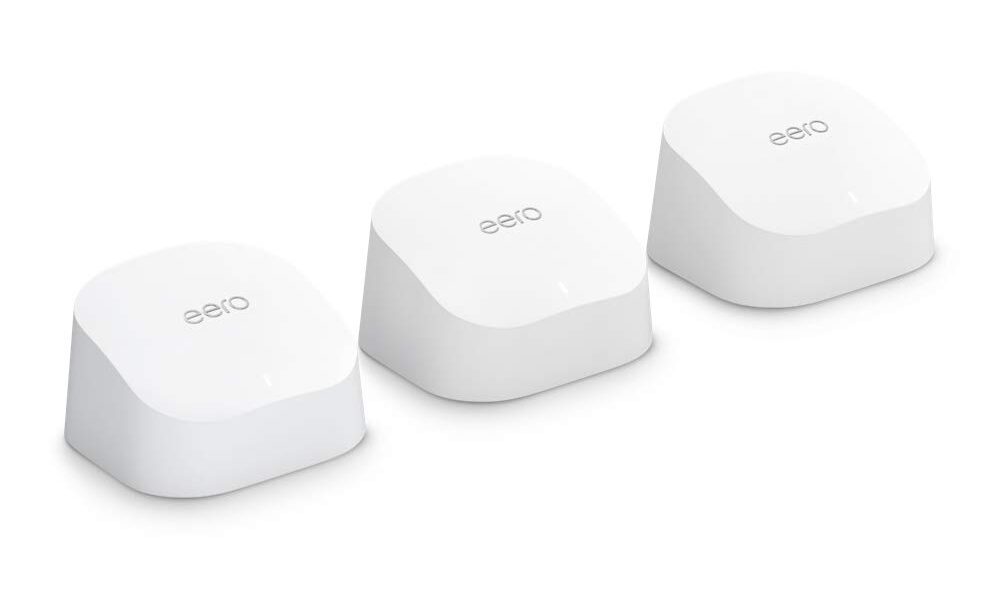
If you’re relying on making these calls from home, be sure your wireless network is a good one. What you really want when your Internet wireless signal isn’t as strong in certain parts at home is more likely a wireless mesh router system that works with a couple to a few or several units plugged in around your home. What you’ll notice after upgrading to a good mesh system is a reliable internet signal everywhere at home and seldom ever a bump in the road with all your connected devices.
My favorite wireless mesh router system pick is the eero 6 dual-band mesh WiFi system. My review of the eero here.
A family friend recently said to me, “hang on, I just need to get to the side window where there’s better service.” It prompted me to share the above tip to turn on WiFi Calling. It was a religious experience of magic for my friend who couldn’t believe that simple tweak could change everything about making calls from his home.
…Can you hear me now? : )
Get more of my quick tips here
Related:
- Top 5 Routers for Best Security 2022
- How to set up a personal hotspot so you can stay connected from anywhere
- When one WiFi router isn’t enough – Top mesh networking winners
- Doing this today will help you find your lost phone in the future
Kurt’s Key Takeaways
Tired of standing by a window for better reception? WiFi Calling can transform your phone calls at home or on the road. By turning on this feature in your iPhone, Android, or Samsung settings, your device will use WiFi to handle calls when the cell signal is weak—automatically switching back to cellular when needed.
Watch the latest episode of The CyberGuy Report.

Missed this event? Sign up via the registration form and see our live recording.
See Kurt’s latest Amazon picks for useful gadgets, smart home upgrades and everyday tech worth grabbing while the deals last.
The best part: it’s included in most phone plans and can even save you roaming fees when traveling abroad. Just make sure your home WiFi is reliable—if not, a mesh system like the eero 6 can give you strong, steady coverage throughout your house. Once you switch WiFi Calling on, you’ll wonder why you didn’t do it sooner.
Copyright 2025 CyberGuy.com. All rights reserved. CyberGuy.com articles and content may contain affiliate links that earn a commission when purchases are made.
🎙 Now Streaming: My New Podcast: The CyberGuy Report
Kurt’s Top Deals
Deals move fast and inventory can be limited, so don’t wait too long.
| 🔥 Editor’s pick  Summer entertaining Ninja SLUSHi Machine (26% off) Frozen drinks and slushies at home in minutes. | |
| 💰 Top deal  Outdoor essential TYPEC Solar Bug Zapper (36% off) Solar-powered bug zappers for patios and camping. |


2 comments
Thanks……this is a great tip!
Just a few questions: Do you need to constantly switch this capability on and off? Will the phone default to WiFi? If no WiFi is available, will the phone revert to using its network?
Thanks for providing some additional detail on this.
Hi Barb – great question. I updated the article to show how once this is turned on, it will pick WiFi and cellular without your needing to activate each time. – Kurt