



What happens if you face an emergency with no cell service? Apple offers a solution for iPhone 14 and later with Emergency SOS via satellite. The feature helps people reach emergency responders when cell towers and Wi-Fi fail.
Real rescues show how powerful this tool can be. Hikers have used it to get help after becoming stranded in extreme heat. Drivers have reached emergency services after crashes in remote mountain areas. During the Lahaina firestorm in Maui, people relied on the feature when damaged cell towers knocked out normal 911 service.
Apple built Emergency SOS via satellite with Globalstar. When your iPhone loses cellular and Wi-Fi coverage, it connects to a satellite and relays your location and emergency details so help can reach you.
How does Emergency SOS via satellite work?
If you face an emergency, your iPhone 14 or later automatically pings one of Globalstar’s 24 low-Earth-orbit satellites. The satellite receives the signal and sends it to a ground station. From there, the system routes the request to a local dispatch center or an emergency relay center.
Apple staffs these relay centers with highly trained specialists. They follow emergency protocols, contact local police or first responders, and pass information back and forth to get help to you faster.
How do I activate Emergency SOS on my device?
The Emergency SOS feature is only to be activated when one is in an actual emergency, in order not to alert local police to a false incident. However, there is a demo feature for users to familiarize themselves with the process when they’re not in an emergency.
To try out the demo, make sure you are outside and go to Settings > Emergency SOS > Demo Mode.
If you are in a real emergency and have no cellular WiFi, the feature will automatically pop up on your screen when you try to dial 911. It appears as a green feature on the bottom right-hand corner, and it will read Emergency Text via Satellite. You’ll also notice a satellite icon and SOS text in the top right-hand corner of your screen next to your battery.
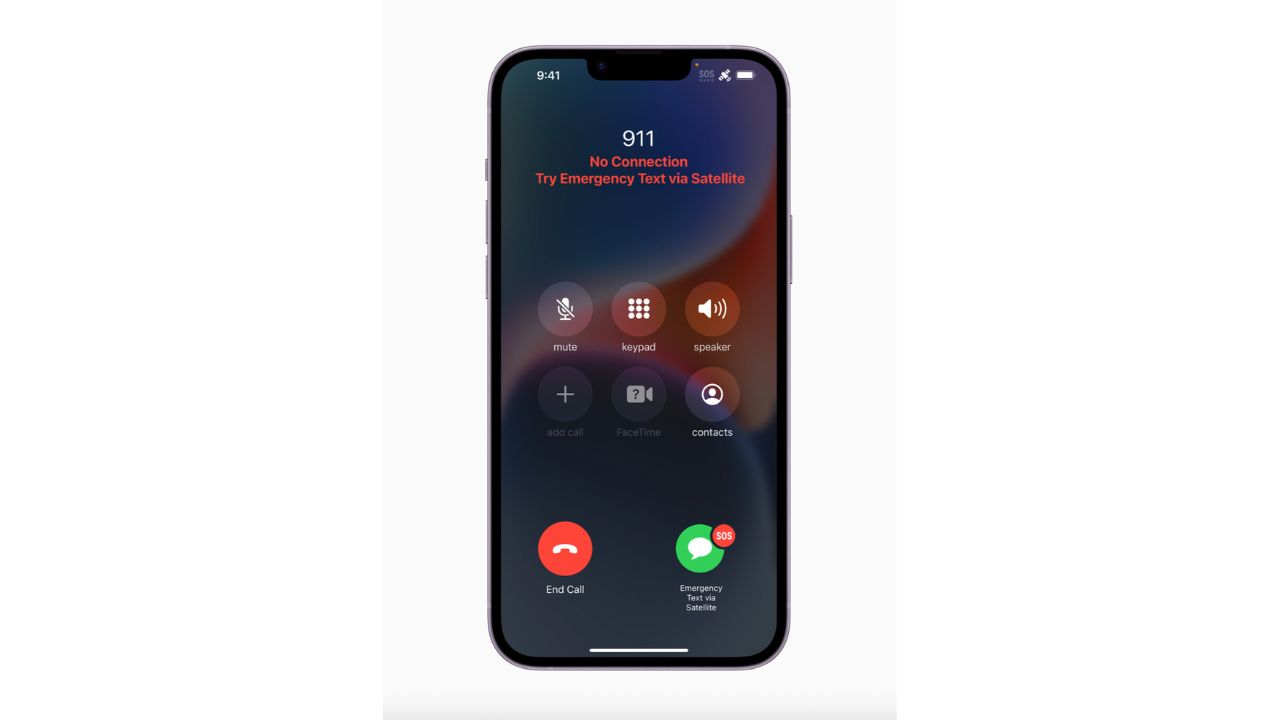
Once you click the green button, a short questionnaire will appear on your screen for you to answer so that the feature can best understand what kind of help you need.
Your answers are then quickly transmitted to dispatchers so that they can find out your situation and location and send help immediately. The questions are as follows.
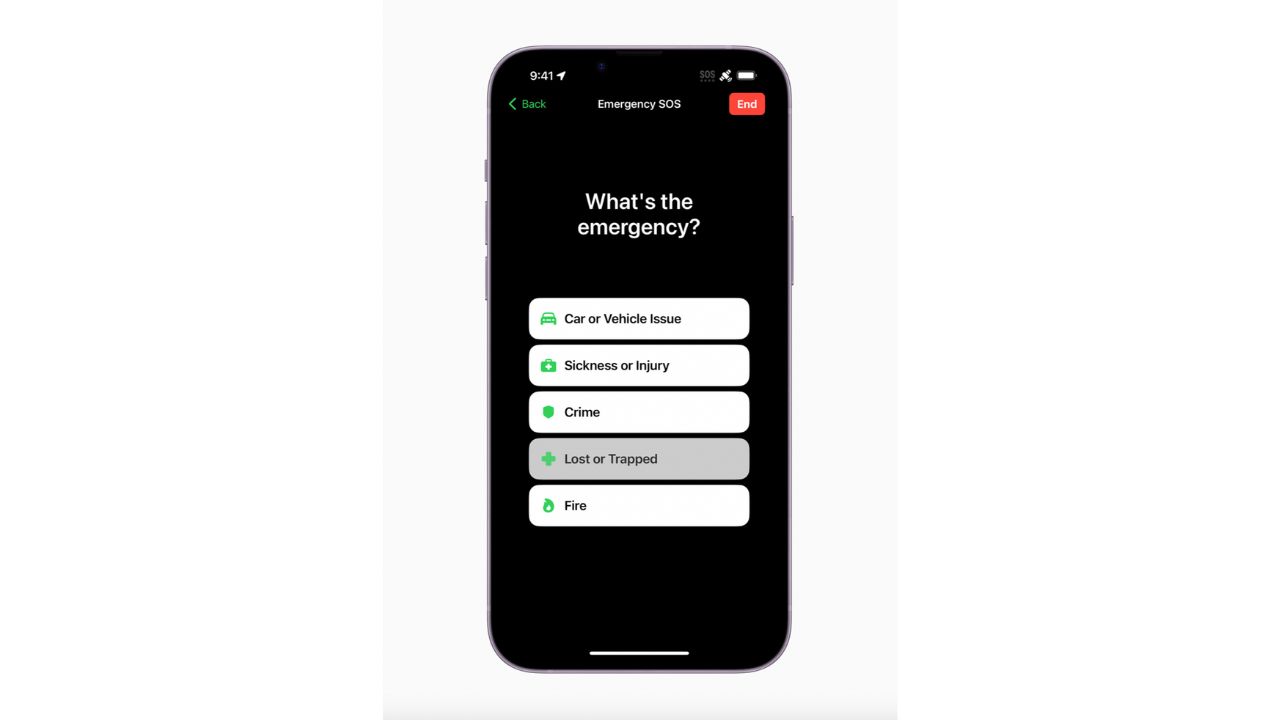
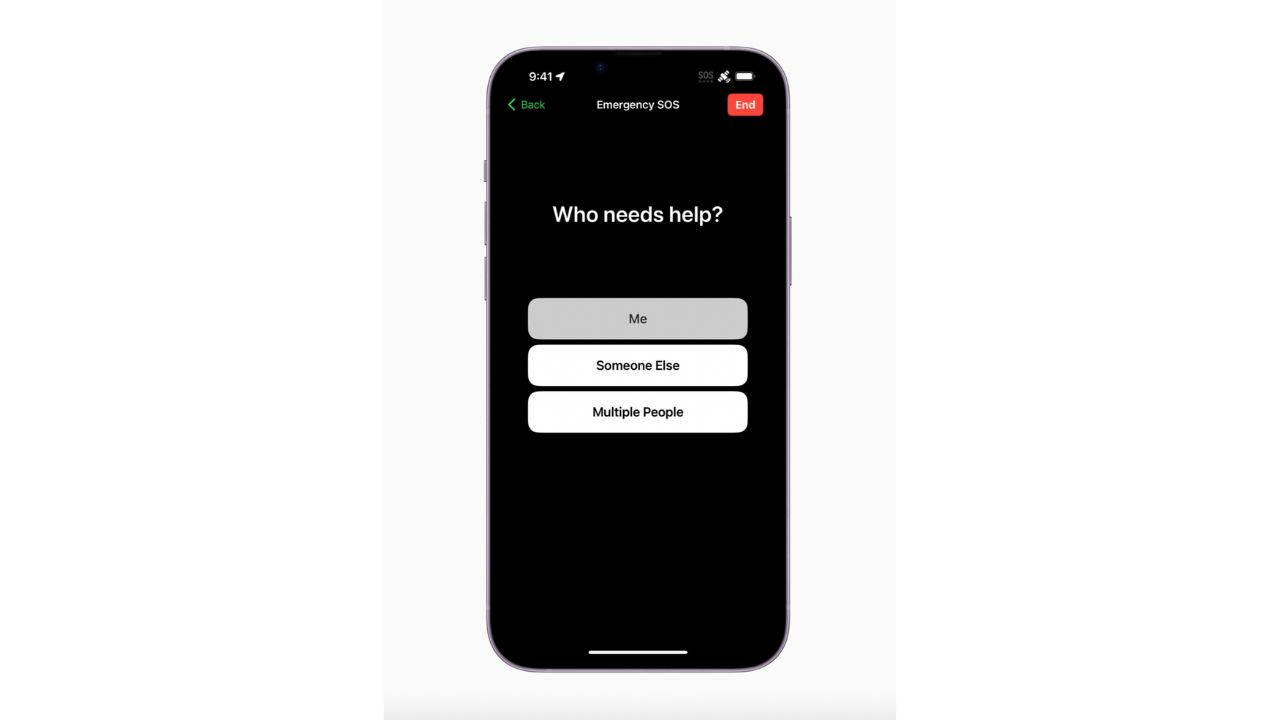
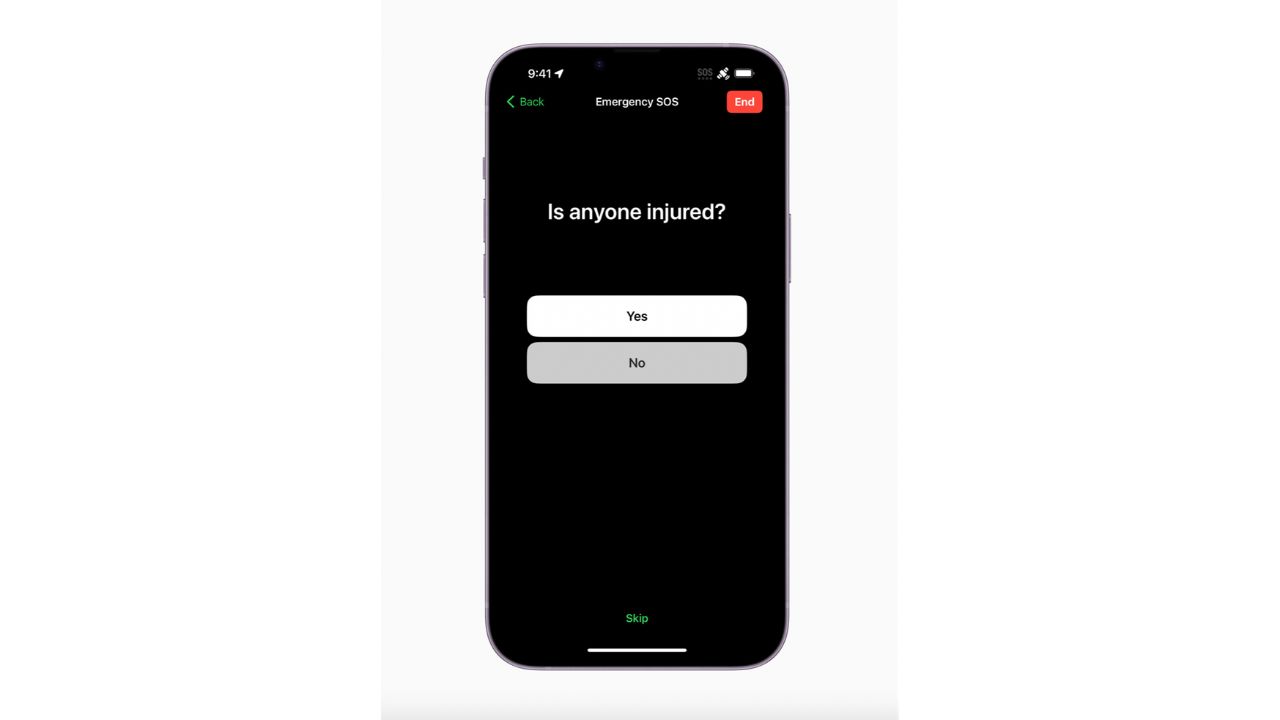
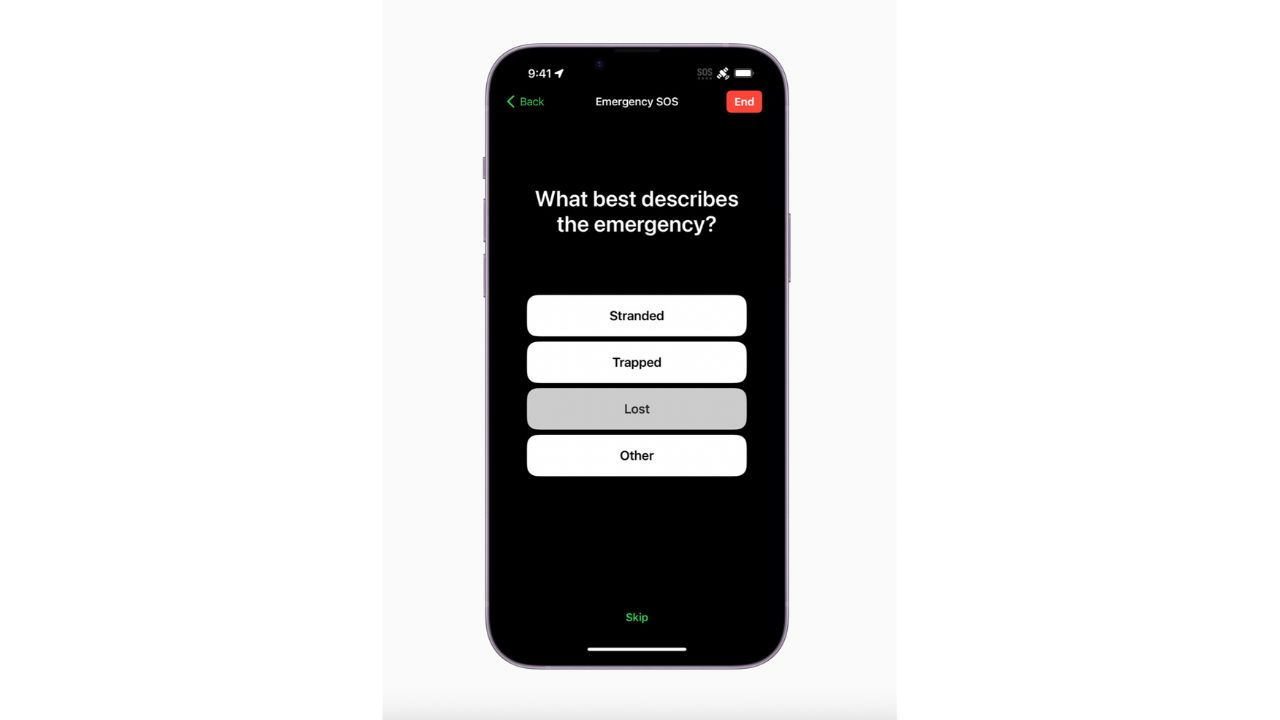
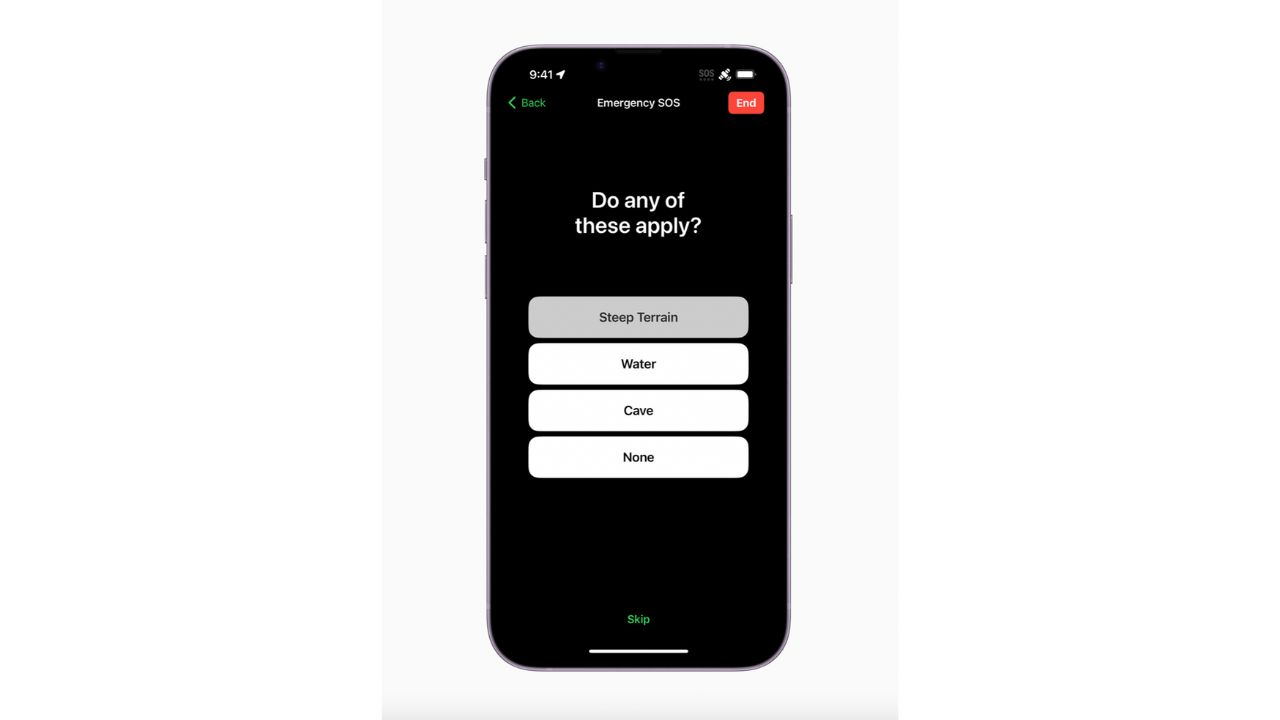
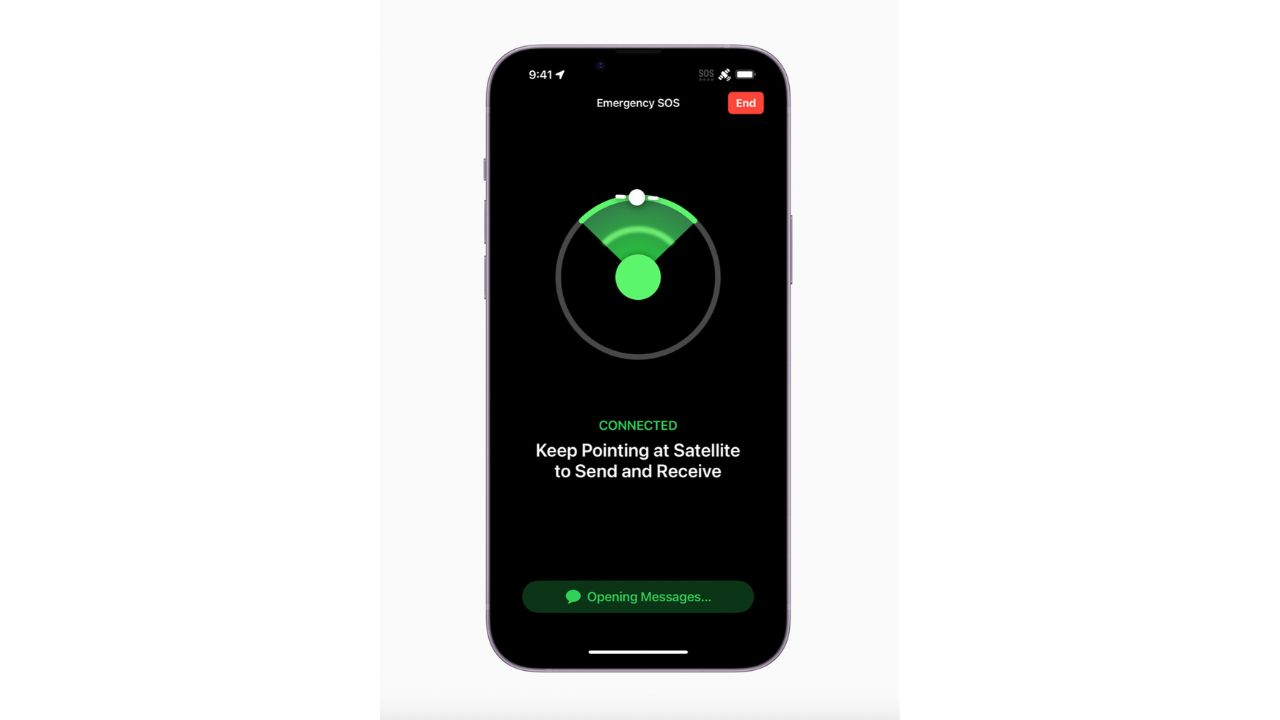
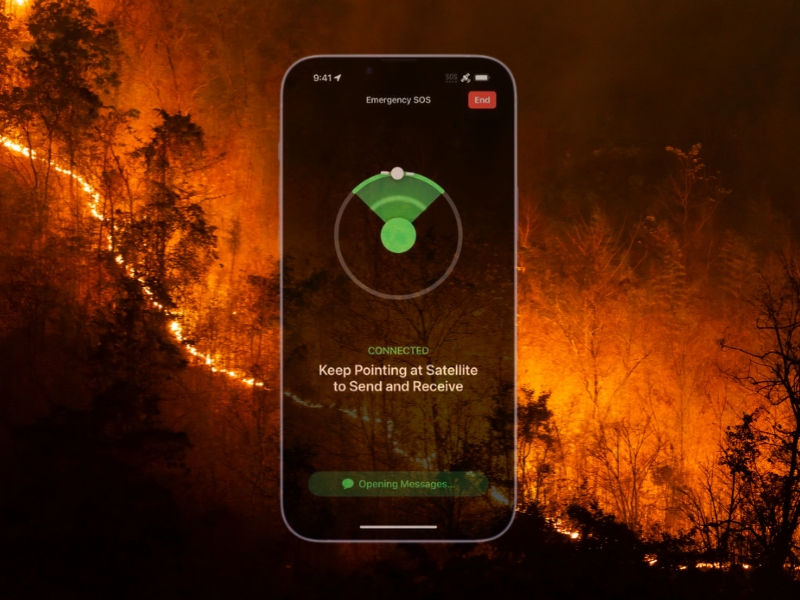
Once you have answered all the questions, your iPhone will go to a follow-up screen which asks you to point your phone in the direction of one of the Globalstar satellites. It will guide you in the proper direction, and once your device has located one of the satellites, all your information from the questionnaire is transmitted to the local dispatcher along with your location, altitude, iPhone battery level, and Medical ID if you have that enabled on your phone already.
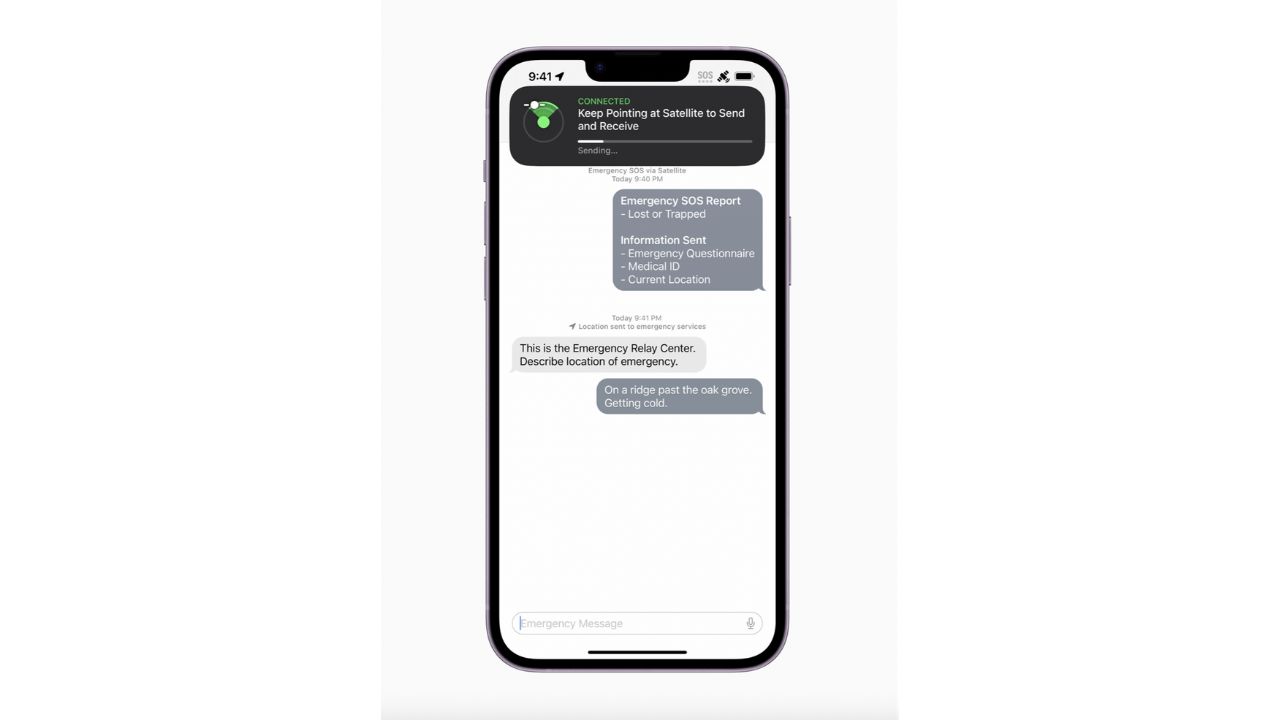
Once the information has been sent, users also have the option of keeping in contact with Emergency SOS via text message. Users can both send and receive messages in as little as 15 seconds. Apple also developed a text compression algorithm to shorten your texts by 3x so that the process can move as quickly as possible.
How one convincing SSA scam nearly tricked a reader, and the five red flags to check before you click.

Saturday, June 13 at 10 AM ET.
See Kurt’s 2026 picks for every kind of dad.
[Ep. 34] Is that Social Security email in your inbox real?
```
Can I share my location if I’m not in an emergency?
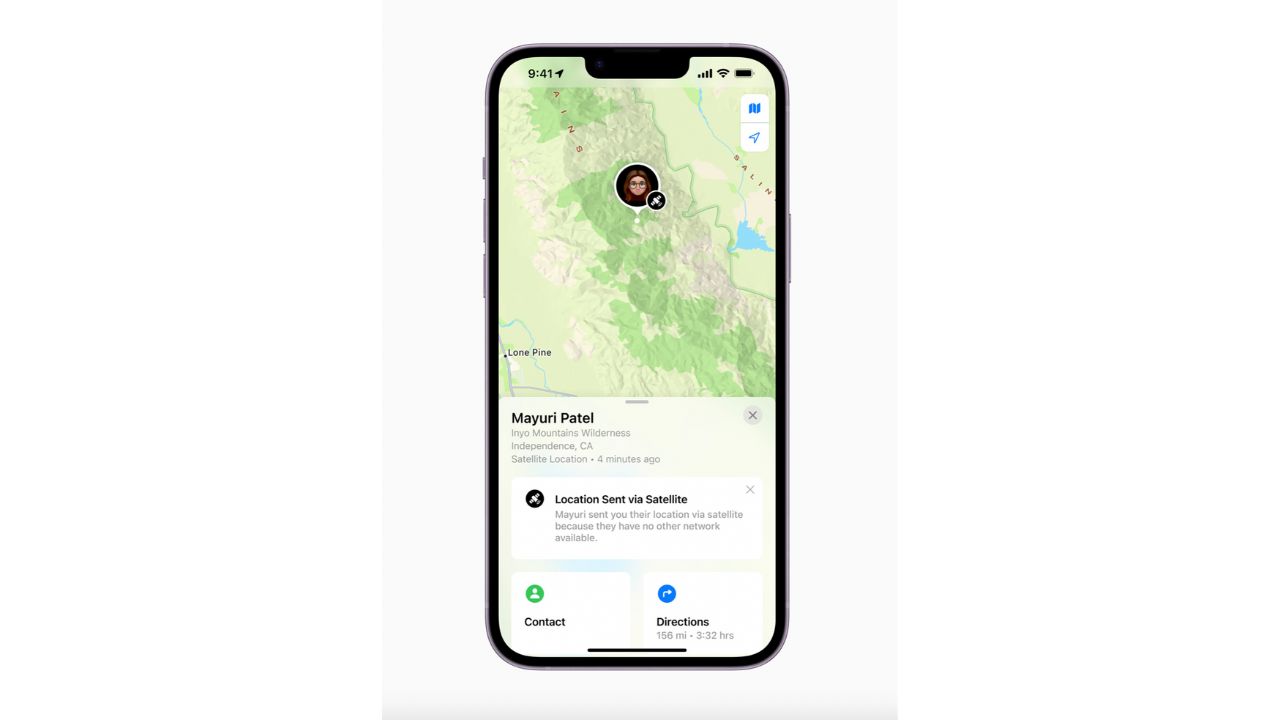
Yes, Emergency SOS has also made a feature for those who want to go off the grid but are not stuck in an emergency. Here’s how:
- Go to your Find My app
- Select the “Me” tab
- Swipe up to see My Location via Satellite
- Tap Send My Location
Got an Android? Emergency SOS for Android works over cellular networks, but not satellite
Android follows Apple into helping with personal safety and getting help in an emergency with its version of Emergency SOS on Android. Keep in mind that Android operating system functionality varies from one phone maker to the next. Here is a helpful Android support page for getting your Android phone ready for an emergency.
Other backup rescue plan alternatives
If you travel or spend time outdoors, it’s smart to have a backup rescue plan. You might hike in an area with no cell signal. You could also be boating far from shore. In situations like these, a personal locator beacon can make a real difference.
What is a personal locator beacon?
A personal locator beacon (PLB) is a small device built for true emergencies. You activate it when you need immediate help. Once turned on, the device sends an SOS distress signal that emergency responders can detect.
That signal helps rescue teams pinpoint your exact location. The Coast Guard and other agencies rely on these alerts to reach people faster in remote areas.
When a PLB can help
A PLB works when your smartphone does not. It does not rely on cell service or Wi-Fi. Instead, it uses a dedicated emergency signal designed for rescue situations.
This makes a PLB useful for hikers, boaters, and anyone traveling far from reliable coverage. It can also give peace of mind to family members who know you have a way to call for help.
What to know before using a PLB
You must register a PLB with your local authority before use. In many countries, this registration renews every two years. The device must also meet FCC certification requirements.
Use a PLB only during real emergencies. When used correctly, it can serve as a powerful last-resort safety tool in remote locations.
My picks for best personal locator beacons
More:
Related Links:
- Android Emergency Live Video gives 911 eyes on the scene
- Best home inventory apps to protect your property in case of an emergency
- Top 13 emergency car essentials
Kurt’s key takeaways
When everything else fails – cell towers, Wi-Fi, even 911 systems – Emergency SOS via satellite can still work. That’s what makes it different from most safety features on a smartphone. It’s quiet, automatic, and designed for the moments you never plan for but hope you’re ready to survive. If you own an iPhone 14 or later, this isn’t just a feature to skim past in Settings. It’s something worth understanding before you ever need it. Taking a few minutes to try the demo and enable Medical ID could make all the difference when time and connection are both running out.
Have you ever checked which emergency features are enabled on your phone – or would you know what to do if your signal disappeared right now? Let us know in the comments below.
FOR MORE OF MY TECH TIPS & SECURITY ALERTS, SUBSCRIBE TO MY FREE CYBERGUY REPORT NEWSLETTER HERE
Copyright 2026 CyberGuy.com. All rights reserved. CyberGuy.com articles and content may contain affiliate links that earn a commission when purchases are made.
🎙 Now Streaming: My New Podcast: The CyberGuy Report
Kurt’s Top Deals
Deals move fast and inventory can be limited, so don’t wait too long.
| 🔥 Editor’s pick  Summer entertaining Ninja SLUSHi Machine (26% off) Frozen drinks and slushies at home in minutes. | |
| 💰 Top deal  Outdoor essential TYPEC Solar Bug Zapper (36% off) Solar-powered bug zappers for patios and camping. |


7 comments
It seems this kind of ‘feature’ is always available for Iphones. So where are the instructions to apply this feature to an Android phone?
Hi Judy, please see our tips for Androids at the bottom of this article.
Thank you for this message I shall take very seriousky.