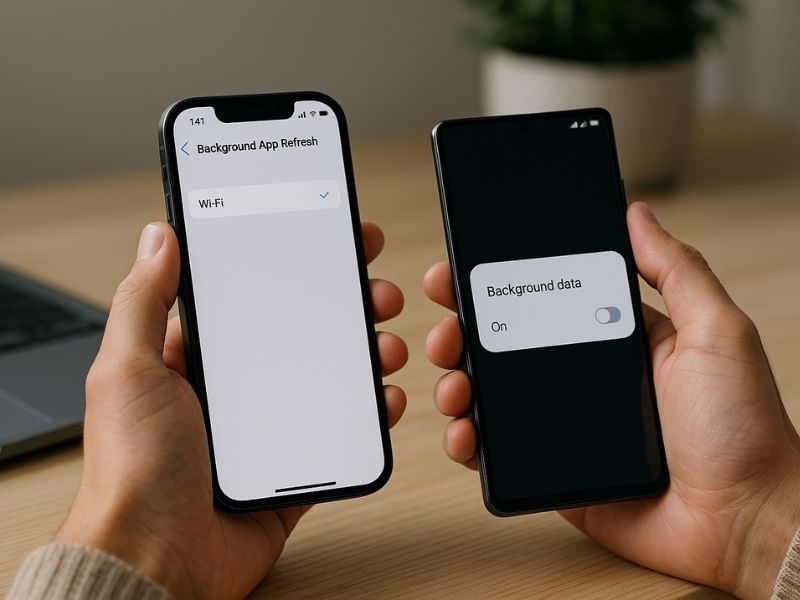
Background activity can drain your battery and use your mobile data without you seeing it happen. Apps refresh in the background to keep content updated, which helps you pick up where you left off. The downside is that this constant activity can strain your battery and burn through your data plan. The good news is that you can limit when apps refresh and choose to let them update only on Wi-Fi.
We’ll walk you through how to switch Background App Refresh on iPhone to Wi-Fi only. You also get the Android steps so you can keep background activity in check on any device.

Why this setting matters
Apps that update behind the scenes use data and power even when you are not opening them. When you switch the feature to Wi-Fi only, you slow down that background drain. It helps save mobile data. It can also help extend battery life because apps refresh less often.
What Background App Refresh does
Background App Refresh lets apps update content while you use other apps or leave your phone locked. When you return to an app, it is already refreshed and ready. That convenience comes with a cost. Each refresh uses data and battery power. By limiting this feature to Wi-Fi, you keep apps updated without using your mobile plan.
How to set Background App Refresh to Wi-Fi only on iPhone
Follow these steps:
- Open Settings
- Tap General
- Tap Background App Refresh
- Tap Background App Refresh again
- Select Wi-Fi to limit updates to Wi-Fi connections

If you want to block background updates completely, choose Off in step 4. This stops apps from refreshing when you are not using them. It helps save battery, but it can delay updates when you open an app that needs new content before you can use it.
How to limit background activity on Android
Android does not use the exact name Background App Refresh, but it offers similar controls. You can restrict background data and background activity, which helps reduce data use and extend battery life.
Limit background data per app on Android
Settings may vary depending on your Android phone’s manufacturer
- Open Settings
- Tap Network and Internet or Connections
- Tap Data usage
- Tap Mobile data usage
- Select an app
- Turn Background data off so the app updates only on Wi-Fi
Limit background activity for battery on Android
Settings may vary depending on your Android phone’s manufacturer
- Open Settings
- Tap Battery
- Tap Battery usage
- Choose an app
- Tap Manage background activity
- Turn Allow background activity off
Use Data Saver for extra control on Android
Settings may vary depending on your Android phone’s manufacturer
- Open Settings
- Tap Network and Internet or Connections
- Tap Data Saver, or you might have to first tap Data usage and then Data saver
- Turn the switch on to turn on Data Saver
Data Saver blocks most apps from using background data unless you choose to allow them.

Related Links:
Watch the latest episode of The CyberGuy Report.

Missed this event? Sign up via the registration form and see our live recording.
See Kurt’s latest Amazon picks for useful gadgets, smart home upgrades and everyday tech worth grabbing while the deals last.
- Adaptive Power in iOS 26 boosts iPhone battery life
- Best accessories for your phone
- 5 best cell phone boosters
Kurt’s key takeaways
Changing background refresh settings is one of the fastest ways to protect your battery and data. With a few quick steps, your phone runs more efficiently, and your apps use fewer resources. Whether you use an iPhone or an Android device, these settings help put you back in control.
What phone tips or frustrations should we look into for a future story? Let us know in the comments below.
FOR MORE OF MY TECH TIPS & SECURITY ALERTS, SUBSCRIBE TO MY FREE CYBERGUY REPORT NEWSLETTER HERE
Copyright 2025 CyberGuy.com. All rights reserved. CyberGuy.com articles and content may contain affiliate links that earn a commission when purchases are made.
🎙 Now Streaming: My New Podcast: The CyberGuy Report
Kurt’s Top Deals
Deals move fast and inventory can be limited, so don’t wait too long.
| 🔥 Editor’s pick  Summer entertaining Ninja SLUSHi Machine (26% off) Frozen drinks and slushies at home in minutes. | |
| 💰 Top deal  Outdoor essential TYPEC Solar Bug Zapper (36% off) Solar-powered bug zappers for patios and camping. |