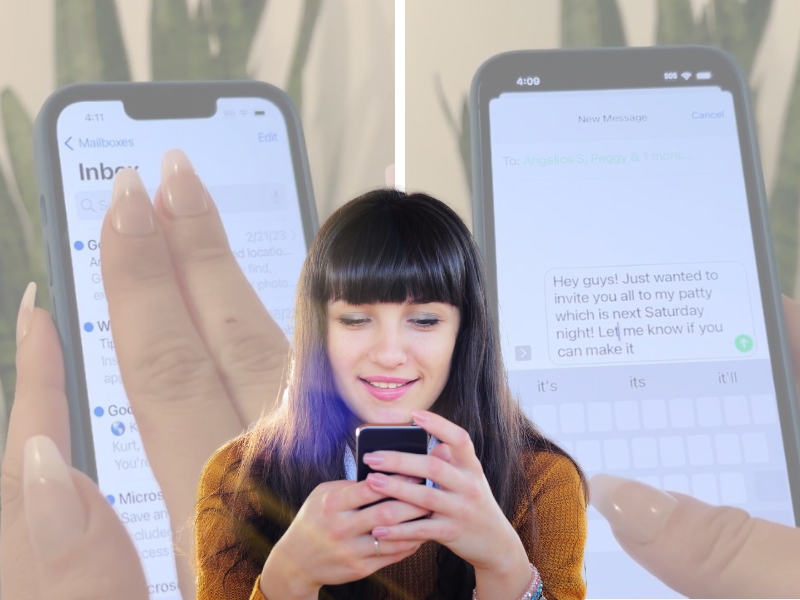
If you have an iPhone, you know they are great for so many reasons, offering us a wide range of features that make our lives easier. Although, sometimes the touchscreen can be challenging at times and get us into trouble. We end up with typos we never intended to make. However, there are lots of iPhone secrets you might not know about, and we have 3 that are guaranteed to make tasks like texting easier for you.
1. Edit text messages faster
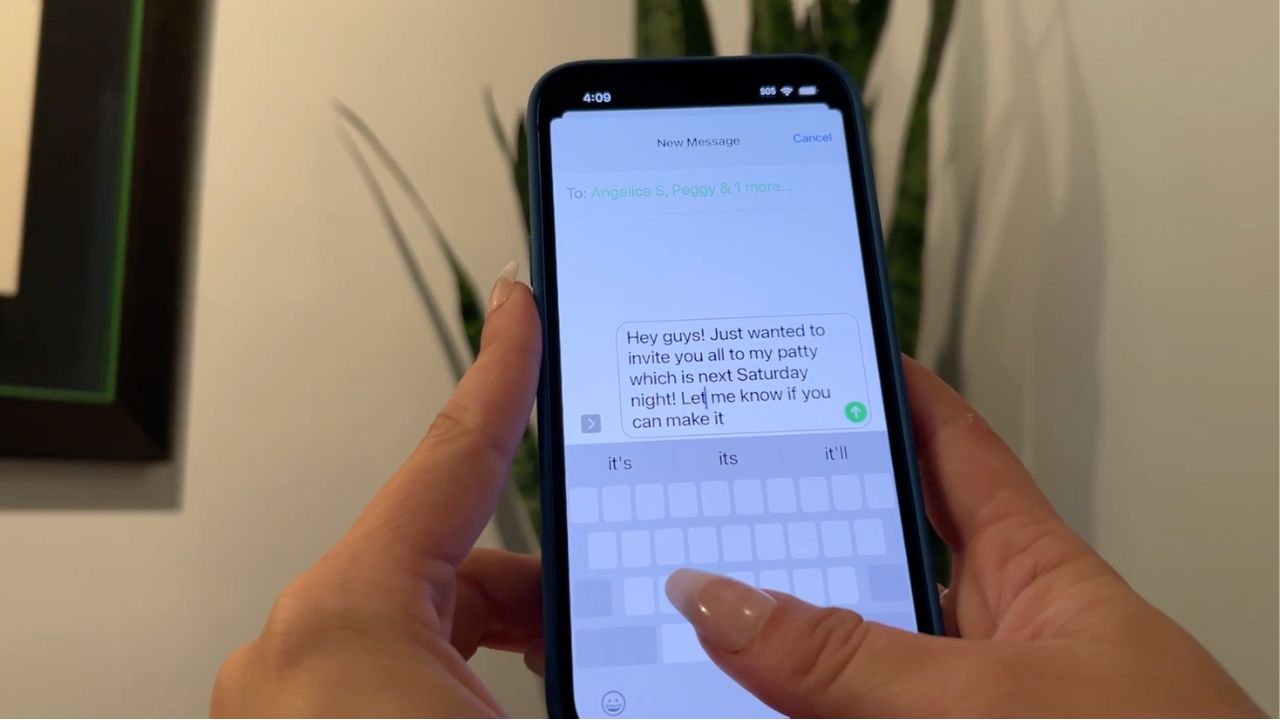
I know this seems obvious, yet it is worth a reminder — when you’re typing a message, it’s always a good idea to read it through before you hit send. If you notice any typos or sections of a message that you’d like to reword, it can be annoying to tap your finger on the right section that you wish to fix because it isn’t always accurate. There’s an easy way to fix this.
- Type out a message in your iMessage app
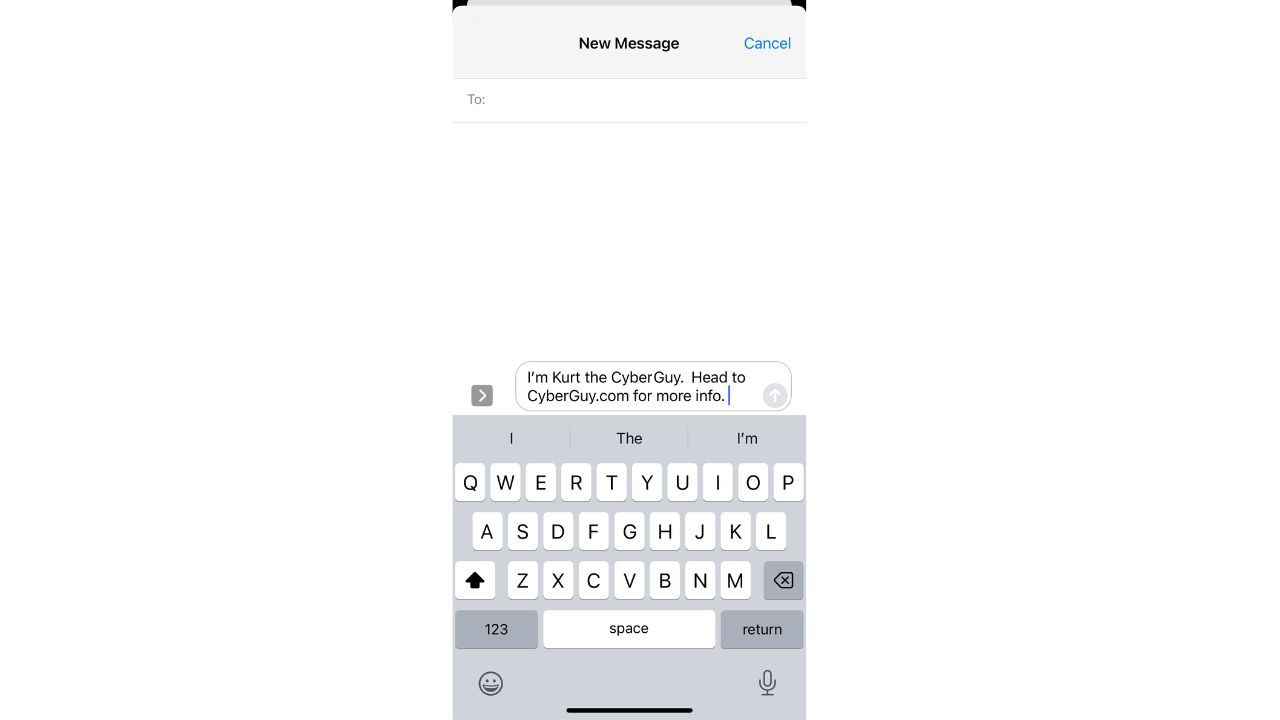
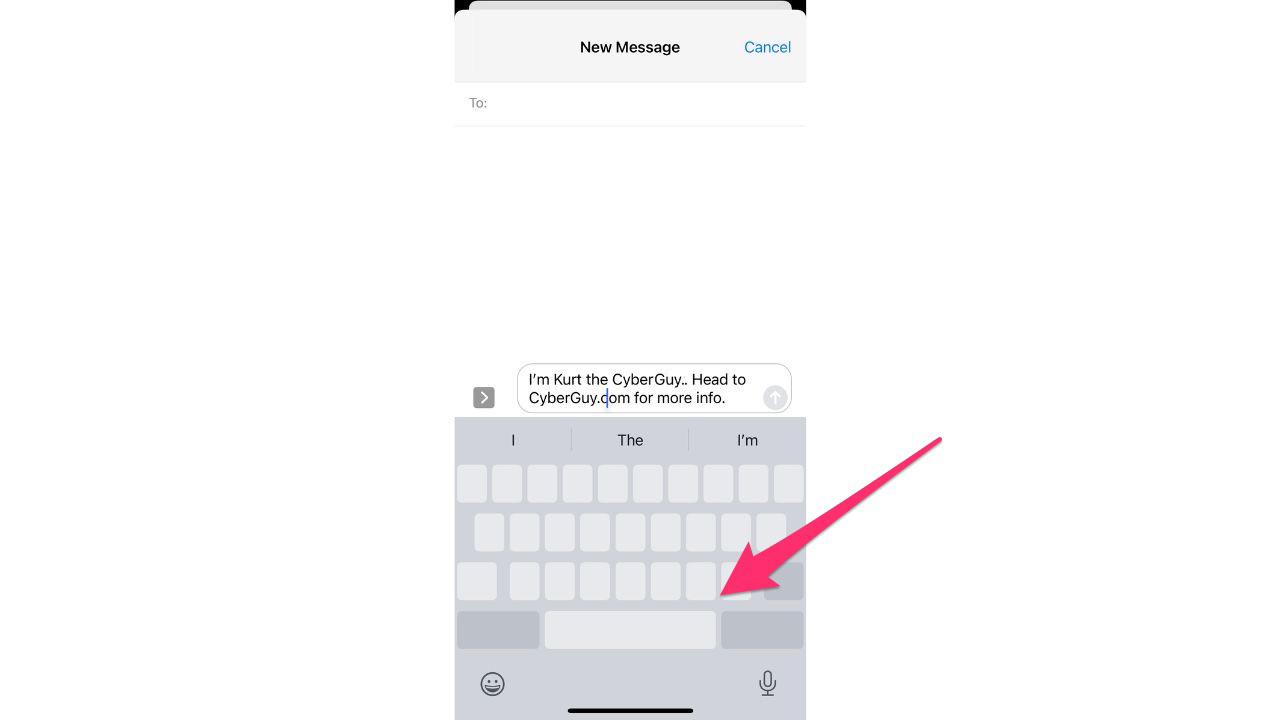
- Press and hold down the spacebar. This will turn your keyboard into a trackpad that will allow you to move your cursor anywhere you want by sliding your finger left and right
MORE: HOW TO FLIP YOUR CAMERA AND ZOOM-IN USING FACETIME
2. Select multiple items at once
Whether you have too many emails or text messages and you just want to get rid of some, simply swiping left and right to delete them all can take forever. That’s why Apple has a secret for you to delete multiple at once.
- Open your iMessage app (or your Email app if you want to get rid of emails)
- Using your index and middle fingers at the same time, swipe down quickly on your screen. You should see multiple text messages now selected
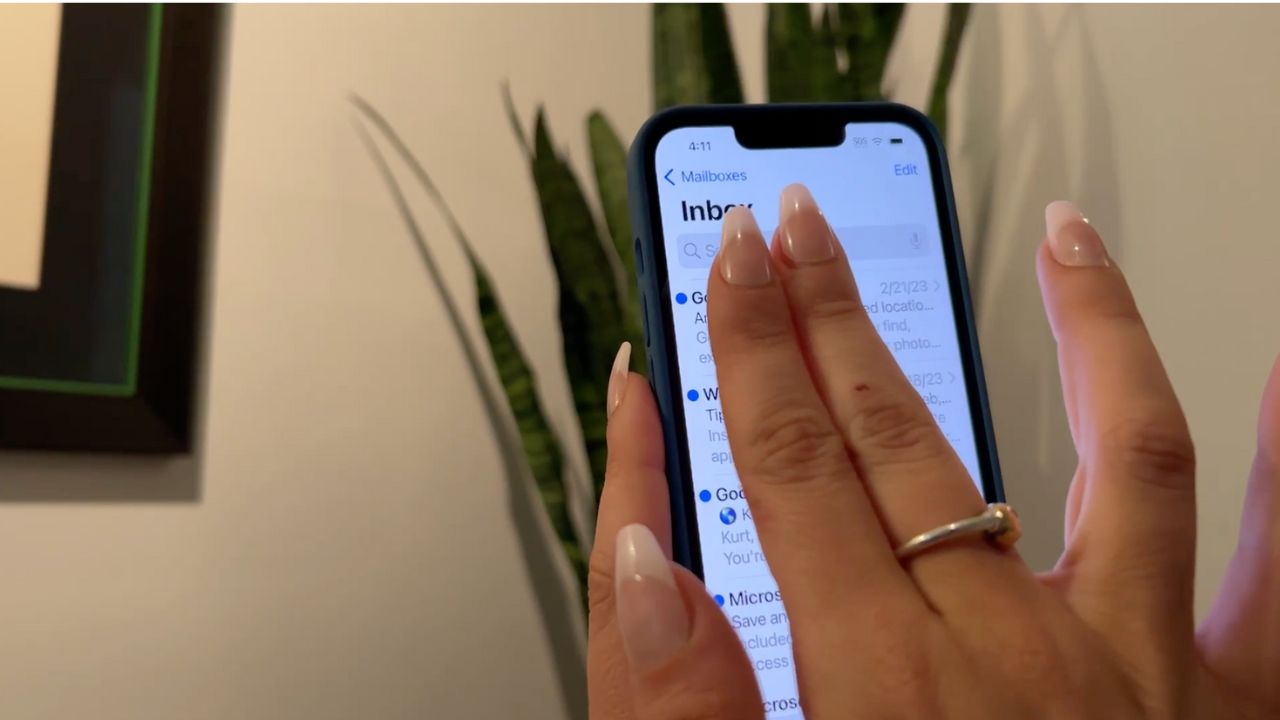
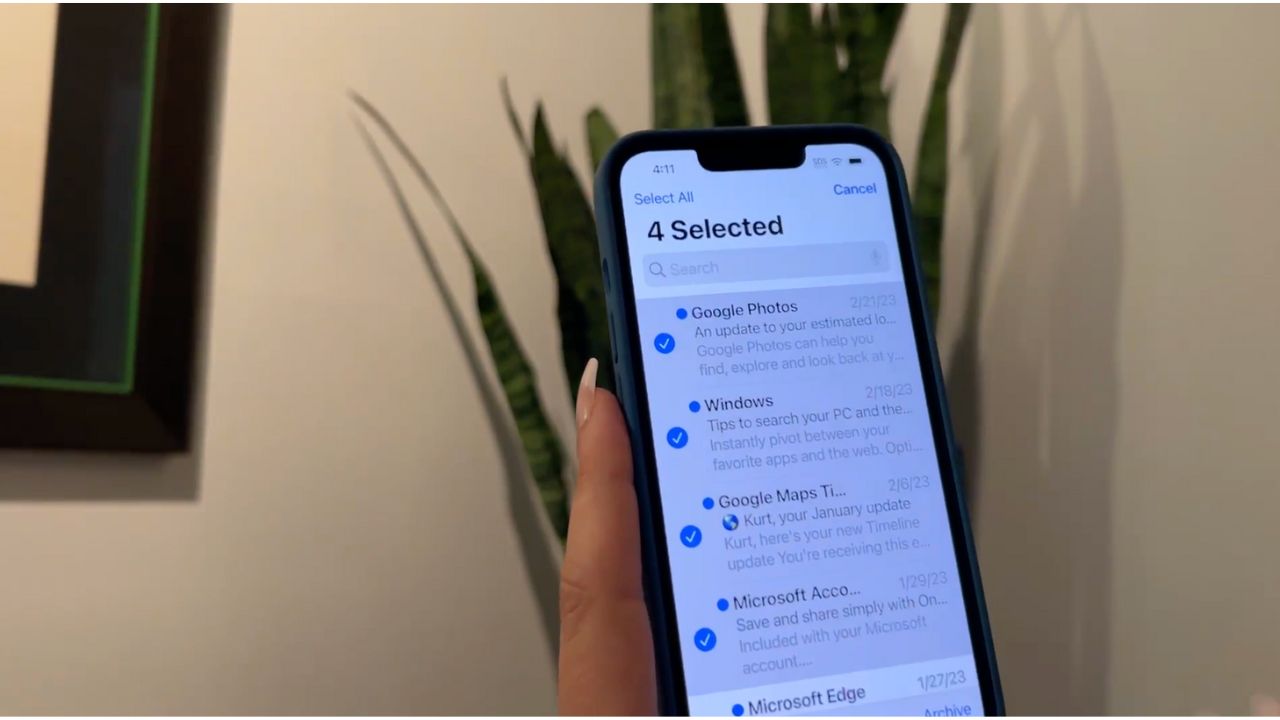
- If there are any that got selected that you do not wish to delete, tap the check mark next to the message to uncheck it
- Click Delete in the bottom right-hand corner once you have all the messages selected that you wish to delete
3. Undo and redo gestures
Let’s say you accidentally delete something that you did not mean to, like a picture in your photos app. There is a way for you to undo and redo your actions.
- If you delete something like a photo in your photo app by accident, take 3 fingers and swipe to the left
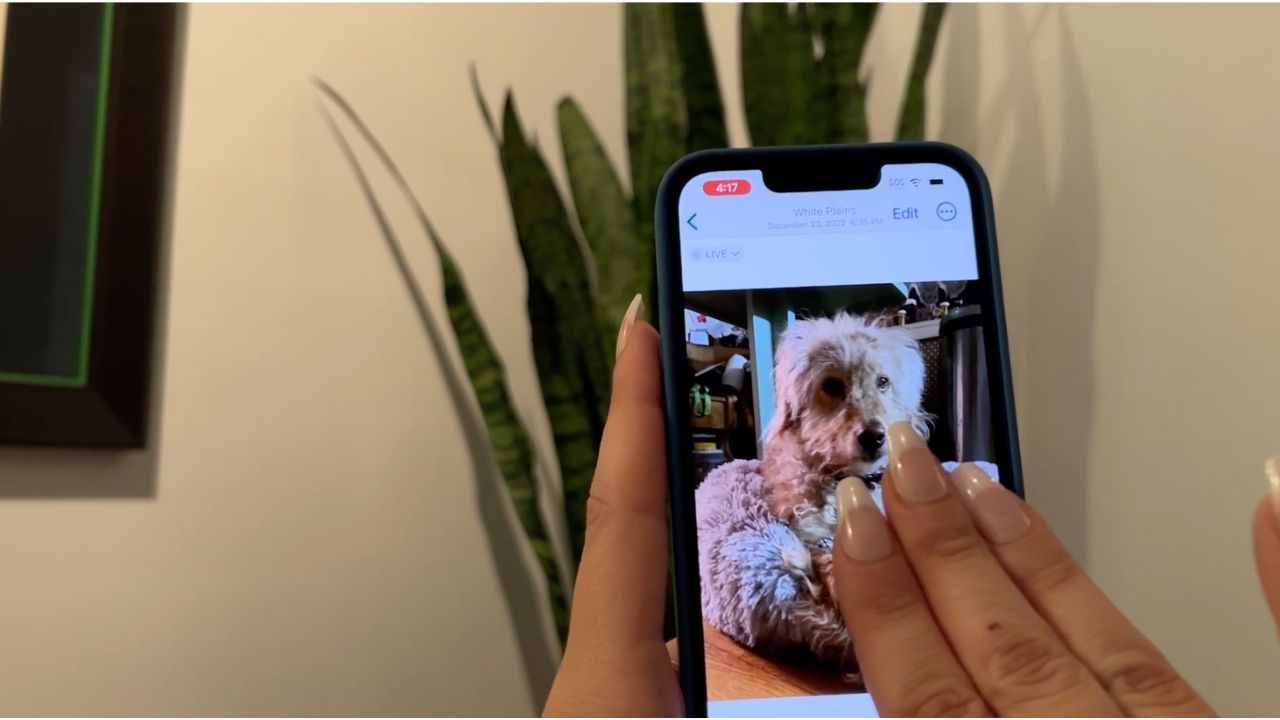
- Click Undo at the top of your screen, and what you deleted will reappear
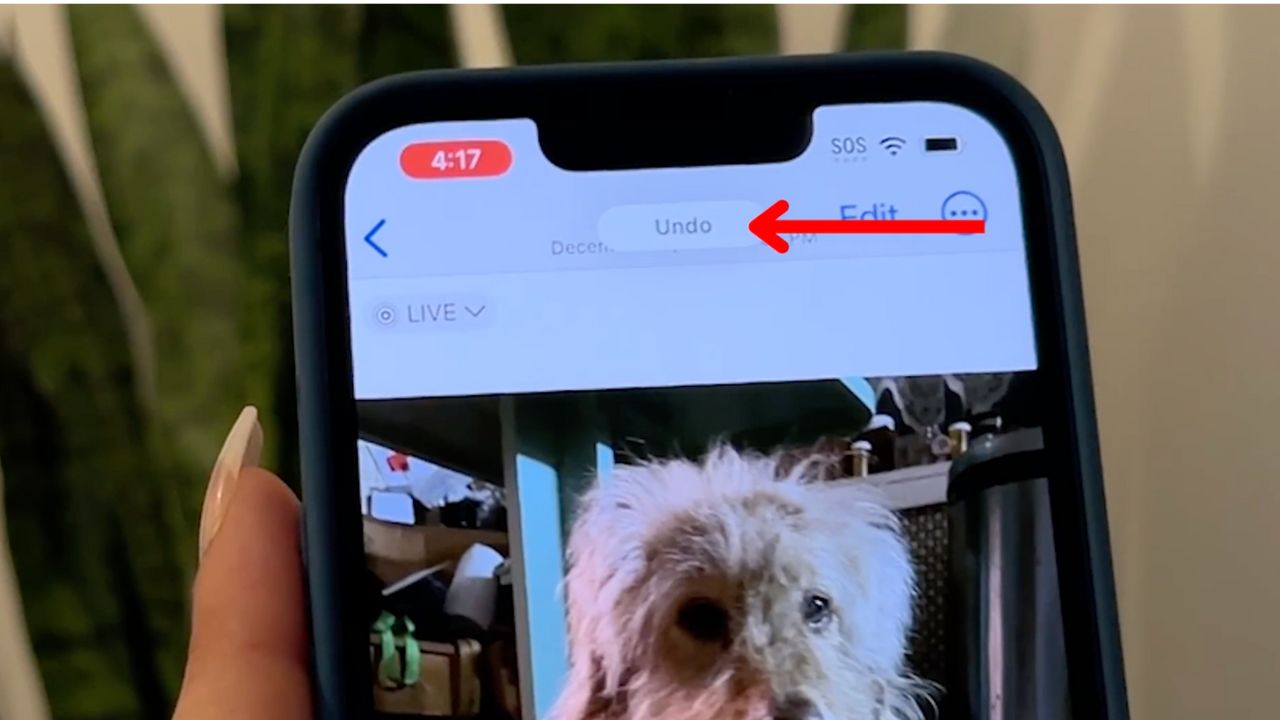
- To redo an action, take those 3 fingers and swipe to the right
- Click Redo at the top of your screen, and the item will disappear again
Have you tried these tips? Let us know if they help you.
Watch the latest episode of The CyberGuy Report.

Missed this event? Sign up via the registration form and see our live recording.
See Kurt’s latest Amazon picks for useful gadgets, smart home upgrades and everyday tech worth grabbing while the deals last.
Related:
🎙 Now Streaming: My New Podcast: The CyberGuy Report
Kurt’s Top Deals
Deals move fast and inventory can be limited, so don’t wait too long.
| 🔥 Editor’s pick  Summer entertaining Ninja SLUSHi Machine (26% off) Frozen drinks and slushies at home in minutes. | |
| 💰 Top deal  Outdoor essential TYPEC Solar Bug Zapper (36% off) Solar-powered bug zappers for patios and camping. |