Our smartphones allow us to do all kinds of things, including taking beautiful pictures. However, taking a picture on a smart device is more complex than it used to be. Photos now contain all kinds of metadata that can be stored on our devices, including our location. Some are as generic as the town where the picture was taken, while others can be as precise as the street you were on when you took it. When scrolling through your photo albums, you may notice that each picture has the location where the photo was taken listed at the top.
How do I remove location data from my smartphone photos?
How to remove location data from a photo on an iPhone
Please note: in order for this to work, Location Services must first be turned on on your iPhone. To check if this is the case, go to: Settings > Privacy and Security > Location Services > Photos.
- Open your Photos app and select a photo
- Click the 3 dots in the top right-hand corner and select Adjust location
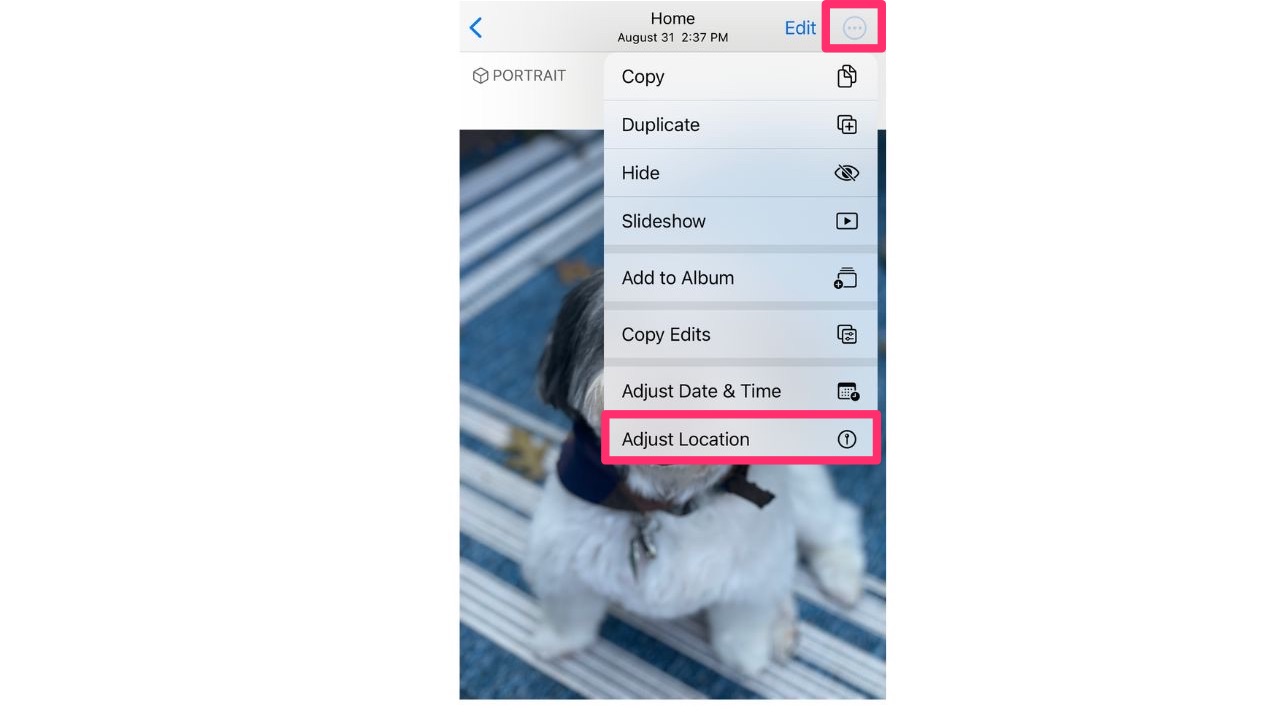
-
- Choose No Location to have the location disappear from the picture
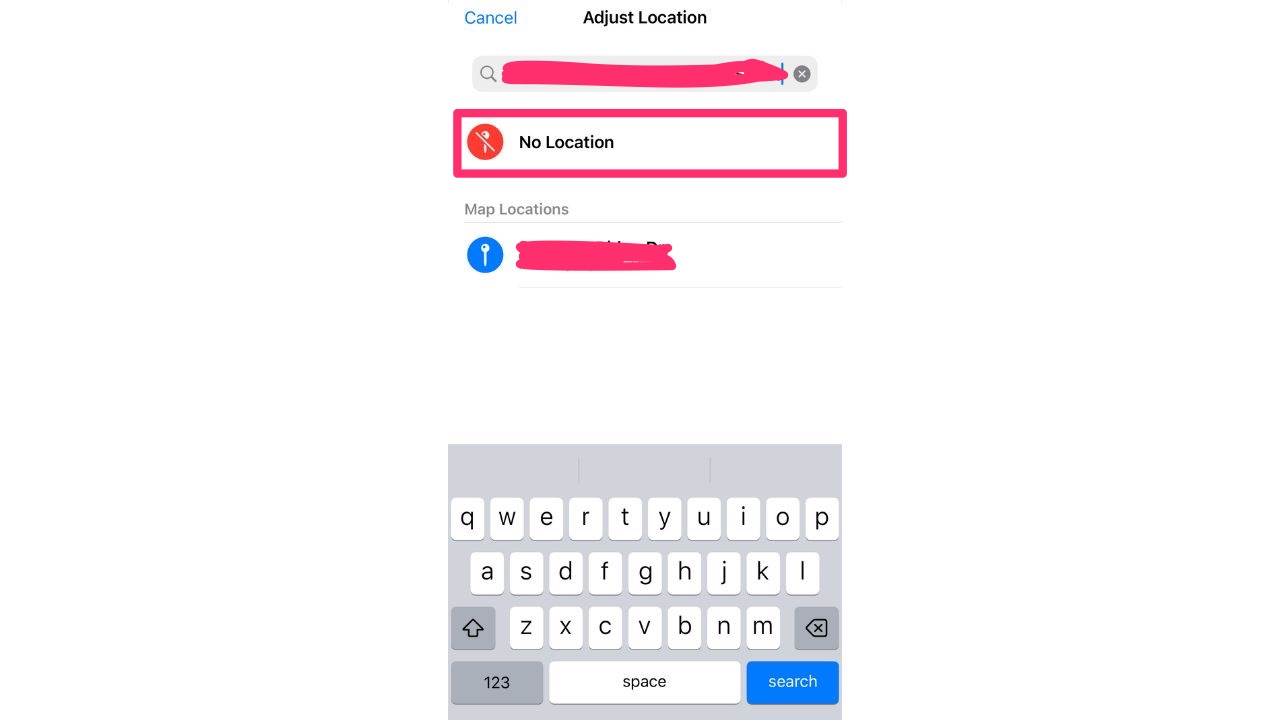
Please note you can repeat the above steps to remove location from iPhone videos as well.
Preventing future photos from having location data
Go to Settings > Privacy & Security > Location Services > Camera and set it to Never. This will stop the Camera app from adding location data to new photos. (please note the instructions above may vary depending on your current iOS)
How to remove location data from a photo on an Android (and an alt version for a photo on an iPhone)
For Androids as well as an alt version for iPhones, you can use the EXIF editor app to remove data from all your pictures on your phone. It also allows you to change the locations of the pictures you take and remove all tags within the photos. Here’s how it works for both iOS and Android devices.
Please note: the photos below are accurate at the time of publishing, but the most up to date tutorials will typically be found upon downloading here.
- Download and open the EXIF app
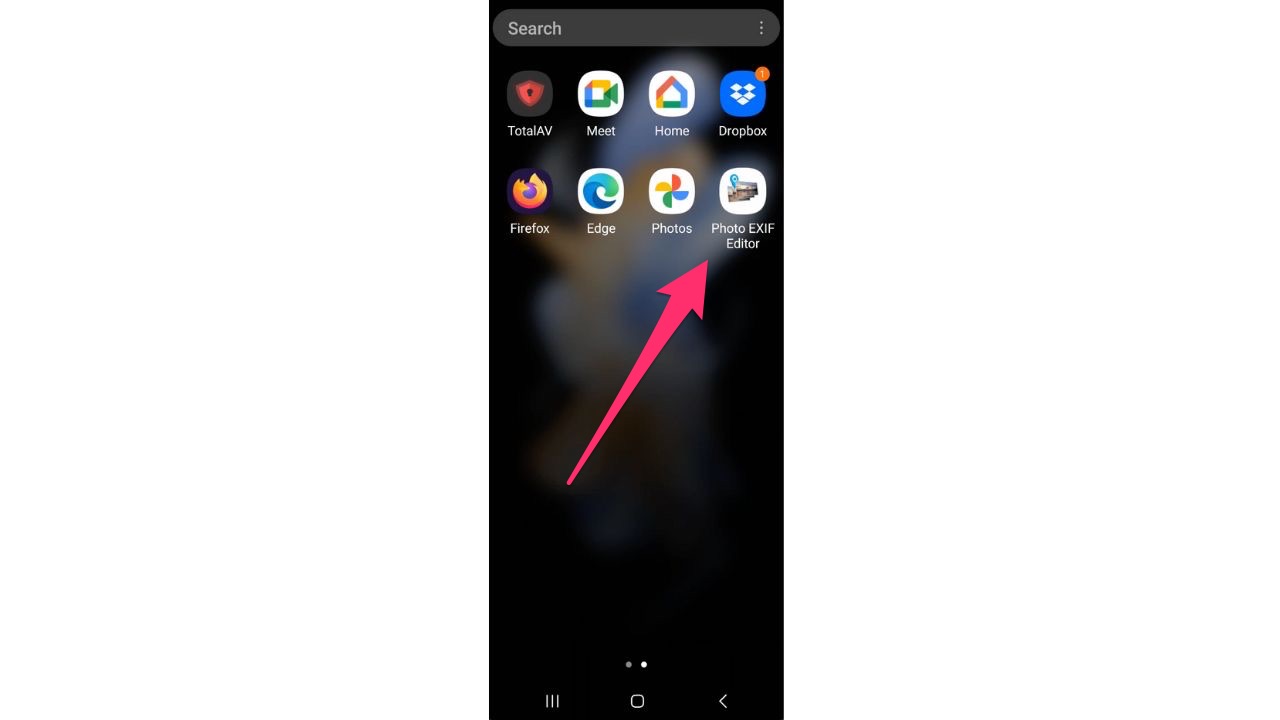
- Select the photo you want to remove the location from
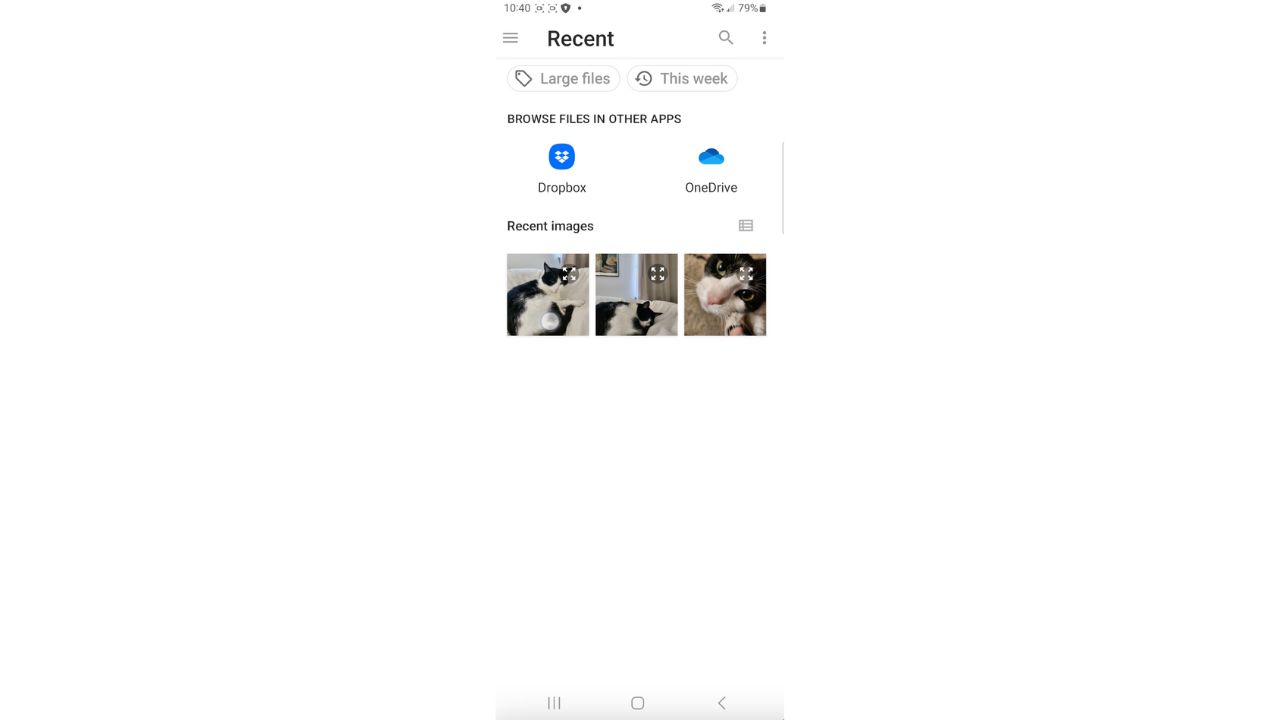
- If there is metadata on the location you took the photo you’ll see coordinates under the geolocation. To remove that – tap the EXIF button on the top of the screen
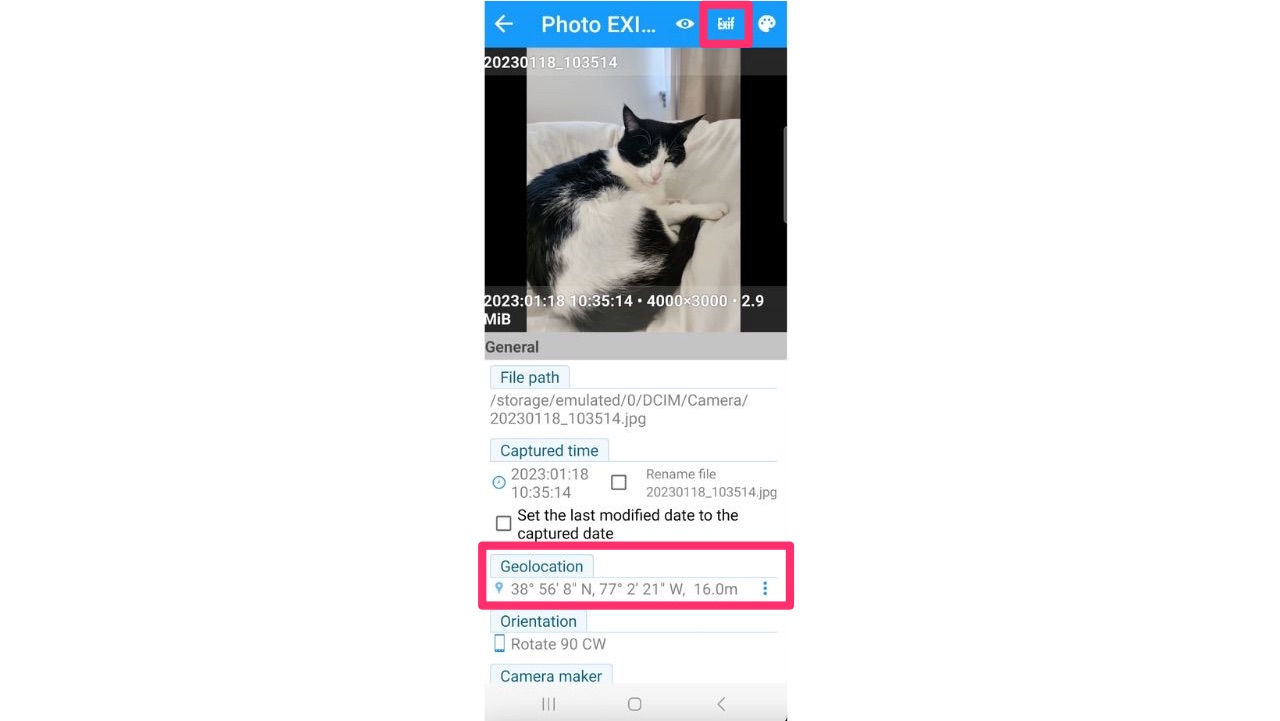
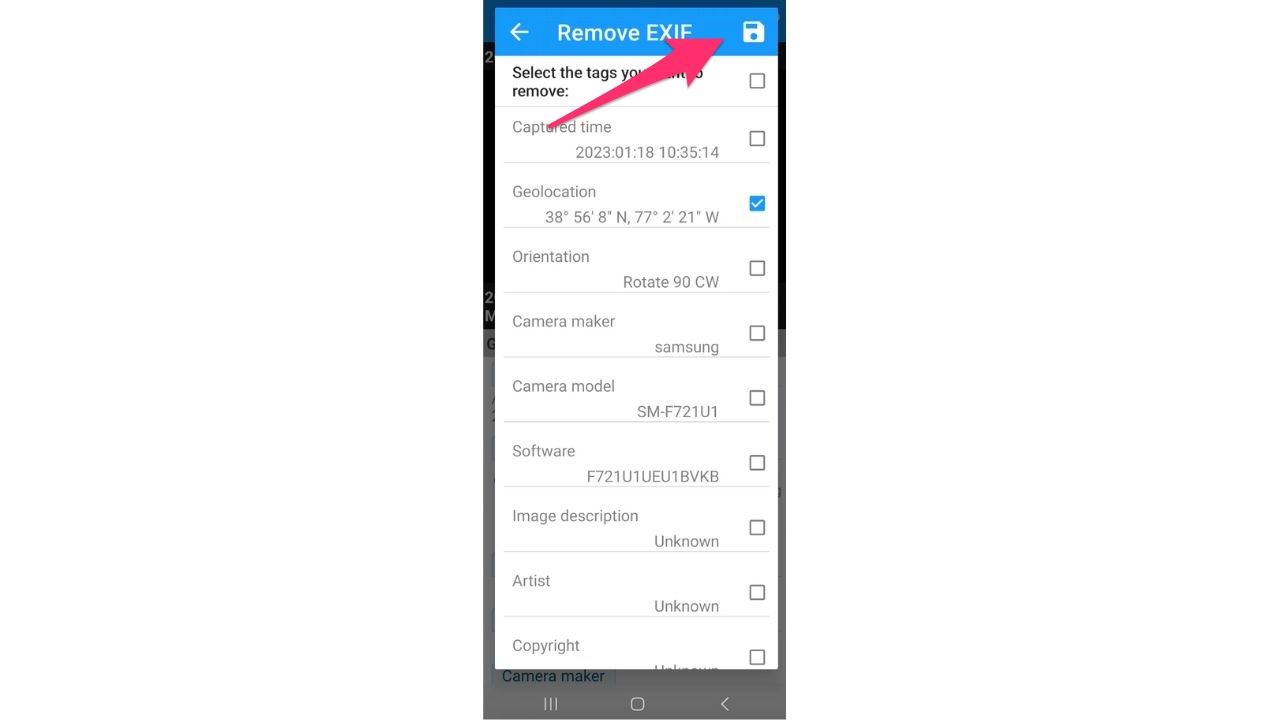
- Select the box next to geolocation – and any other metadata you want to remove. Then tap the save icon on the top right
Watch the latest episode of The CyberGuy Report.

Missed this event? Sign up via the registration form and see our live recording.
See Kurt’s latest Amazon picks for useful gadgets, smart home upgrades and everyday tech worth grabbing while the deals last.
- That data has now been removed from the photo in your Android’s gallery

Note you can use the EXIF Pro: ExifTool for Android to remove data from both photos and videos.
How do I remove location data from my laptop photos?
To delete location data from pictures on a Windows computer:
- Right-click image
- Find “Properties” at bottom of menu and click it
- In pop-up box, click the “Details” tab. At the bottom of the window click “Remove properties and personal information”
- Click ok
To delete location data from pictures on a Mac computer:
- Open image in Preview
- In top menu, click “Tools” > Show Inspector
- Click the “i” icon for information
- Click “GPS” tab and then “Remove Location information”. (If the GPS tab isn’t there, then your photo doesn’t have any location data)
Learn more about how to limit tracking from Google by clicking here.
Related:
Copyright 2026 CyberGuy.com. All rights reserved. CyberGuy.com articles and content may contain affiliate links that earn a commission when purchases are made.
🎙 Now Streaming: My New Podcast: The CyberGuy Report
Kurt’s Top Deals
Deals move fast and inventory can be limited, so don’t wait too long.
| 🔥 Editor’s pick  Summer entertaining Ninja SLUSHi Machine (26% off) Frozen drinks and slushies at home in minutes. | |
| 💰 Top deal  Outdoor essential TYPEC Solar Bug Zapper (36% off) Solar-powered bug zappers for patios and camping. |