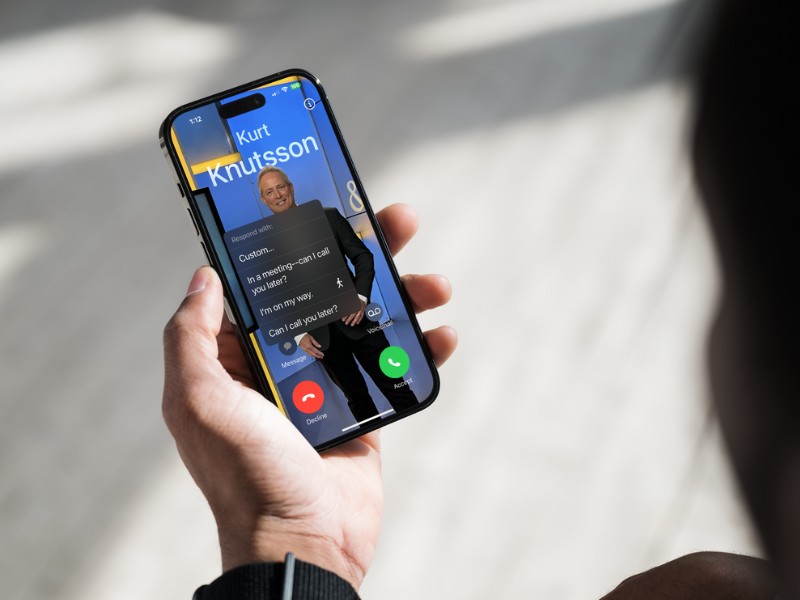
Did you know that instead of silencing or declining a call, you can quickly respond back with a text using a pre-created message?
Here’s what you need to do:
iPhone
-
- Click on “Settings”
- Scroll down and tap “Apps”
- Find “Phone”
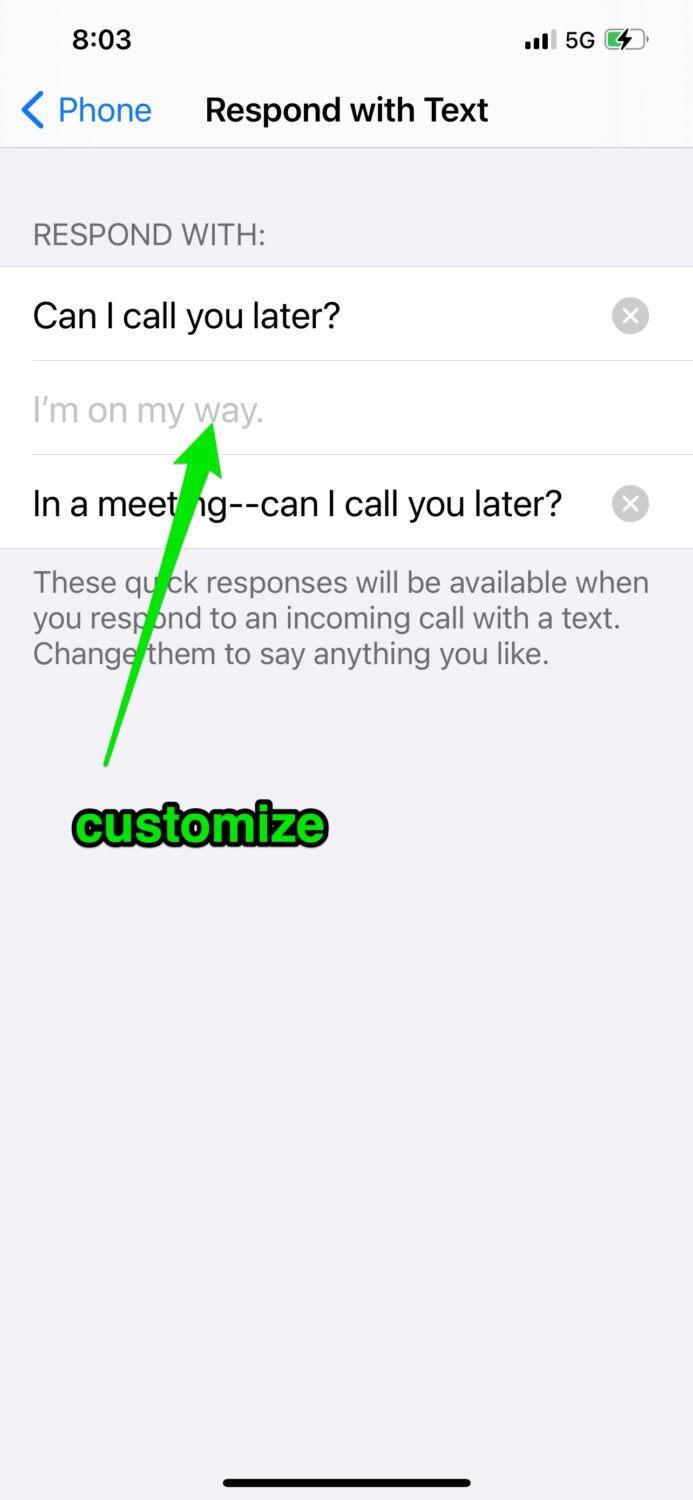
- Look for and click “Respond with Text“.
- Change these messages to say anything you would like.
When you get a call:
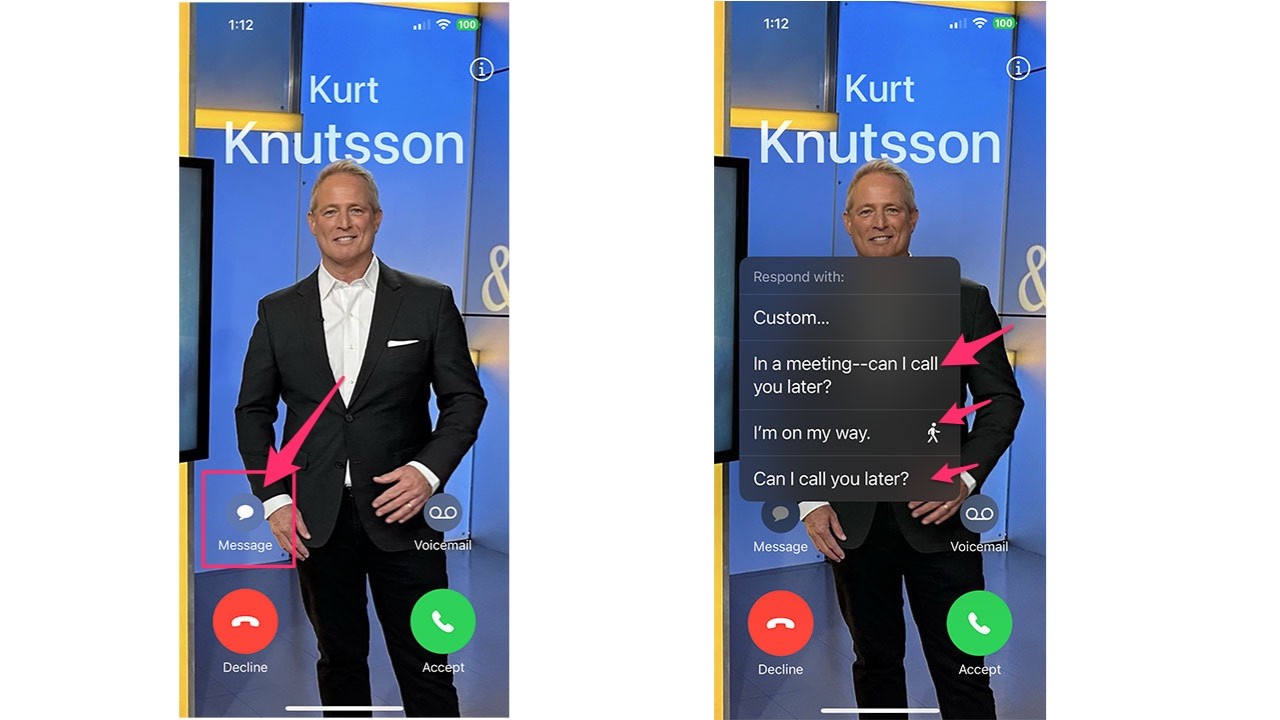
When the phone rings, tap “message” and then tap the message in the menu that opens up and your recipient will be sent a text with this message.
Android
Settings may vary depending on your Android phone’s manufacturer
-
-
- To Enable:
- Tap on the Phone app
- Click “Call Settings” and then “All Calls” and then “Auto-Reject”. Turn auto-reject on.
- To Enable:
-
- To Customize Messages:
- Click “Phone” and then “Settings” and then “Call Settings”
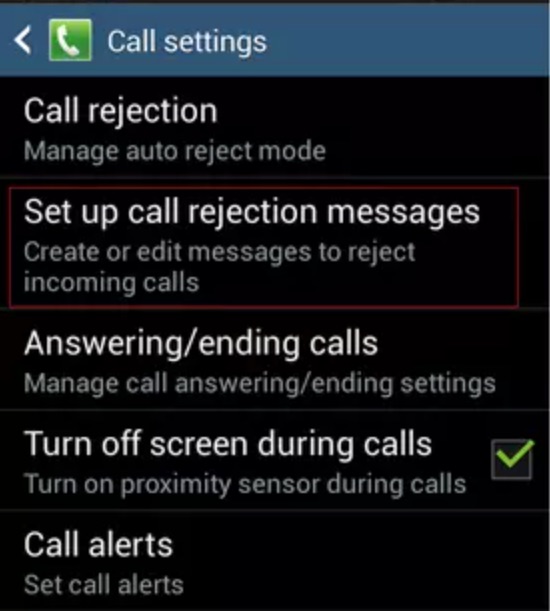
- Then tap “Call rejection” or
- Then click “Rejection messages“
- To Customize Messages:
-
-
-
- On the following screen, you can add, edit or delete your own messages to the list of messages the phone comes with by default.
-
When you get a call:
When the phone rings, slide the “reject call with message” row at the bottom of the screen. You will then see a list of responses that you set up. Tap on the message you would like to respond to and your phone will send that text to the caller.
Samsung
Settings may vary depending on your Android phone’s manufacturer
How one convincing SSA scam nearly tricked a reader, and the five red flags to check before you click.

Join Kurt Saturday, June 13 at 10 AM ET for quick phone privacy and security fixes.
See Kurt’s 2026 picks for practical tech and everyday upgrades.
-
-
- Tap on the Phone app
-
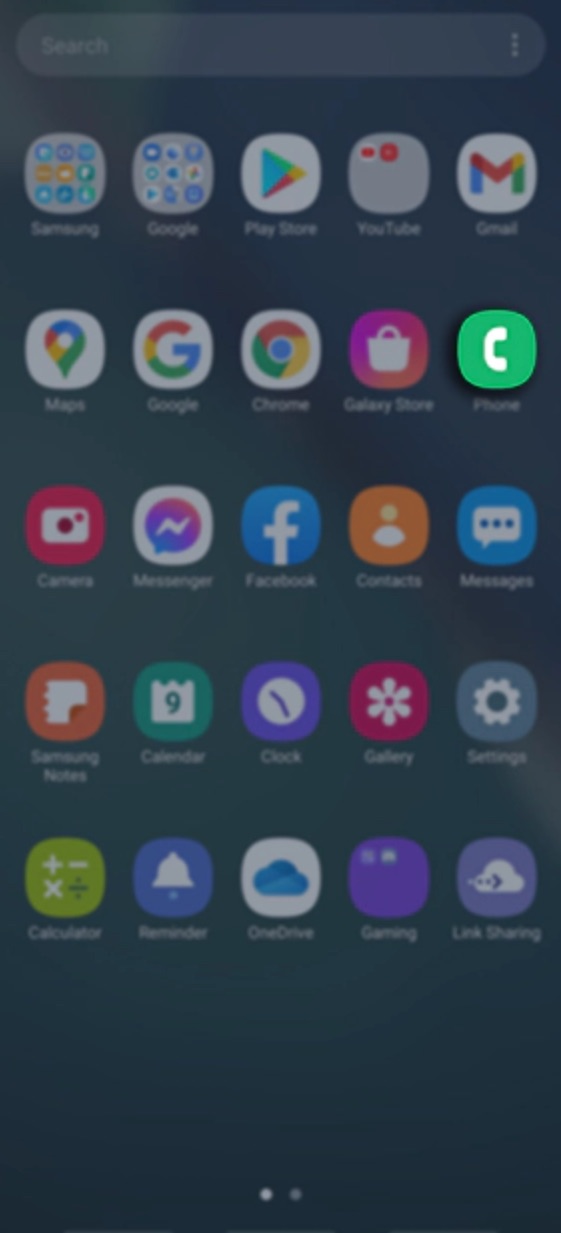
-
-
- Tap on

- Tap on
-

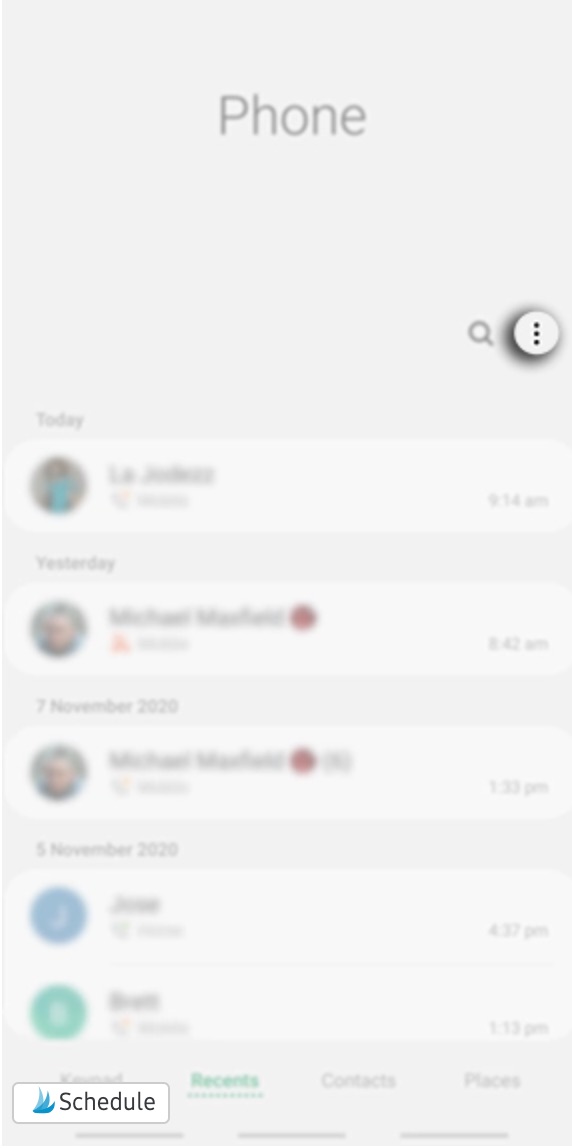
-
-
- Select Settings
-
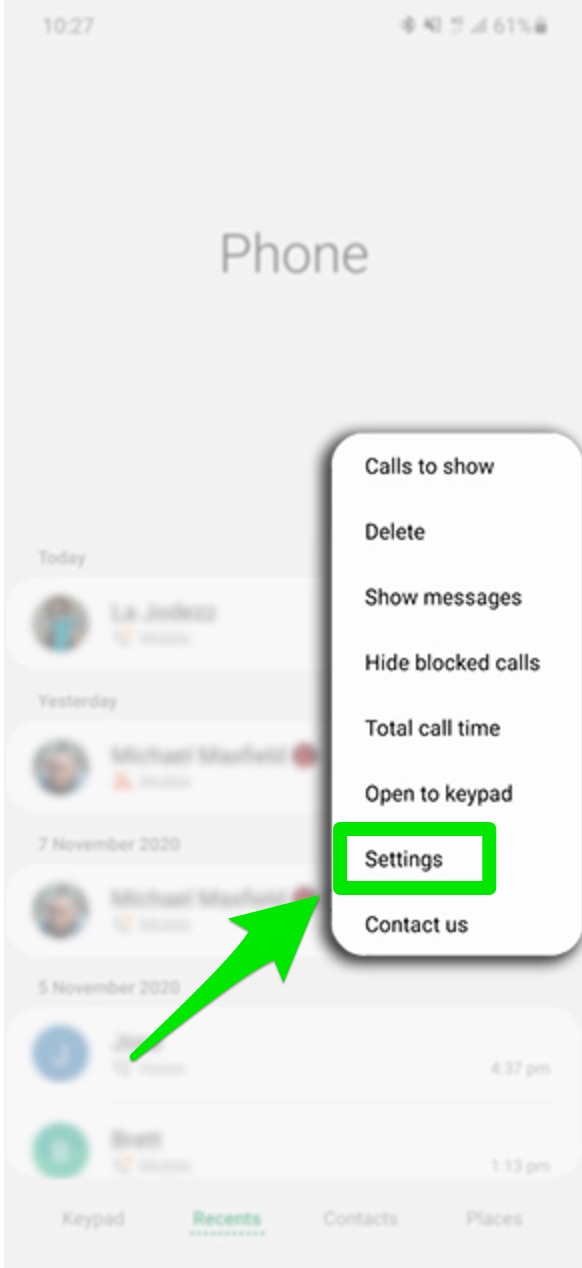
-
-
- Tap on Quick decline messages
-
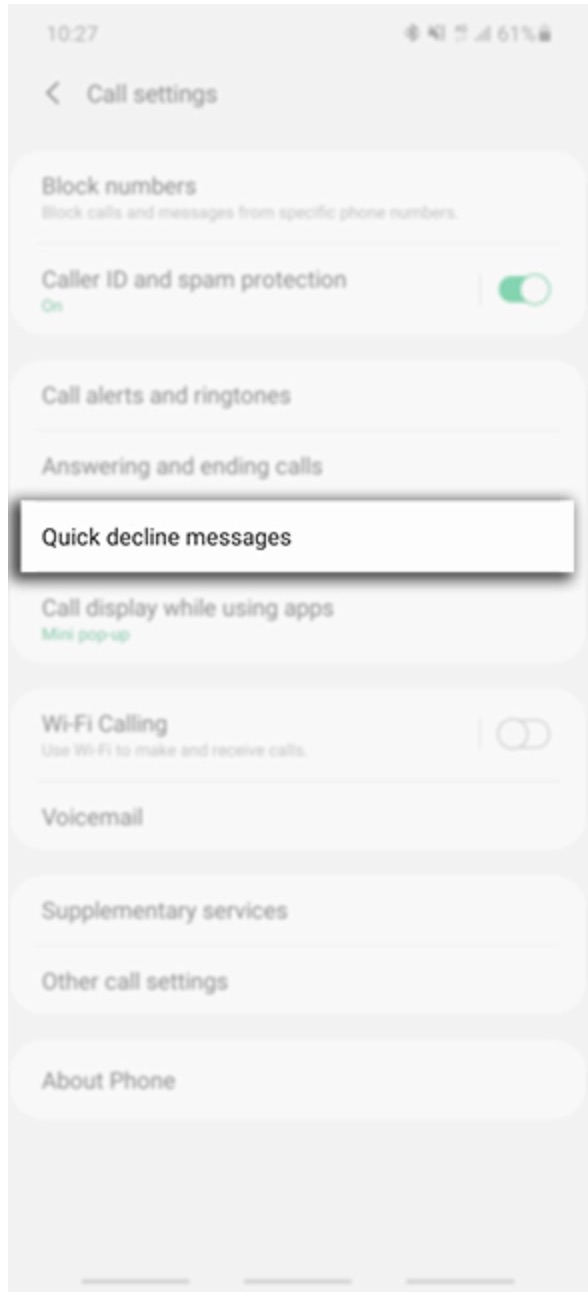
-
-
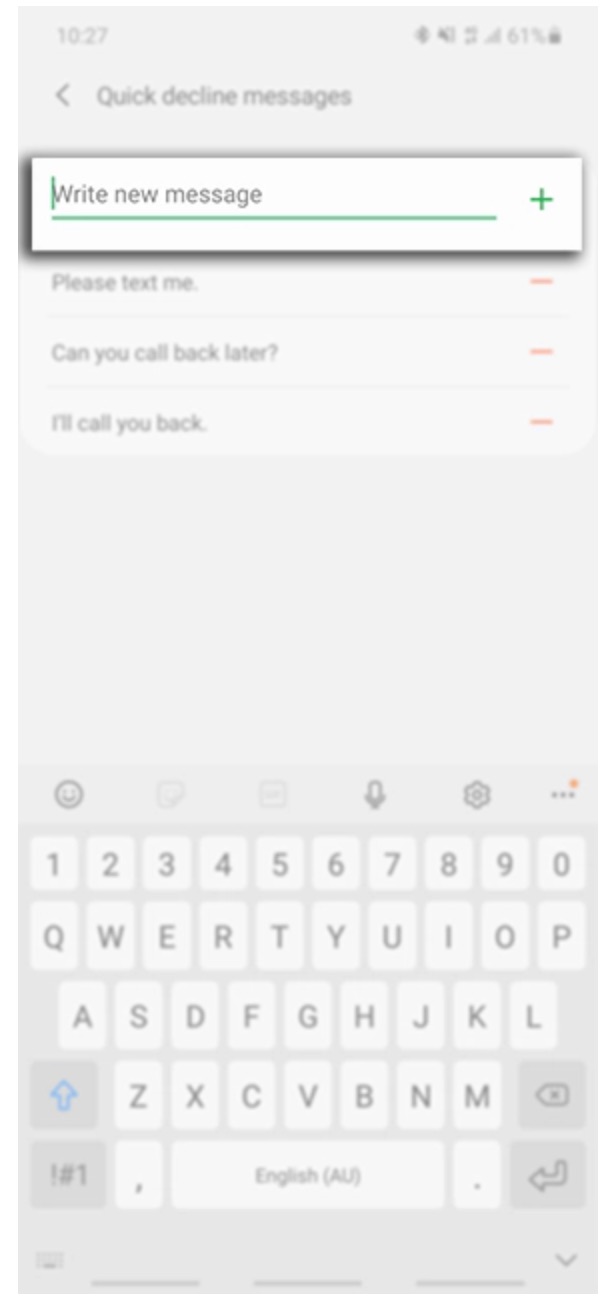
- Click “Write new message” and construct your message
-
-
-
- After writing your message, tap the “+” to add to your list. You can also remove this message by tapping the “-“
-
When you get a call:
-
-
- When the phone rings, swipe from the bottom up on your screen to view your Quick Decline messages.
- Click the message you would like to send.
- The caller will then see the message appear within their text message app
-
Related Articles:
- iPhone notes trick lets you message in secret
- How to schedule text messages on your iPhone and Android
- 5 Phone settings to change right now for a safer smartphone
Kurt’s Key Takeaways
Instead of just silencing or declining a call, you can instantly send a polite, pre-written text letting someone know why you can’t talk. It’s a small feature, but incredibly useful, especially when you’re in a meeting, driving, or just not in the mood to chat. Setting this up ahead of time means you can stay courteous and connected, without needing to pick up the phone.
What further questions do you have about this topic that weren’t explored? Let us know in the comments below.
FOR MORE OF MY TECH TIPS & SECURITY ALERTS, SUBSCRIBE TO MY FREE CYBERGUY REPORT NEWSLETTER HERE
Copyright 2025 CyberGuy.com. All rights reserved. CyberGuy.com articles and content may contain affiliate links that earn a commission when purchases are made.
🎙 Now Streaming: My New Podcast: The CyberGuy Report
Kurt’s Top Deals
Deals move fast and inventory can be limited, so don’t wait too long.
| 🔥 Editor’s pick  Summer entertaining Ninja SLUSHi Machine (26% off) Frozen drinks and slushies at home in minutes. | |
| 💰 Top deal  Outdoor essential TYPEC Solar Bug Zapper (36% off) Solar-powered bug zappers for patios and camping. |