Did you know that you can easily write on top of a photo that’s in your camera roll? Sometimes you want to add an arrow to point to something or add text on top of a photo. The reason is that people start to notice our expression more often and more deeply. There is something nice about being able to add a few little enhancements to your photo to make someone smile or point out a special moment to make someone you love feel amazing.
Here’s how you can quickly do it.
How to easily markup photos on your iOS devices like iPhone
1) Go to photos and select the photo you want to mark up by tapping it.
2) Tap “Edit” in the upper right-hand corner of your screen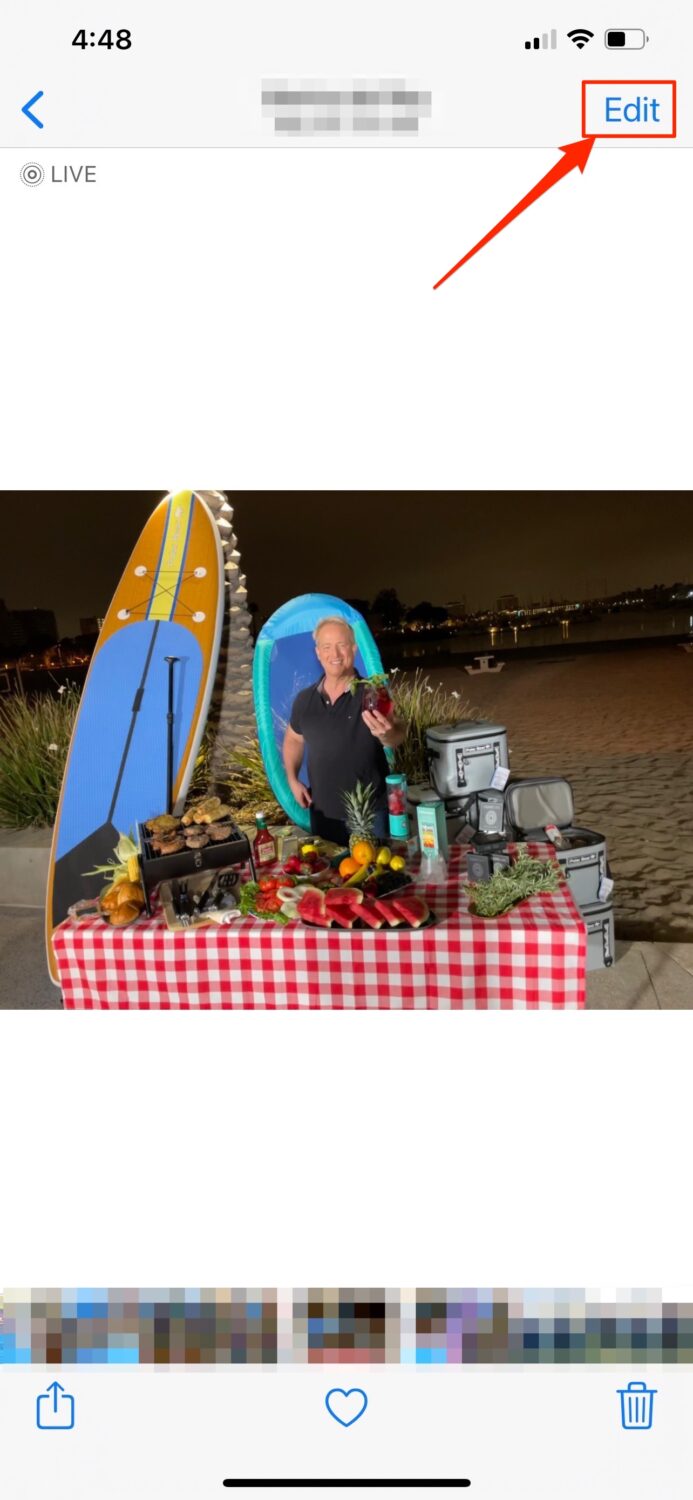
3) Click the 3 dots at the top of the screen.
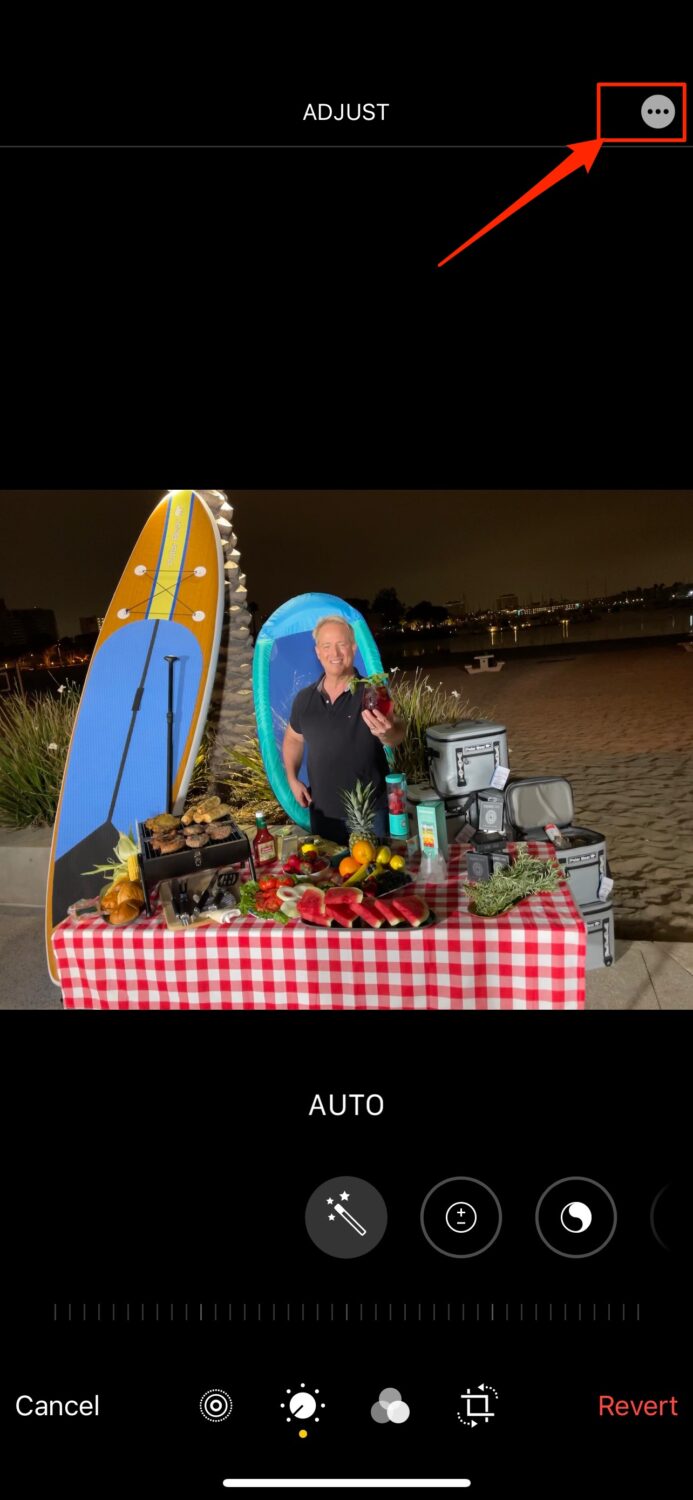
3) A box will pop up from the bottom of your screen. Click the row that says “Markup”
4) You will now see a screen with a series of pens, markers, erasers and more at the bottom of your screen.
Try the following:
- Selecting a pen, pencil, marker and highlighter and drawing on the picture
- Change the color by selecting the red circle and changing the color
- Add text, a signature or shapes by clicking the “+” button
- Note you can undo or redo any of your markups by clicking the icons at the top of the screen.
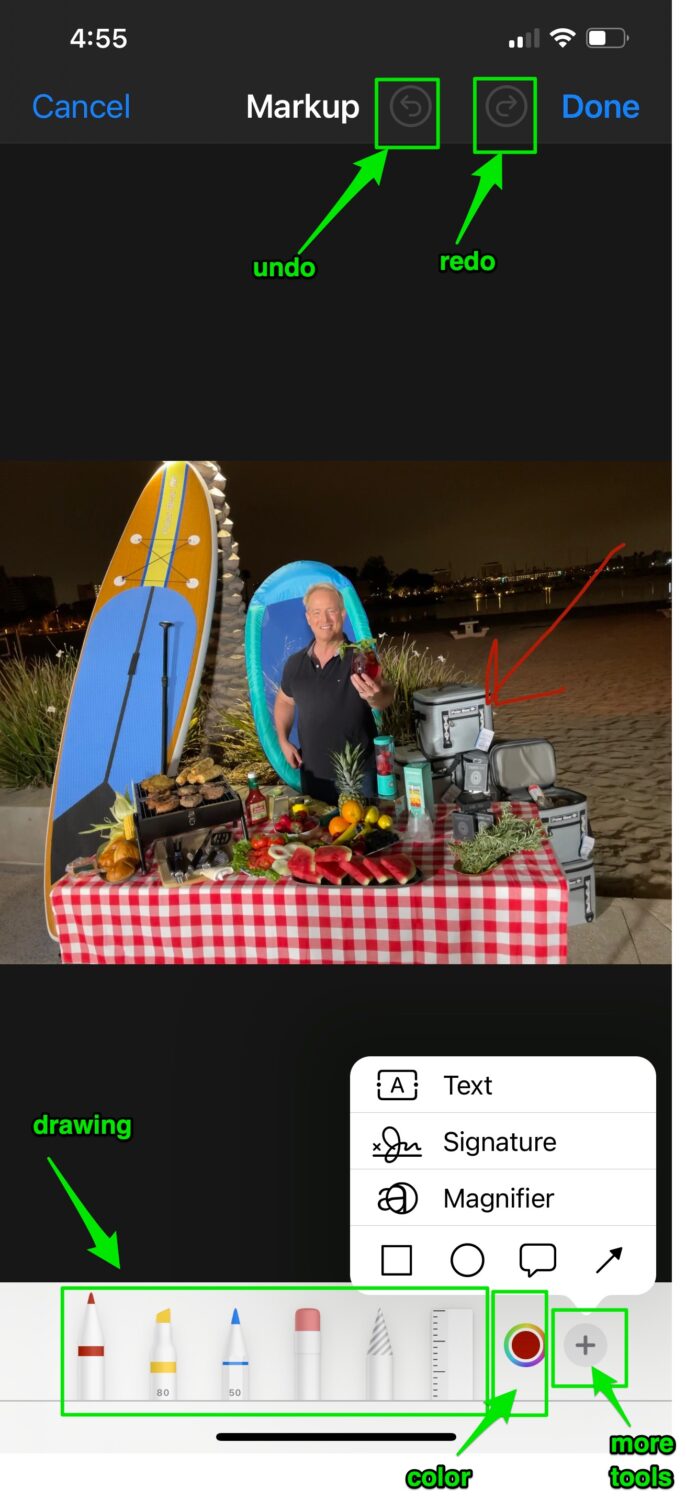
5) Once you’re done with marking up the items, click “Done” in the upper right hand corner and the image will now be saved to your camera roll.
How to easily markup photos on Android devices
1) Go to photos and select the photo you want to mark up by tapping it.
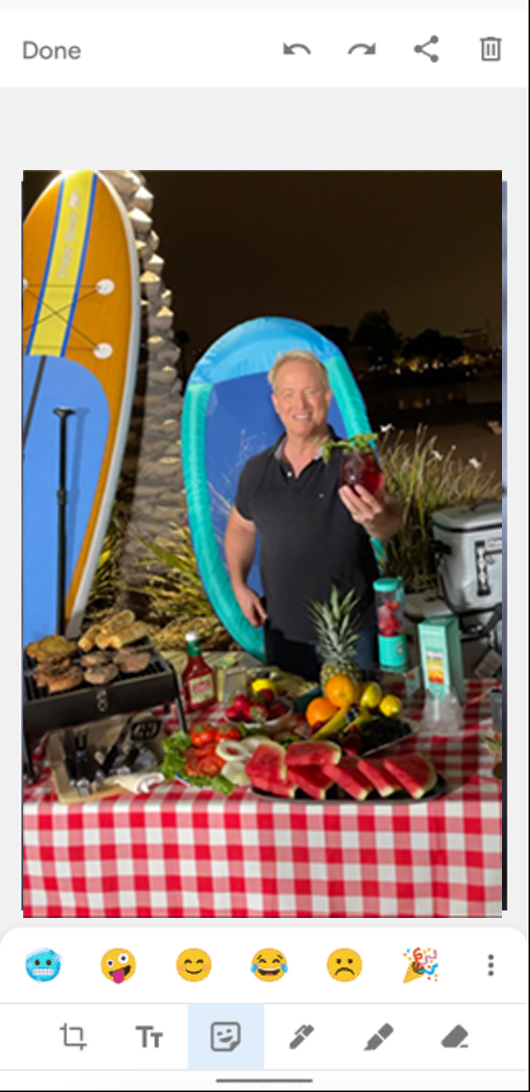
2) Tap this icon 
3) Choose a tool to use from the toolbar you now see which includes “Select”, “Color”, “Pen”, “Arrow/Line”, Shapes (cloud, square and oval) and “Text”.
How one convincing SSA scam nearly tricked a reader, and the five red flags to check before you click.

Join Kurt Saturday, June 13 at 10 AM ET for quick phone privacy and security fixes.
See Kurt’s 2026 picks for practical tech and everyday upgrades.
4) After marking up the photo, be sure to click “Save”
How to easily markup photos on Samsung devices
1) Touch “Apps” from the homescreen
2) Click “Gallery”
3) Select the image you want to markup and click it.
4) Click the “Edit” icon in the bottom row.
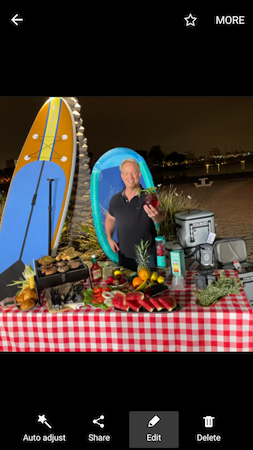
5) Then select “Drawing” and select “Pen”. You can also experiment with other features including “adjustment”, “tone”, and “effects”
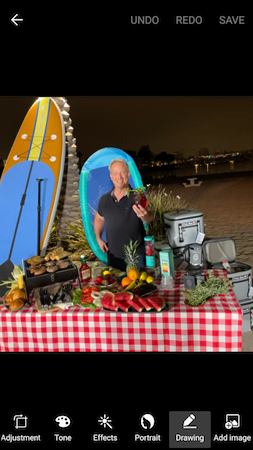
6) When you are done, click “APPLY” in the upper right-hand corner of the screen.
7) Then click “Save” and the photo is now saved in a new album, “Photo editor”.
Get more of my quick tips here
Related:
- 4 amazing ways to make your photos better
- Perfect photo but someone blinked? No problem with this trick
- How to cut your subject out of the background instantaneously on iOS16
🎙 Now Streaming: My New Podcast: The CyberGuy Report
Kurt’s Top Deals
Deals move fast and inventory can be limited, so don’t wait too long.
| 🔥 Editor’s pick  Summer entertaining Ninja SLUSHi Machine (26% off) Frozen drinks and slushies at home in minutes. | |
| 💰 Top deal  Outdoor essential TYPEC Solar Bug Zapper (36% off) Solar-powered bug zappers for patios and camping. |