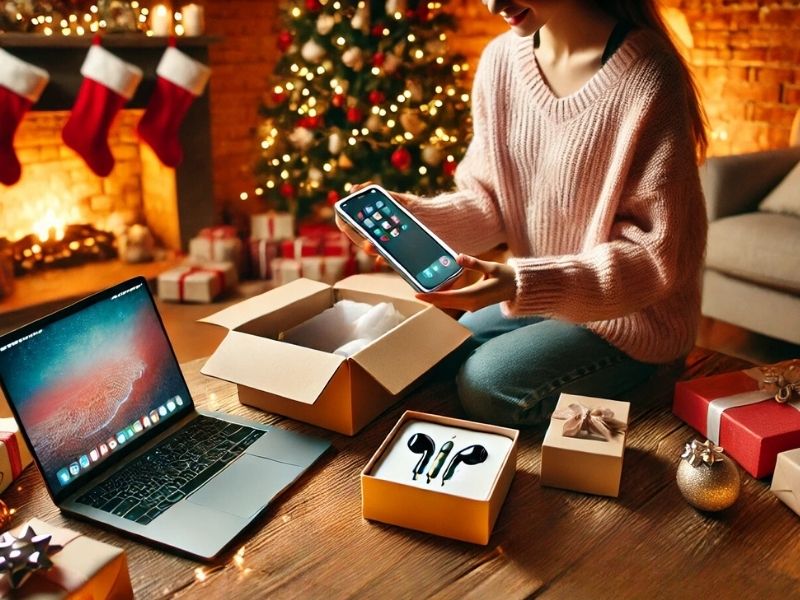
Got new electronics for the holidays? Whether you’ve unwrapped a shiny new smartphone, tablet, or laptop, the first steps you take can set the tone for your entire experience. We’ll walk you through essential steps to ensure your devices are secure, functional, and ready for your enjoyment. From setting strong passwords to enabling tracking features, these tips will help you make the most of your new gadgets.
Table of Contents:
What do I do if I get a new laptop, tablet, or smartphone?
Before you start using a new device, take a few minutes to lock it down properly. These simple steps help protect your data from day one.
Set up strong passwords and PINs
Change default passwords and PINs immediately. Use a combination of letters, numbers, and special characters. Avoid using easily guessable information like birthdays or names. Consider using a password manager to generate and store complex passwords.
Next, see if your email has been exposed in past breaches. Our #1 pick, NordPass, includes a built-in breach scanner that checks whether your email address or passwords have appeared in known leaks. If you discover a match, immediately change any reused passwords and secure those accounts with new, unique credentials.
- Unlimited password storage
- Secure sharing
- Password health reports
- Auto-fill and emergency access
- Data breach monitoring to alert you if your credentials have been exposed
- A Security Dashboard with tools like the Data Breach Scanner and Password Health Checker to identify weak, reused, or compromised passwords
CyberGuy Exclusive Deal: Save 52% now with CyberGuy’s exclusive NordPass offer – Get 1 extra month FREE with a 2-year plan. Try 30 days risk-free for only $1.43 per month!
Enable two-factor authentication (2FA)
Wherever possible, activate two-factor authentication (2FA) for added security. This provides an extra layer of protection by requiring a second verification step, such as a text message or authentication app.
Double-check email and account recovery settings
This is one of the most overlooked steps and one of the biggest reasons accounts stay compromised after a hack. Take a few minutes to confirm that your recovery options are current.
Verify your recovery email address so it is one you still actively use. Update your account recovery phone number in case you need to reset access quickly. If you use two-factor authentication, download or store your backup codes somewhere safe. These codes can be the only way back into your account if you lose your phone.
Consider privacy screen protectors (for smartphones and laptops)
Privacy screen protectors can prevent others from viewing your screen from the side, enhancing your privacy when using your device in public spaces.
Create a backup system for photos and documents
If your device stores important data (e.g., photos, documents), immediately set up a backup system. This can be done through cloud services or external storage devices to ensure your data is safe.
Install strong antivirus protection on all your new devices
The best way to ensure that your devices are protected and that no one is snooping around on your data or browsing history is by purchasing antivirus software. To protect yourself from having your data breached, have antivirus protection installed on all your new devices. Having good antivirus software actively running on your new devices will alert you to any malware in your system, warn you against clicking on any malicious links in phishing emails, and ultimately protect you from being hacked.
- Strong real-time protection against viruses, malware, ransomware and hacking attempts
- AI-powered scam protection to help identify suspicious emails, texts and websites
- Built-in password manager to securely store and manage logins
- 2 GB PC cloud backup to help protect important files from ransomware or hardware failure
- Smart firewall and phishing protection
- Protects 1, 3 or 5 devices
- Available for Windows, macOS, Android and iOS
- Includes real-time threat protection, smart firewall and phishing protection to guard against online attacks

Avoid these common mishaps on your new device
It’s easy to make small setup mistakes that can cause big headaches down the road. These are the most common issues to avoid when getting started.
Ignoring updates
Don’t skip software updates when setting up your new device. These updates often include critical security patches and new features. Enable automatic updates wherever possible to ensure your device remains up-to-date.
Leaving Bluetooth and nearby sharing fully open
Many new devices ship with Bluetooth, AirDrop, Quick Share, or nearby sharing turned on by default. Review these settings and limit who can discover or connect to your device, especially when you are in public places.
Overloading with apps
It’s tempting to download every app or tool that catches your eye. However, too many apps can slow down your device and increase the risk of downloading malicious software. Stick to trusted sources like the Apple App Store or Google Play.
Forgetting about privacy settings
Take time to review and configure privacy settings on your devices. Disable features like location tracking or data tracking if they’re not necessary for your usage.
Neglecting physical protection
A single drop can ruin your brand-new device. In order to protect and enhance them, it’s important that you have some quality accessories, like a laptop bag or backpack, messenger bag, laptop sleeve, portable hard drive, headphones, webcam cover, attachable portable display, portable laptop stand, Bluetooth mouse, a good power strip, and a surge protector for your devices. You’ll also want a good phone charger. Check out our picks for these 5 best portable phone chargers. The last thing you’ll want is a device that dies out on you because you didn’t have a decent charging accessory.
Protect your new gear with the right case
Securing your device digitally is essential, but physical protection matters just as much, especially after investing in a new smartphone or tablet. A quality case can prevent cracked screens, dents, and costly repairs from accidental drops right from day one.
Phone cases: Not all are created equal
If you’re using an iPhone, we’ve rounded up the top protective and stylish cases that balance durability with everyday usability. Whether you prefer a slim, MagSafe-compatible design or heavy-duty drop protection, there’s an option to fit your needs.
Top iPhone cases: From sleek everyday cases to rugged protection built for accidents.
Android owners have great options too. In our Best Accessories for Your Android guide, you’ll find reliable case picks like the Spigen Tough Armor, which combines impact-absorbing materials with a built-in kickstand for hands-free viewing.
Best accessories for Android: Includes protective cases and other must-have add-ons.
Why a case should be step one
- A sturdy case protects your investment from drops, scratches, and daily wear.
- Many cases support wireless charging and MagSafe, so you don’t sacrifice convenience for protection.
Whether you’re setting up your device for the first time or finishing up security and backup steps, adding a case early is one of the smartest moves you can make.
Set your new devices to be findable if lost
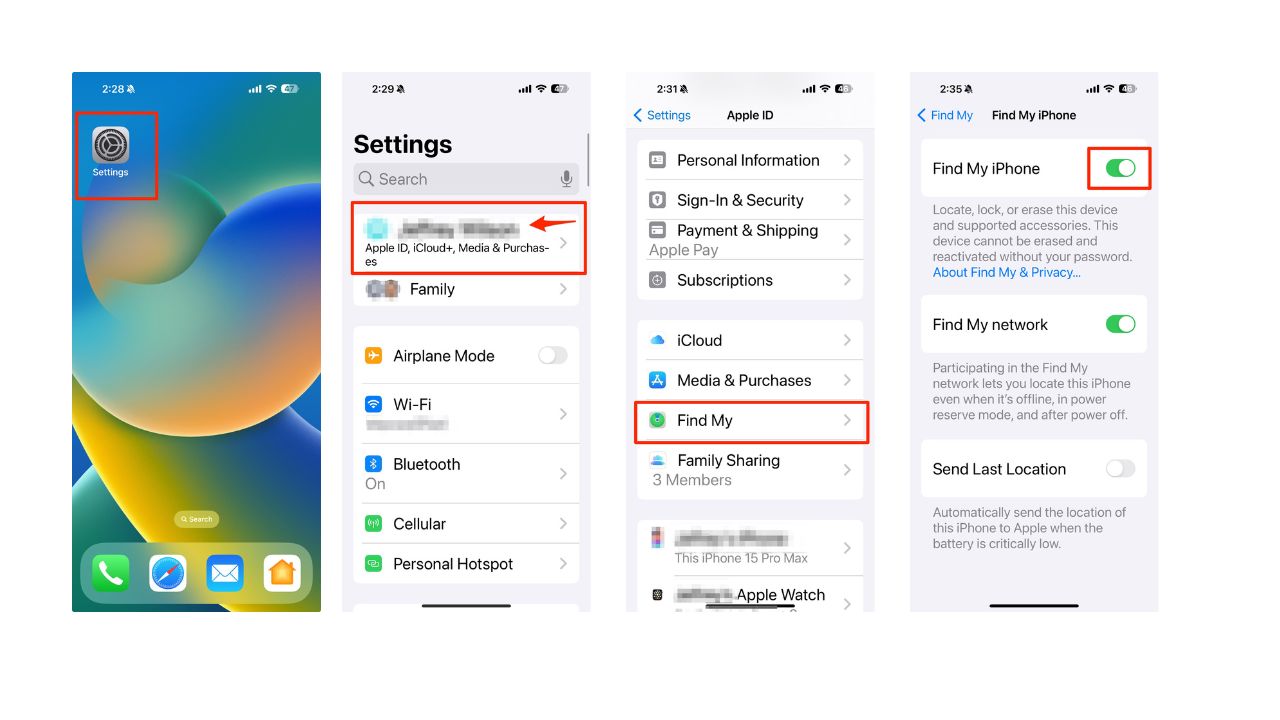
The best step to take if you have received a new laptop, tablet, or smartphone, whether it’s an Apple or Android product, is to turn on any ‘Find My’ settings in case your device ever gets lost or stolen. Here are the steps you can take for the following options:
How to turn on Find My on iPhone
- Open the Settings app
- Tap your name
- Select Find My
- Tap Find My iPhone and toggle it ON
Enable Find My on a MacBook
- Go to the Apple menu (the small Apple icon) in the top left corner
- Select System Settings
- Then click Privacy & Security in the sidebar (You may need to scroll down.)
- Click Location Services on the right
- Turn ON Location Services
- Then turn ON Find My in the list of apps.
Note: If you don’t see Find My, go to System Services in the list of apps, click Details, then turn on Find My Mac.
Turn on Find My Device on Windows 11
- Select the Start button
- Go to Settings
- Select Privacy & security
- Select Find my device and turn it On
- Still under Privacy & security, select Location
- Turn Location services On
Activate Find My on an iPad
- Go to Settings
- Tap your Name
- Click Find My
- Tap Find My iPad and select ON
Use Find My Device on Android or a Google Tablet
Settings may vary depending on your Android phone’s manufacturer
- Open the Settings app
- Tap Security & privacy (or Security, depending on device)
- Tap Find My Device
- Turn Find My Device On (On some devices, this may also appear under: Settings > Google > Find My Device)
What do I do if I get a new Smart TV?
Smart TVs are a great device to receive for the holidays. Not only do they give you access to tons of streaming apps, but they also allow you to browse the internet, stream music and videos, and even look at photos. With all these features comes a certain amount of risk regarding targeted ads and malware. While any Smart device can be infected with malware, Smart TVs are usually not the devices that experience this kind of attack. Although it has happened in the past with both Samsung and Apple TVs, those cases are extremely rare. However, make sure automatic software updates are enabled so your TV receives the latest security patches and firmware fixes. Also, before you begin enjoying your favorite movies and TV shows, take these steps to protect your Smart TV:

Disable ads and tracking
Disabling ads and tracking on your Smart TV will mostly limit your TV from collecting data on you and the content you’re watching. Here’s how to disable that feature on Samsung, LG, and Vizio TVs:
LG
Some models may have different settings or options, so you should always check the user manual or the official website of LG for the most updated information.
- Go to Settings
- Select General
- Select System
- Select Additional Settings
- Turn Live Plus Off (this disables ACR)
- Go to Privacy & Terms
- Set Do Not Sell My Personal Information to On
- Review Viewing Information, Voice Information, Interest-Based Advertising, and Cross-Device Advertising, and opt out where available
Samsung
Some models may have different settings or options, so you should always check the user manual or the official website of Samsung for the most updated information. For example, some models may have Smart Features instead of Support in the Settings menu.
- Go to Settings
- Select Privacy
- Select Privacy Choices
- Turn Viewing Information Services Off (disables ACR)
- Review Voice Recognition Services and adjust as desired
- Optional: Review Interest-Based Advertising and reset or limit ad personalization
- On older models, Support > Terms & Privacy may still appear.
Vizio
Some models may have different settings or options, so you should always check the user manual or the official website of Vizio for the most up-to-date information.
- Go to Settings>Admin & Privacy
- Select Viewing Data to turn off Automated Content Recognition (ACR)
- Select Advertising to adjust ad tracking
Disable all camera and voice recognition settings
Most Smart TVs do not include built-in cameras, but some models do. Many TVs also use microphones in the remote control for voice commands. Review voice recognition settings, and unplug or disable cameras if your TV includes one. If your remote has a microphone and you do not use voice features, consider turning them off or removing the batteries when not in use.
Samsung
Some models may have different settings or options, so you should always check the user manual or the official website of Samsung for the most updated information. For example, some models may have Smart Features instead of Support in the Settings menu. Some models may have Voice Recognition instead of Voice Recognition Services in the Terms & Policies menu.
- Go to Settings > Support > Terms & Policies
- Go to Voice Recognition Services and select Off
- Some Samsung models come with retractable cameras in the middle of the device. Gently push it back without touching the lens until you hear it click to turn it off
LG
- Go to Settings>All Settings>General
- Select User Agreements
- Disable the Voice Information setting
- Some LG TV models come with retractable cameras. Keep the lens pushed down when you are not using it.
Other Smart TV brands may come with external cameras. Make sure they are unplugged whenever you are not using them.
Sell, donate, or recycle your old devices
If you have old devices that you don’t need, you can sell them or recycle them. Some services will pay you even if your devices are not working. To get the best deal for your devices, you need to choose the right service.
Before selling, donating, or trading in any device, always factory reset it, remove all personal accounts, and deauthorize services tied to your Apple ID or Google account. Skipping these steps can leave your data exposed or lock the next owner out of the device.
Here are some services that you can use:
Amazon Trade-In: If you’re a big Amazon shopper, it might be worth it to try trading in your old device with their trade-in company. You can swap your device in exchange for an Amazon gift card, and they accept even non-functional items. This is a convenient way to get rid of your unwanted electronics and get some credit for your future purchases on Amazon. You can also check the trade-in value of your device before sending it in. Before you get rid of your old device, be sure to follow these steps:
Related Links:
Kurt’s key takeaways
Setting up new electronics is exciting, but skipping basic security steps can create long-term problems. By reviewing recovery settings, limiting sharing features, keeping devices updated, and properly wiping old hardware, you reduce your risk and get more peace of mind from day one.
Have you run into any surprises while setting up a new device? Let us know what worked or what caused headaches in the comments below.
FOR MORE OF MY SECURITY ALERTS, SUBSCRIBE TO MY FREE CYBERGUY REPORT NEWSLETTER HERE
Copyright 2025 CyberGuy.com. All rights reserved. CyberGuy.com articles and content may contain affiliate links that earn a commission when purchases are made.
🎙 Now Streaming: My New Podcast: The CyberGuy Report
Kurt’s Top Deals
Deals move fast and inventory can be limited, so don’t wait too long.
| 🔥 Editor’s pick  Summer entertaining Ninja SLUSHi Machine (26% off) Frozen drinks and slushies at home in minutes. | |
| 💰 Top deal  Outdoor essential TYPEC Solar Bug Zapper (36% off) Solar-powered bug zappers for patios and camping. |