



Do you ever forget to send an important message at the right time? Apple’s Messages app lets you schedule texts for future delivery. This means you can write a message in advance and choose exactly when it sends. As a result, you will not miss reminders or birthday greetings. The message arrives like a normal text, and the recipient will not know it was scheduled.
Android users, scroll to the bottom to learn how to schedule messages on your devices.
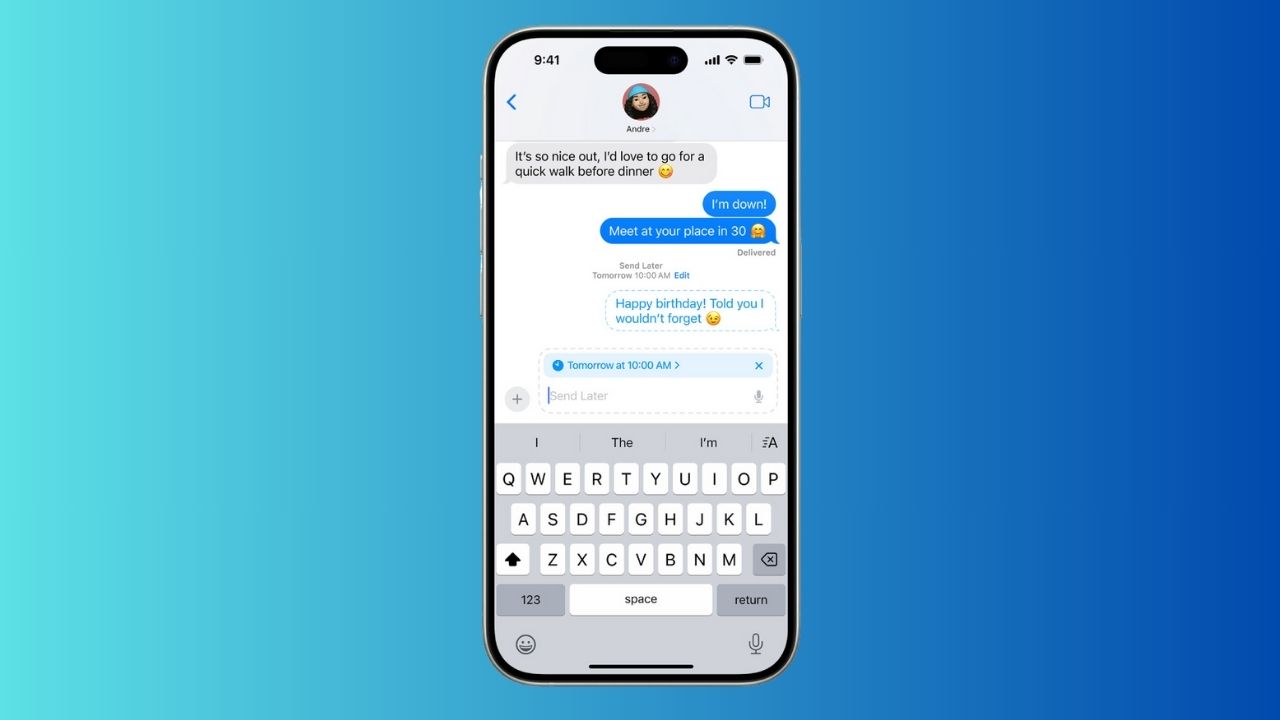
Credit: Apple
Update your device first
Before you use this feature, make sure your device runs the latest operating system.
Check your current iOS version:
- Open the Settings app on your device.
- Tap General.
- Tap About. Here, you’ll see the version number next to Software Version.
Update to iOS 26.2:
- Go to Settings.
- Tap General.
- Tap Software Update.
- If iOS 26.2 is available, tap Download and Install.
- Follow the on-screen instructions to complete the update.
How to use “Send Later” in Messages
Using the new “Send Later” feature is straightforward:
- Open the Messages app.
- Start a new conversation or select an existing one.
- Type your message as usual.
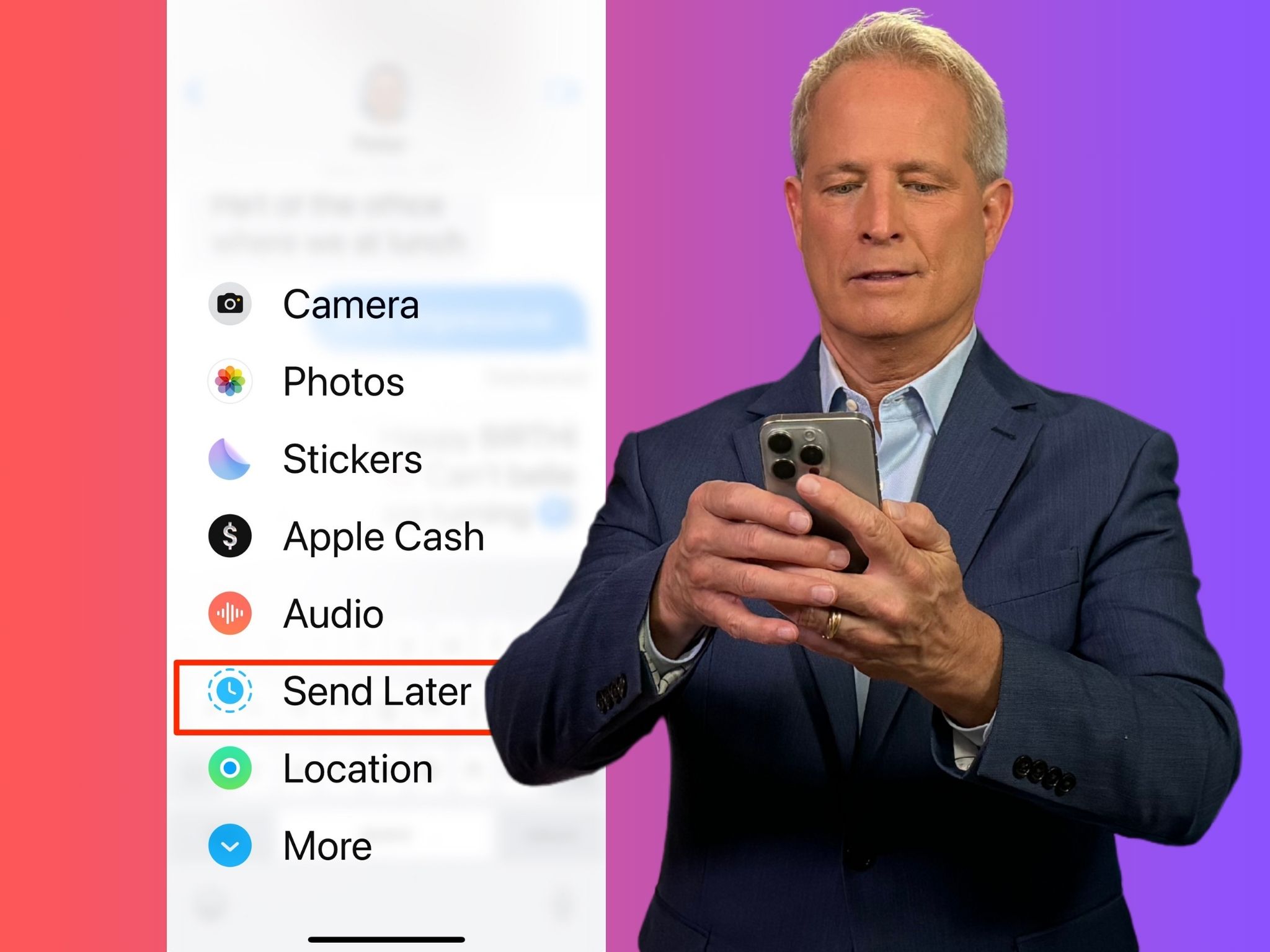
- Instead of sending immediately, tap the plus (+) sign next to the text box.
- Select “Send Later” from the menu (you may need to tap “More” first).
- Choose the date and time you want the message to be sent.
- Tap the send button, which is the blue up arrow, to schedule your message.
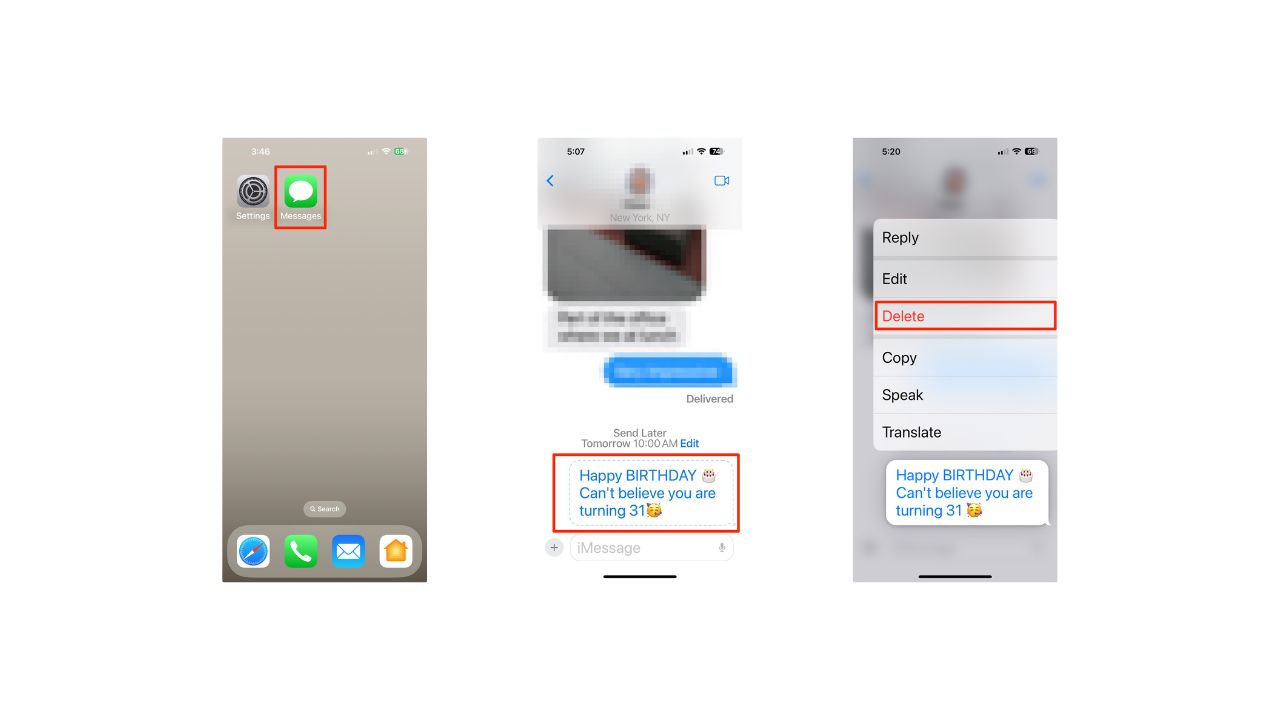
- Your scheduled message will appear in the conversation with a dashed outline, and the scheduled send time will be displayed above it.
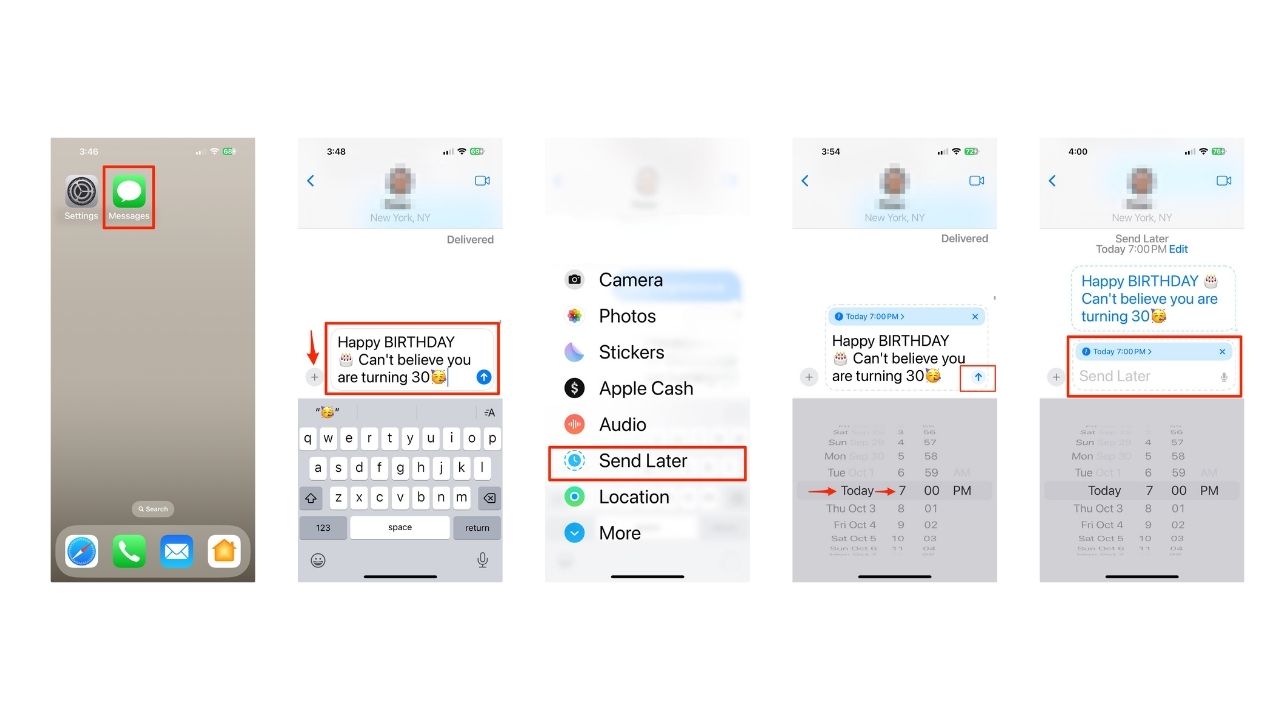
Note: Scheduled messages are encrypted and stored on Apple servers only until they are sent. Once a message is sent, it is removed from Apple servers, the message balloon becomes a solid color, and the dashed line disappears.
Change the time to send a message
You can reschedule a message until its delivery time.
- Go to the Messages app on your iPhone.
- Go to the conversation with the message you want to reschedule.
- Tap Edit beside the date (above your scheduled message), then do any of the following:
- If you want to reschedule it, tap Edit Time, choose a new time, and then tap away from the schedule to commit to the new time.
- If you want to send it immediately, tap Send Message.
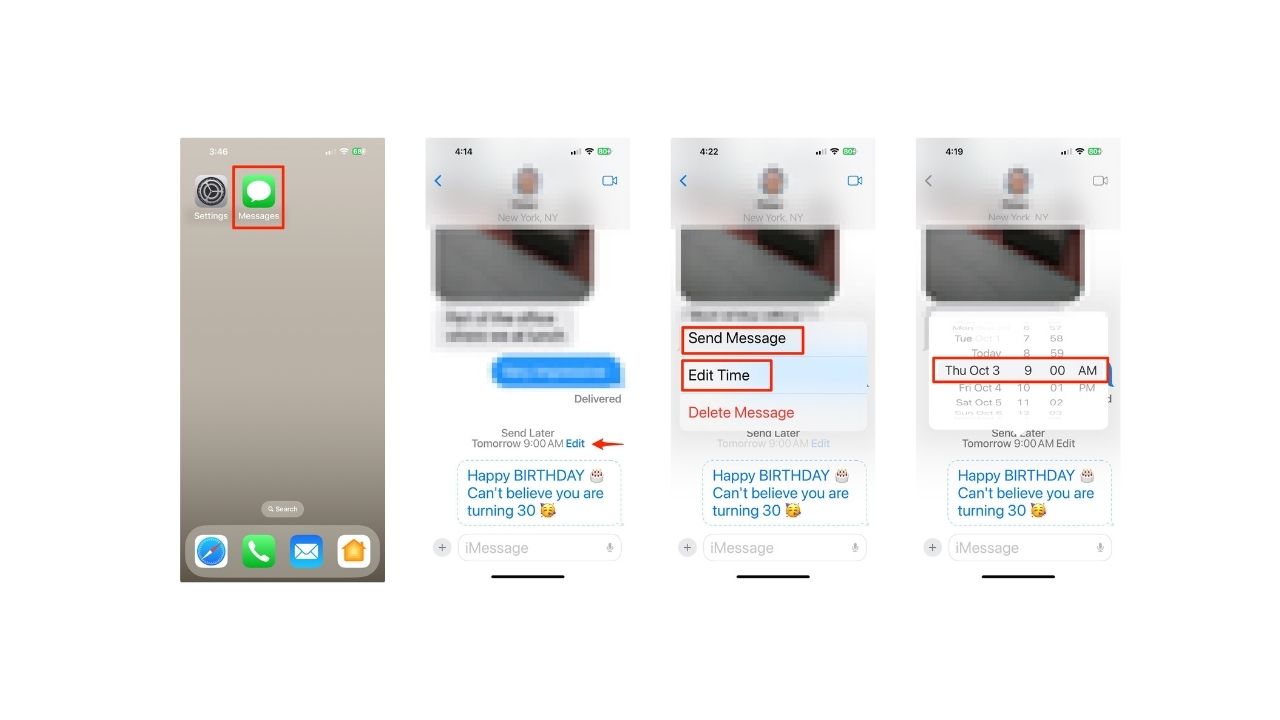
Edit a scheduled message
You can edit a scheduled message until its delivery time.
- Go to the Messages app on your iPhone.
- Go to the conversation with the scheduled message you want to edit.
- Touch and hold the message bubble, then tap Edit.
- Make any changes, then tap the checkmark in the blue circle to resend with edits or the X in the grey circle to revert.
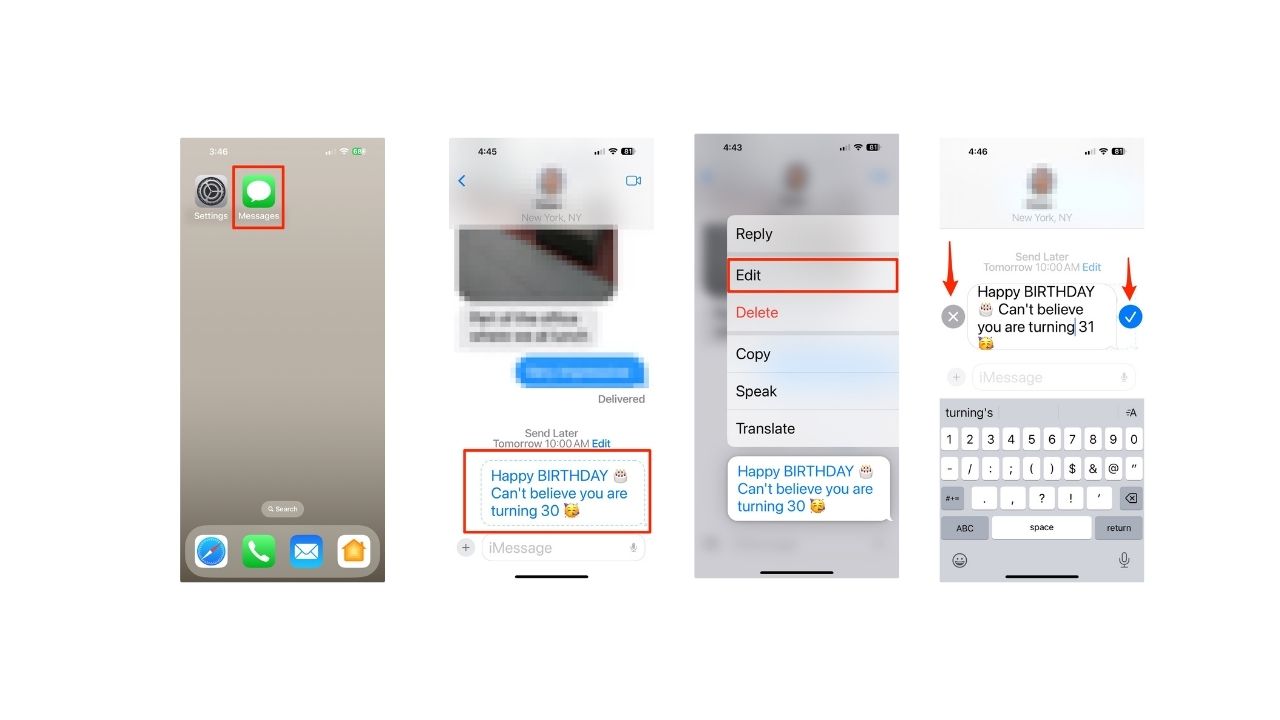
Delete a scheduled message
When you delete a message before its scheduled time, it’s canceled and not delivered to the recipient.
- Go to the Messages app on your iPhone.
- Go to the conversation with the scheduled message you want to delete.
- Touch and hold the message you want to cancel, then tap Delete.
Limitations to keep in mind
While “Send Later” is a great feature, there are some limitations to be aware of:
Watch the latest episode of The CyberGuy Report.

Missed this event? Sign up via the registration form and see our live recording.
See Kurt’s latest Amazon picks for useful gadgets, smart home upgrades and everyday tech worth grabbing while the deals last.
- Messages can only be scheduled up to two weeks in advance.
- The feature is only available for iMessage conversations (blue bubbles), not for SMS texts to non-iPhone users (green bubbles).
- Your iPhone needs to be online for scheduled messages to be sent. If your device is offline at the scheduled time, the message will be sent once it reconnects to the internet.
How to schedule a text on an Android
The ability to schedule a text message on an Android is built right into the phone’s Google Messages app (if you have a Samsung, you’ll use the Samsung messages app). However, to be able to access this function, you must have an Android 7 or newer. Please note settings may work on other Android devices although it may vary depending on your Android phone’s manufacturer.
Here are the steps for scheduling a text message on an Android.
- Open Messages
- Select a contact and start a conversation
- Type the text message
- Press down and hold the Send button
- The Schedule send box will appear, where you can choose a date and time for the text message to be sent
Related Links:
- Apple warns millions of iPhones are exposed to attack
- How to get your phone to read articles aloud
- How to easily print photos from your phone
Kurt’s key takeaways
Apple’s Send Later feature adds useful flexibility to everyday iPhone messaging. While it still works only with iMessage conversations, it makes it easier to manage communication without relying on third-party apps. From birthday greetings to well-timed reminders or messages sent across time zones, scheduled texts help you stay organized and thoughtful. As Apple continues to improve Messages, this feature could become even more powerful over time.
Can you share a specific situation where the “Send Later” feature would have been helpful for you? Let us know in the comments below.
FOR MORE OF MY SECURITY ALERTS, SUBSCRIBE TO MY FREE CYBERGUY REPORT NEWSLETTER HERE
Copyright 2026 CyberGuy.com. All rights reserved. CyberGuy.com articles and content may contain affiliate links that earn a commission when purchases are made.