- If you think your computer has been hacked, disconnect from the internet and run antivirus software directly.
- Do not trust random pop-ups, warning messages or phone numbers that suddenly appear on your screen.
- Check browser extensions, remote access settings and running apps for anything unfamiliar or suspicious.
- Two-factor authentication, backups and safer email settings can help reduce the damage from future attacks.
Seeing strange pop-ups, browser redirects or unfamiliar programs on your computer can make your stomach drop. Your first instinct may be to click around, search for a quick fix or call the phone number flashing on the screen. That is exactly what scammers want you to do.
If you think your computer has been hacked, the smartest move is to slow down, disconnect from the internet if something feels seriously wrong and open your antivirus software directly. From there, you can check your browser, remote access settings, running apps and recent activity to see what may have changed.
This guide walks you through the top five things to do if your computer has been hacked, including when a reset may be necessary. It also covers three preventive steps that can help protect your files, accounts and inbox before the next suspicious warning or fake security alert shows up.

What to do if your computer has been hacked
Once you suspect something is wrong, the next few moves can determine whether you limit the damage or make it worse.
1) Run Antivirus Software ASAP
When you’re running any antivirus scans or troubleshooting, start from the actual antivirus software program. Don’t follow pop-ups or notifications. If there is indeed a compromise, it should show up on the dashboard of the antivirus software program.
Preventive steps:
Keep your antivirus software updated. Hackers are constantly changing their tactics, so updated protection gives your computer a better chance of spotting newer threats.
Be familiar with your antivirus software notifications and alerts, so if you ever get a pop-up or notification, you’ll be more apt to notice fake ones.
Write down the contact information of the antivirus software you’ve installed and have it near the computer.
If you feel pretty confident that you’ve unfortunately been hacked, but your antivirus scan comes up empty, take a break and call the customer service number for your antivirus software directly. Do not follow links to have a rep call you. Use the number you’ve written down, and call them directly so you know you’re not being duped.
If you don’t have antivirus software installed, make sure to install one and do a computer scan.
- Strong real-time protection against viruses, malware, ransomware and hacking attempts
- AI-powered scam protection to help identify suspicious emails, texts and websites
- Built-in password manager to securely store and manage logins
- 2 GB PC cloud backup to help protect important files from ransomware or hardware failure
- Smart firewall and phishing protection
- Protects 1, 3 or 5 devices
- Available for Windows, macOS, Android and iOS
- Includes real-time threat protection, smart firewall and phishing protection to guard against online attacks
2) Reformat or reset to factory settings
Sometimes a virus or malware infection can overrun the computer so badly that you might need to reformat or reset it to factory settings. If you’ve uninstalled or deleted suspicious programs or applications only to have them reload upon restarting your computer, you may need to start from scratch.
This is why it is crucial to have recent backups of your data. A full reset can remove personal files, apps and settings depending on the option you choose, so make sure you have a safe backup before taking that step whenever possible. The article How to securely get rid of your old PC or Mac outlines how to reset to factory settings or reformat your computer.
3) Delete settings or extensions on browsers or uninstall and reinstall browsers completely
There have been many times I have gone to help my parents with their online accounts, only to be inundated with pop-ups, redirects, or random links on their browser bar or menu. It turned out that they had either accidentally downloaded extensions that embedded themselves in the browser or worse, changed the browser settings to open a spammy website as their main search engine or landing page. You can go to settings or preferences and delete extensions you do not recognize. But if these settings or extensions keep reappearing after deleting and restarting the browser, it is likely a bigger problem. Then uninstall the browser, and see if you can reinstall it. If that brings up the same settings again, then it could be a much more invasive virus or malware that needs to be addressed with an antivirus scan or assistance from a professional.
Watch the latest episode of The CyberGuy Report.

Missed this event? Sign up via the registration form and see our live recording.
See Kurt’s Prime Day picks for useful gadgets, practical upgrades and everyday tech while the deals last.
4) Turn off or restrict remote access
Remote access can be helpful when you want trusted tech support to connect to your computer. The problem is that scammers can also abuse it if they trick you into granting access or steal your login credentials. If your computer is online and remote access tools are active, review those settings right away.
To check Remote Desktop on Windows 11:
- Click the Start button
- Click Settings
- Click System
- Click Remote Desktop
- Make sure Remote Desktop is turned off unless you intentionally use it
To check Remote Assistance on Windows 11:
- Click the Search icon on the taskbar
- Type Remote Assistance
- Select Allow Remote Assistance invitations to be sent from this computer
- Uncheck the box next to Allow Remote Assistance connections to this computer if you do not use this feature
- Click Apply
- Click OK
To check remote access on a Mac:
- Click the Apple logo in the top left corner
- Click System Settings
- Click General
- Click Sharing
- Make sure Remote Login and Remote Management are turned off unless you intentionally use them
- Also, review Screen Sharing and Remote Apple Events if they appear in your Sharing settings
To review suspicious apps or processes on Windows 11:
- Press Ctrl + Shift + Esc to open Task Manager
- Click Processes
- Review the apps and background processes currently running
- Look for names you do not recognize, especially remote access apps you did not install
- If something looks suspicious, do not click random pop-ups or links. Run your antivirus scan and get help from a trusted professional if needed.
5) Review your activity monitor on your computer and network traffic patterns
Periodically checking what is running on your computer can help you spot unusual apps, background processes or activity that may point to a bigger problem. You do not need to understand every technical detail. The goal is to look for anything unfamiliar, unexpected or tied to remote access software you did not install.
To review system activity on Windows:
- Click Start
- Type Event Viewer
- Press Enter
- Look for events related to startup, shutdown, sign-ins and system changes
- Review whether any activity happened at a time you were not using the computer
Any shutdown or startup event should be listed there, along with details about what triggered it. This can help you see whether the activity appears tied to a normal update, a program you recognize or something suspicious.
To review running apps on Windows:
- Press Ctrl + Shift + Esc to open Task Manager
- Click Processes
- Review the apps and background processes currently running
- Look for names you do not recognize
- Pay close attention to remote access tools, unusually high CPU usage or apps using a lot of network activity
- If something looks suspicious, run your antivirus scan before clicking links, calling pop-up phone numbers or deleting random system files
To review activity on a Mac:
- Click the Finder icon
- Click Applications
- Click Utilities
- Click Activity Monitor
- Review the apps and processes currently running
- Look for unfamiliar names, unusually high CPU usage or unexpected network activity
You can also open Activity Monitor on a Mac this way:
- Press Command + Space
- Type Activity Monitor
- Press Return
Top 3 preventive measures to help avoid getting hacked
These steps can help make your accounts, files and inbox harder for hackers and scammers to exploit before something goes wrong.
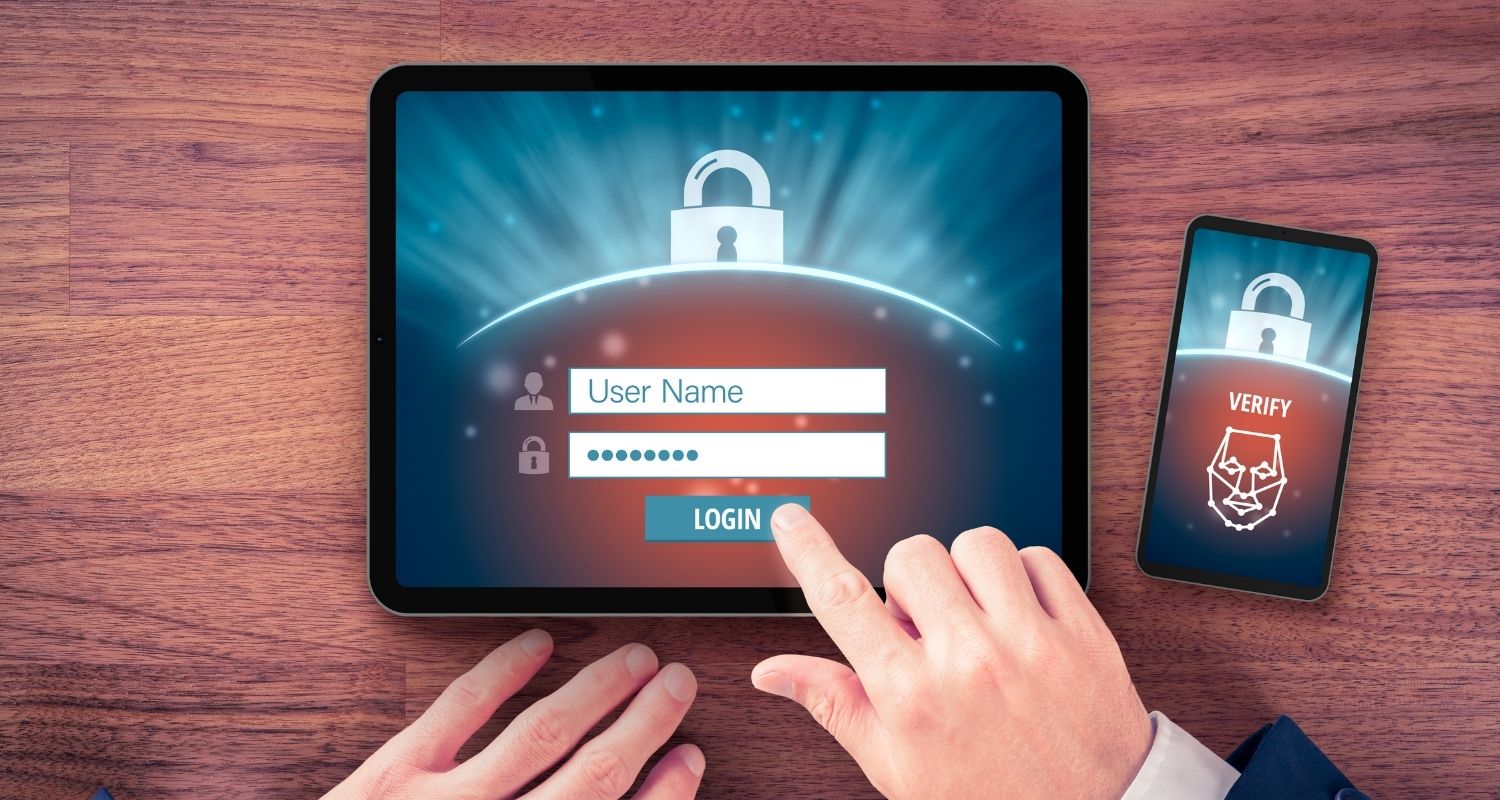
1) Turn on two-factor authentication
Two-factor authentication (2FA) adds an extra step when you log in, usually by sending a code to your phone, email or authentication app. Yes, it can feel annoying, but that extra step can stop a hacker who has your password from getting into your account.
Here’s why it helps:
- If someone tries to log in with your password, you may get an alert or code request.
- If the account detects too many attempts, it may temporarily lock access.
- If you get a warning you did not trigger, you can change your password from another trusted device.
- If your computer may be compromised, use your phone or another safe device to secure the account.
Better to deal with an extra login step than hand a scammer an easier way in.
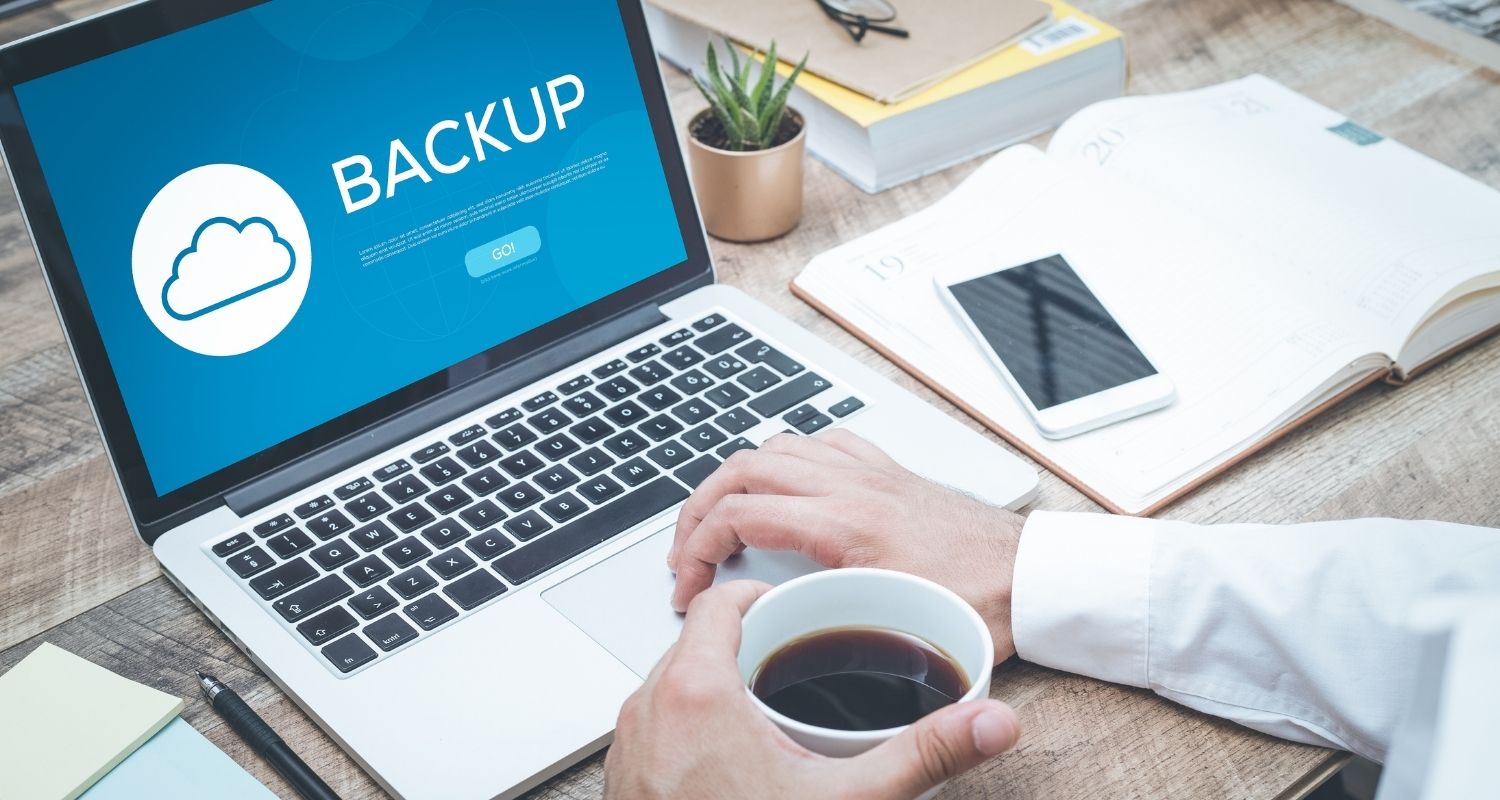
2) Back up your data
Backing up your data may not sound like a hacking defense, but it can make a huge difference if your computer gets infected, locked down or needs to be wiped.
A backup gives you more options if something goes wrong. You can store your files on:
- An external hard drive
- A secure cloud backup service
- Another trusted backup device
If you need help deciding what type of backup is best, see:
If a hack is bad enough, a complete wipe of your system may be the safest way to recover. Having a recent backup means you may still be able to restore your important files. It is also smart to keep your most sensitive files off the computer you use every day when possible.
3) Configure your email settings
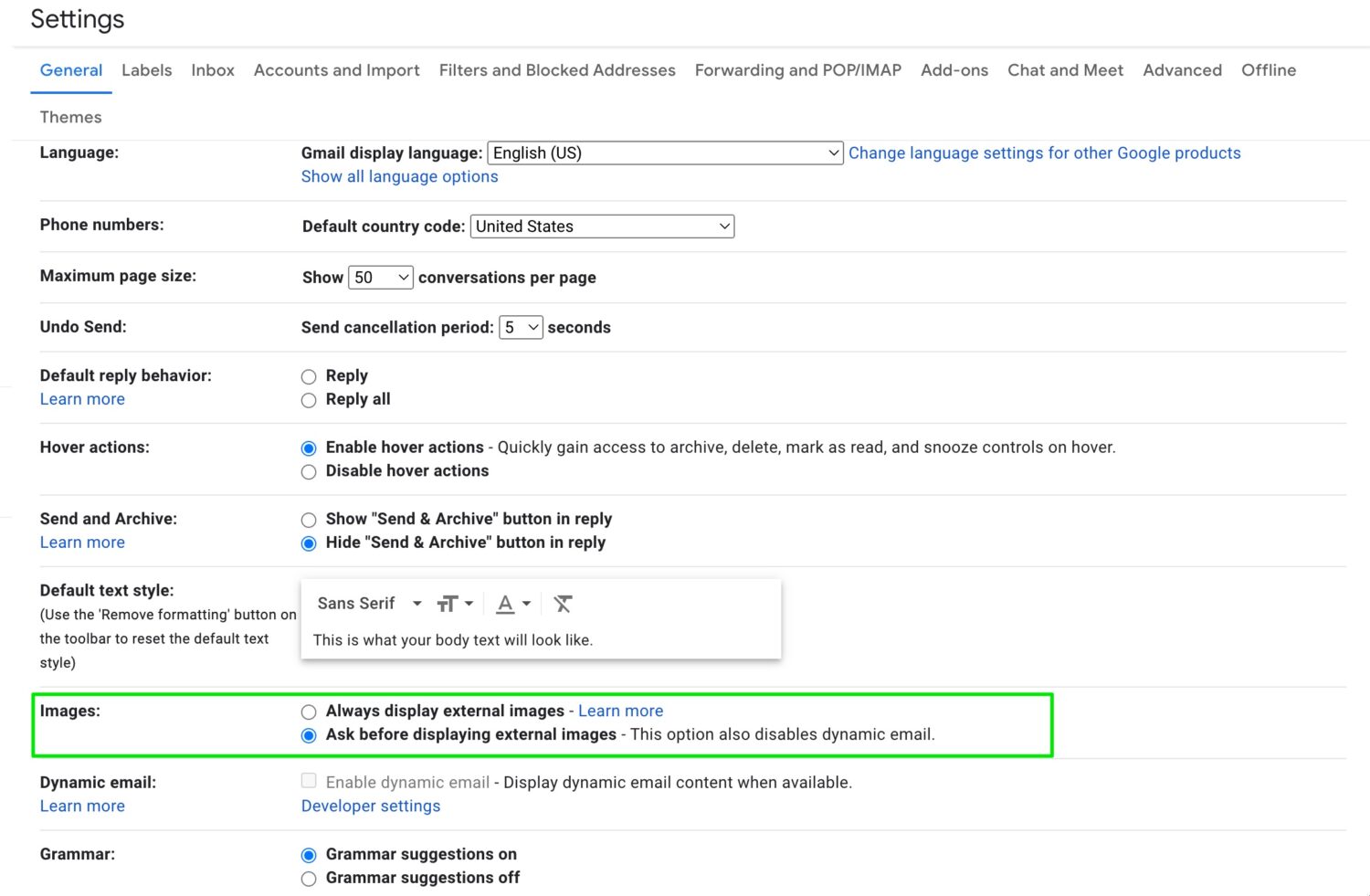
Email can be one of the easiest ways for scammers to reach you. Changing your settings so images and remote content do not automatically load can help reduce tracking and lower the chances you accidentally interact with something suspicious.
Gmail desktop
- Click the Settings gear
- Choose See all settings
- Under the General tab, go to the Images row
- Choose Ask before displaying external images
- Go to the bottom of the page and click Save Changes
Gmail mobile
- Tap the hamburger menu with three horizontal lines
- Select Settings
- Select the account you want to manage
- Scroll down and tap Images
- Select Ask before displaying external images
Apple Mail on Mac
- Click Mail
- Click Settings
- Select Privacy
- Turn on Block All Remote Content
Now, if you want to view an image within an email, you can click Load Remote Content to view the blocked image.
Outlook desktop for Windows
In classic Outlook:
- Go to File
- Click Options
- Click Trust Center
- Select Trust Center Settings
- Click Automatic Download
- Check the box that says Don’t download pictures automatically in standard HTML email messages or RSS items
Outlook for Mac
- Click Outlook
- Click Settings
- Select Reading
- Look for the option that controls downloading pictures from the internet
- Choose the setting that blocks automatic downloads, such as Never, depending on your Outlook version
Yahoo desktop
- Click Settings
- Select More Settings
- Click Viewing email
- In the Show images in messages section, click Ask before showing external images
Looking for private and secure email solutions? See: Best Private and Secure Email Providers
Related Links:
- Russian hackers hijacked old Wi-Fi routers
- Beware of hackers showing up pretending to be IT
- Android flaw lets hackers unlock phones in under a minute
Kurt’s key takeaways
A hacked computer can make anyone feel helpless, but panic helps the scammer more than it helps you. The smartest first move is to disconnect, slow down and use the security tools you already trust. Don’t follow pop-ups. Don’t call numbers that suddenly appear on your screen. Open your antivirus program yourself, check your browser and remote access settings and change passwords from a different trusted device if needed. But let’s be real here. The best time to protect yourself is before something goes wrong. Strong antivirus software, two-factor authentication, regular backups and safer email settings can give you a real fighting chance. A few minutes of setup now can save you from a massive headache later.
Have you ever seen a strange pop-up, browser change or warning message that made you wonder if your computer had been hacked? Let us know in the comments below.
FOR MORE OF MY TECH TIPS & SECURITY ALERTS, SUBSCRIBE TO MY FREE CYBERGUY REPORT NEWSLETTER HERE
Copyright 2026 CyberGuy.com. All rights reserved. CyberGuy.com articles and content may contain affiliate links that earn a commission when purchases are made.
🎙 Now Streaming: My New Podcast: The CyberGuy Report
Kurt’s Top Deals
Deals move fast and inventory can be limited, so don’t wait too long.
| 🔥 Editor’s pick  Summer entertaining Ninja SLUSHi Machine (26% off) Frozen drinks and slushies at home in minutes. | |
| 💰 Top deal  Outdoor essential TYPEC Solar Bug Zapper (36% off) Solar-powered bug zappers for patios and camping. |