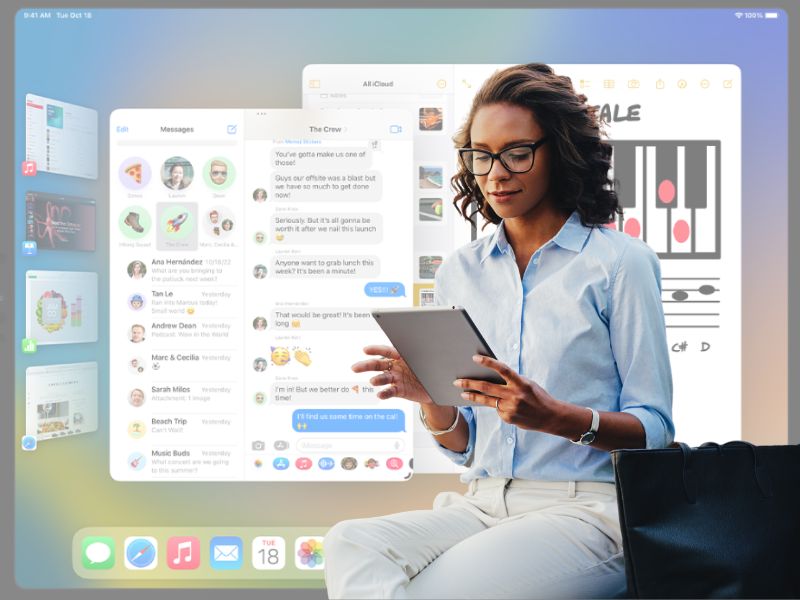
Apple has introduced recent updates for the iPad. iPadOS 16.1 through16.3 include a brand-new multitasking feature that you might find helpful. It’s called Stage Manager, and it allows you to use up to 4 different apps with varying window sizes. It automatically organizes apps and windows, making it super quick and easy to switch between tasks.
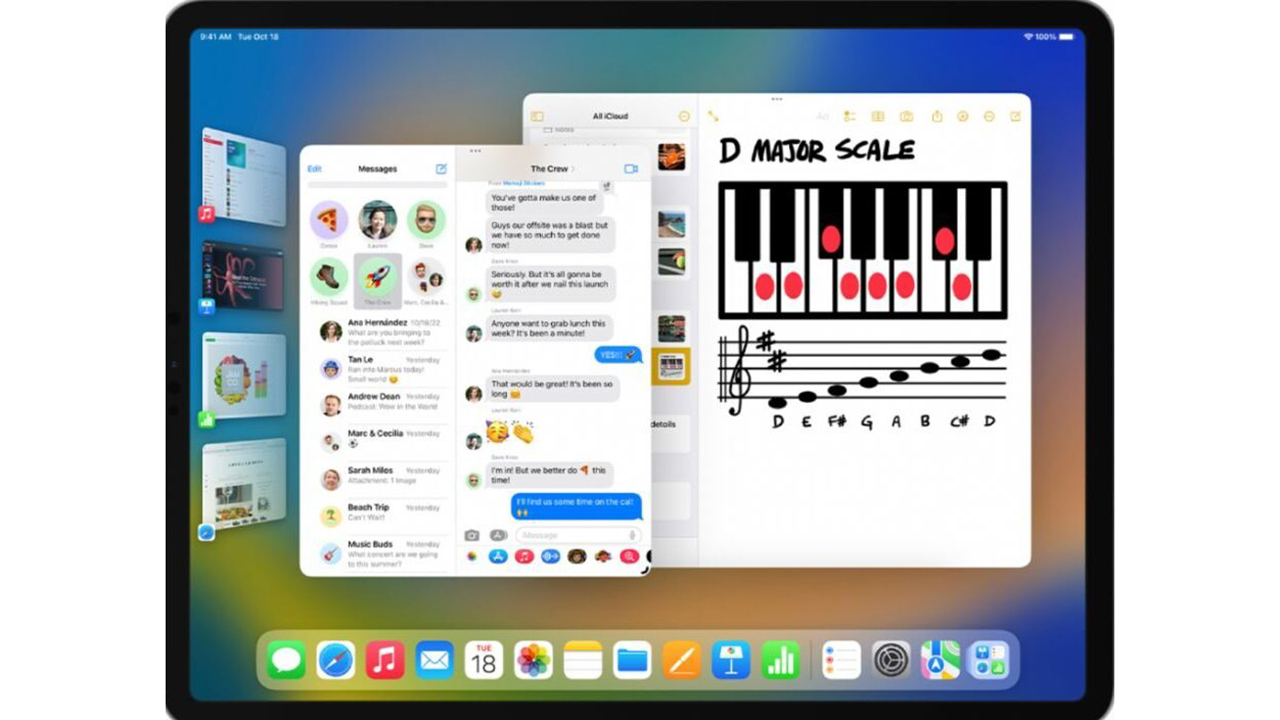
You can drag and drop windows from the side or open apps from the dock to create groups of apps for faster, more flexible multitasking. The window of the app you are working on is displayed prominently in the center of the screen. The other apps and windows are arranged on the left-hand side in order of how you opened them. However, it also allows you to simultaneously overlap apps on the same screen on your iPad.
It’s important to note that this new Stage Manager feature is only available on the iPad Air (5th generation), all 11-inch iPad Pro models, and the 2018 or newer 12.9-inch iPad Pro models.
How do I turn on Stage Manager on my iPad?
There are two different ways for you to enable Stage Manager on your iPad. The first way is simply by swiping down from the top-right corner of your iPad screen and selecting the Stage Manager icon.
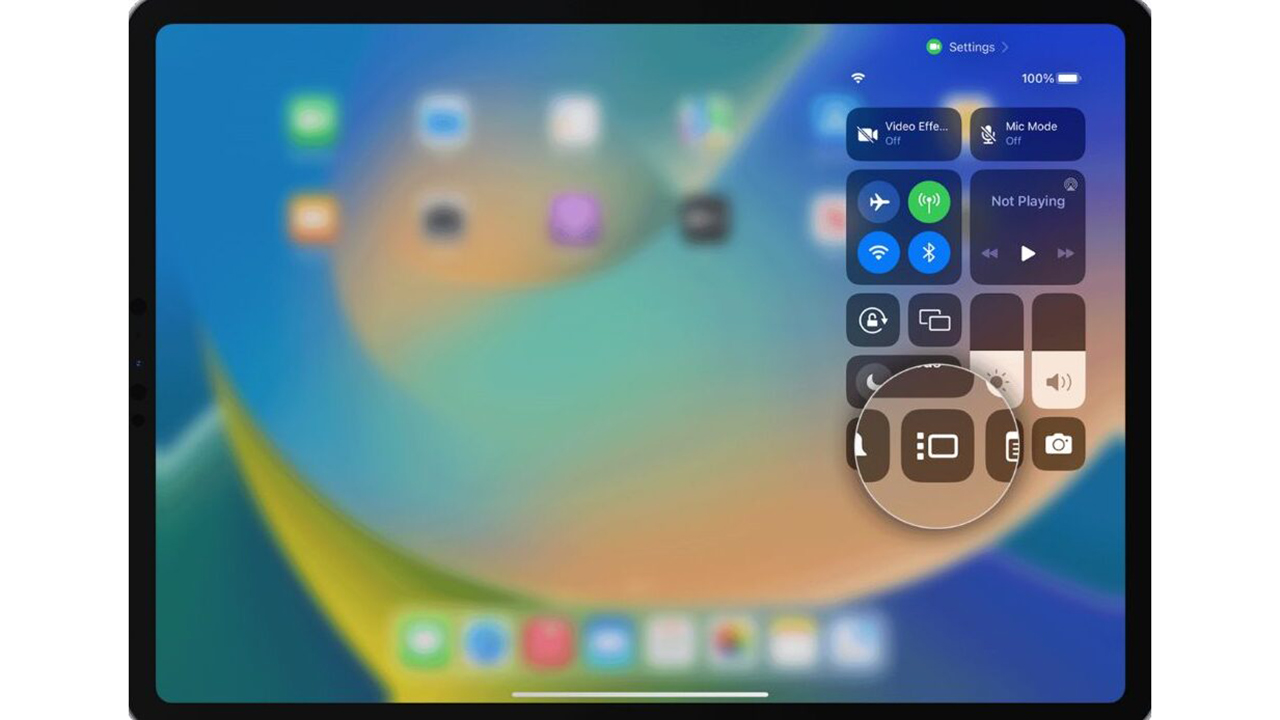
The second way to turn Stage Manager on or off is from the Settings app:
- Open the Settings app
- Tap Home Screen & Multitasking, then tap Stage Manager
- Turn on or off Use Stage Manager on iPad
How to move and adjust different windows
Once the Stage Manager app is on, you will then have the ability to open multiple windows at once and move and adjust their size the way you want. There are multiple ways to do this, based on whether you’re using a touchscreen or using a mouse, or a trackpad.
If you’re using a touchscreen:
- Open a new window
- Look at either bottom corner of the window and find the small handle icon
- Touch and hold the icon and drag it around to adjust the size of the window
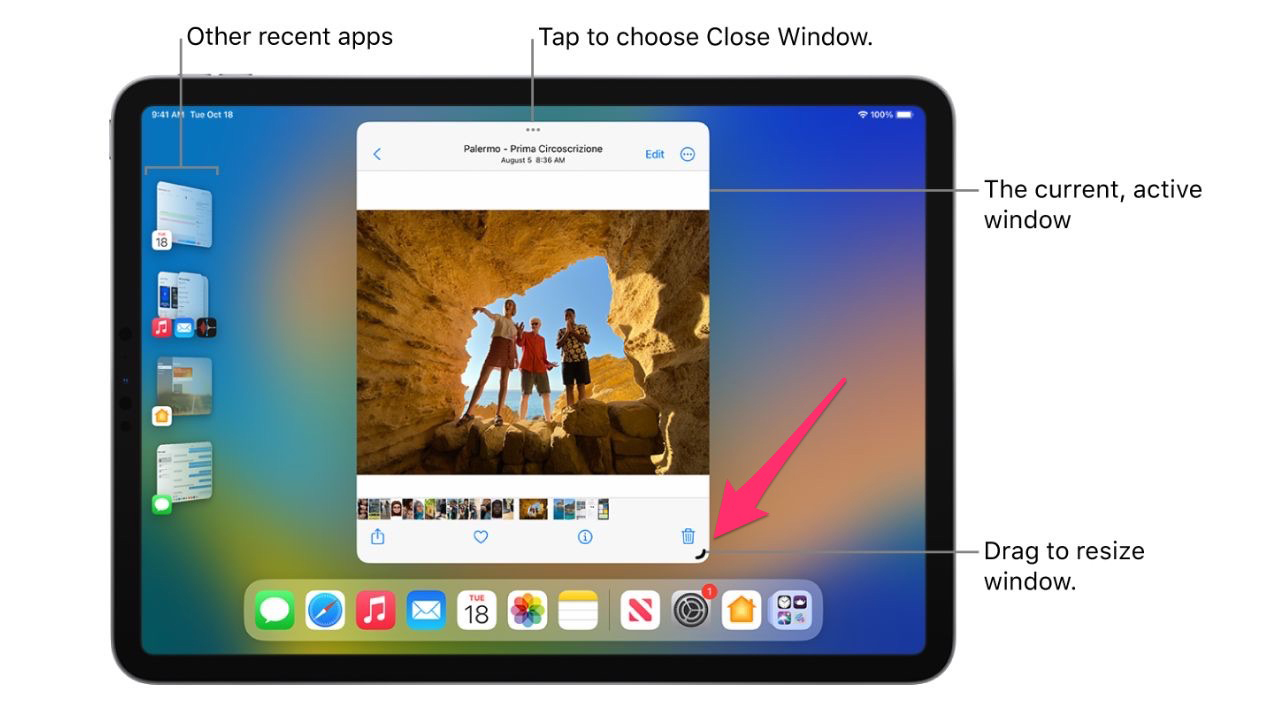
If you’re using a mouse or trackpad to resize the window, simply use the mouse pointer at any edge of the window to resize it.
It is important to note that if you’re only working with one window at a time, the main window you are working with will appear in the center of the screen, while any other apps you have open will slide to the left side of the screen and appear in a list format. You can tap any of those windows if you want them at the forefront of your screen again.
How to multitask with multiple windows at once
Stage Manager allows up to actively use up to 4 apps at a time with multitasking. Here are 3 different ways you can do this on your iPad:
1. Use the 3 dots
- At the top center of an open window, tap the three dots
- Select Add Another Window
- The current windows will move to the side and show you a list of apps you can add. Select one.
Note: Other than the ‘Add Another Window option,’ the 3 dots at the top center of each window also allow you to put a single window into Fullscreen mode, minimize the window (without closing it), or close the app completely.
2. Use the Recent apps list
- The Recent apps you’ve used will appear on the left-hand side of your screen in a list format
- Touch and hold one of the apps to select it
- Drag it to your current window
3. Use the Dock
- Across the bottom of your screen is where the Dock with all your other apps live (iMessage, Maps, Calendar, etc.)
- Touch and hold any app in the Dock and drag it to the center of your screen
How to switch between apps
When you are working in an app and want to switch to another app, the app that you are currently working in will automatically move to the left-hand side of your screen in your Recent apps list and will be replaced by whichever new app you open. You can switch between apps by doing any of the following steps:
- Tap another app in the Recent apps list on the left-hand side of your screen
- Tap an icon in the Dock at the bottom of your screen
- Swipe up from the bottom of your screen to see all the apps you have open at once, and select the one you want to work in
Let us know what you think of the Stage Manager feature on your iPad. We’d love to hear from you.
Related:
- How to customize your iPhone’s new lock screen on iOS16
- How to edit and unsend messages on iOS16
- How to create your own text shortcuts on your phone
- Perfect photo but someone blinked? No problem with this trick
🎙 Now Streaming: My New Podcast: The CyberGuy Report
Kurt’s Top Deals
Deals move fast and inventory can be limited, so don’t wait too long.
| 🔥 Editor’s pick  Summer entertaining Ninja SLUSHi Machine (26% off) Frozen drinks and slushies at home in minutes. | |
| 💰 Top deal  Outdoor essential TYPEC Solar Bug Zapper (36% off) Solar-powered bug zappers for patios and camping. |